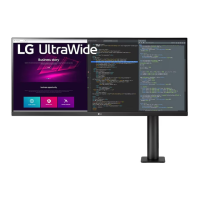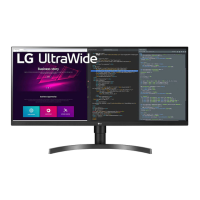
EasyManua.ls Logo

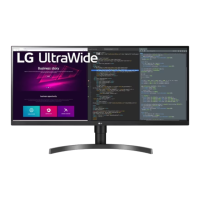
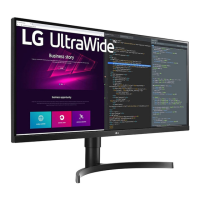
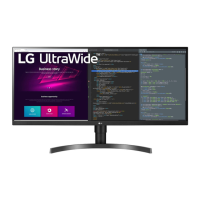
LG 34WN780-B - User Manual

LG 34WN780-B
32 pages
Print Icon
To Next Page IconTo Next Page
Loading...
* LG LED Monitor applies LCD screen with LED backlights.
Please read this manual carefully before operating your set and
retain it for future reference.
34WN780
34BN780
OWNER’S MANUAL
LED LCD MONITOR
(LED Monitor*)
www.lg.com
Copyright © 2019 LG Electronics Inc. All Rights Reserved.

Questions and Answers

  • S
    Stephen Lloyd MDJul 29, 2025
    What to do if nothing is displayed on my LG 34WN780-B screen?
    • J
      Jerry JacksonJul 29, 2025
      If nothing is displayed on your LG Monitor screen, ensure the power cord is correctly plugged into the power outlet. Also, verify the power cable connection and press the power button. You should also check that the connected input is enabled within the monitor's settings under the 'Input' option.
  • S
    sullivankeithAug 8, 2025
    Why is my LG Monitor displaying nothing?
    • C
      Chelsey DouglasAug 8, 2025
      If your LG Monitor displays nothing, it could be due to a missing or disconnected signal cable between your PC and the monitor. Check the cable and reconnect it securely. Also, the signals transferred from the PC (graphics card) might be out of the horizontal or vertical frequency range of the monitor. Refer to the Product Specification section of this manual to set the appropriate frequency.
  • M
    Michelle PrinceAug 18, 2025
    How to fix a blank screen on my LG 34WN780-B Monitor?
    • G
      glennlongAug 18, 2025
      To fix a blank screen on your LG Monitor, start by checking if the power cord is properly connected to the power outlet. Also, check the power cable connection and make sure to press the power button. Verify that the correct input source is selected in the monitor's settings under the 'Input' menu.

Summary

LICENSE AND TRADEMARK INFORMATION

HDMI Trademark Details

Details on HDMI and its logo as registered trademarks of HDMI Licensing Administrator, Inc.

VESA and DisplayPort Trademarks

Information regarding VESA and DisplayPort compliance logos as registered trademarks.

USB Implementers Forum Trademark

The SuperSpeed USB Trident logo is a registered trademark of USB Implementers Forum, Inc.

MaxxAudio Trademark Information

Information on MaxxAudio and related trademarks registered by Waves Audio Ltd.

ASSEMBLING AND PREPARING THE MONITOR

Safety Precautions for Assembly

Important warnings and cautions for safe assembly and handling of the monitor.

Supported Drivers and Software

Information on downloading and installing necessary drivers and software for the monitor.

PRODUCT AND BUTTON DESCRIPTION

Joystick Button Operation Guide

Guide to using the joystick button for monitor functions like power and volume control.

Monitor Moving and Lifting Safety

Instructions to prevent damage or injury when moving or lifting the monitor.

INSTALLING THE MONITOR ON A TABLE

Table Installation Safety Guidelines

Safety cautions and requirements for securely installing the monitor on a table.

CLAMP MOUNT INSTALLATION

Securing the Clamp Mount to the Table

Instructions on how to properly position and secure the clamp mount to a table.

SWIVEL STAND OPERATION

ADJUSTING THE STAND HEIGHT

ADJUSTING THE SCREEN ANGLE

KENSINGTON SECURITY SYSTEM INSTALLATION

WALL MOUNT INSTALLATION PROCEDURE

USING THE MONITOR

Connecting to a PC

Instructions for connecting the monitor to a computer using various interfaces.

HDMI and DisplayPort Connections

Details on connecting via HDMI and DisplayPort for video and audio signals.

CONNECTING AUDIO;VIDEO DEVICES AND PERIPHERALS

Connecting AV Devices

How to connect audio/video sources like AV devices to the monitor.

Connecting Peripherals via USB

Information on connecting USB devices and using the monitor as a USB hub.

USER SETTINGS AND CONFIGURATION

OSD Menu Navigation

How to access and navigate the monitor's on-screen display (OSD) menu.

Quick Settings Adjustments

Adjusting common settings like brightness, contrast, and volume quickly.

Picture Settings Configuration

Configuring picture modes, color, sharpness, and other visual display settings.

Sound Settings Management

Adjusting volume and audio features like MaxxAudio.

General Settings Configuration

Configuring energy saving, standby, and compatibility modes.

TROUBLESHOOTING COMMON ISSUES

Screen Display and Image Problems

Solutions for issues like no display, shaky screen, or image sticking.

Feature and Functionality Issues

Troubleshooting for when monitor features are unavailable or disabled.

Connectivity and Sound Troubleshooting

Resolving unrecognized monitor messages and lack of sound from the headphone port.

PRODUCT SPECIFICATION (34 WN780)

Resolution and Power Specifications

Details on screen resolution, power rating, and consumption.

Environmental and Physical Dimensions

Information on operating conditions, temperature, humidity, and physical dimensions.

Weight Specifications

Specifications regarding the weight of the monitor with and without the stand.

PRODUCT SPECIFICATION (34 BN780)

Resolution and Power Specs (34 BN780)

Details on screen resolution, power rating, and consumption for the 34BN780 model.

Environmental and Dimensions (34 BN780)

Operating conditions, temperature, humidity, and physical dimensions for the 34BN780.

Weight Specs (34 BN780)

Weight specifications for the 34BN780 model with and without stand.

FACTORY SUPPORT MODE (PC)

DisplayPort;HDMI Preset Modes

Table of preset modes, frequencies, and polarity for PC input.

HDMI TIMING (VIDEO)

Video Preset Modes and Frequencies

Details on preset video modes and their corresponding horizontal/vertical frequencies.

POWER LED STATUS INDICATORS

LED Color Indicators by Mode

Explains the LED color indications for different monitor operating modes.

ENERGY STAR QUALIFICATION

LG 34WN780-B Specifications

General IconGeneral
Screen Size34 inches
Resolution3440 x 1440
Aspect Ratio21:9
Panel TypeIPS
Refresh Rate60Hz
Brightness300 cd/m²
Contrast Ratio1000:1
HDRHDR10
VESA Mounting100 x 100 mm
Color GamutsRGB 99%
Response Time5ms
Connectivity2 x HDMI, DisplayPort, USB-C, 2 x USB 3.0
Viewing Angle178° (H) / 178° (V)
AdjustabilityHeight, Tilt

Related product manuals