EasyManua.ls Logo

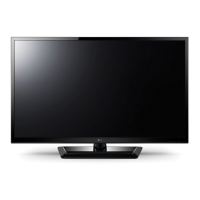
LG 55LK530 - User Manual

LG 55LK530
246 pages
Print Icon
To Next Page IconTo Next Page
Loading...
G
Ufe's Good
LED LCD
TV
/
LC
PLASMA
TV
TV
/
Please
read
this
manual
carefully
before
operating
your
set
and
retain
it
for
future
reference.
LED LCD
TV
MODELS
42LV3700 42LV5500 32LW5700
47LV3700 47LV5500 42LW5700
55LV3700 55LV5500 47LW5700
42LV5400 42LW5600 55LW5700
47LV5400 47LW5600 72LZ9700
55LV5400 55LW5600
PING:
MFL62882745
(l101-REVOO)
47LW6500
55LW6500
65LW6500
47LW7700
55LW7700
47LW9500
55LW9500
60LW9500
LCD
TV
MODELS
42LK530
47LK530
55LK530
42LK550
47LK550
PLASMA
TV
MODELS
50PZ750
60PZ750
50PZ950
60PZ950
50PZ950U
60PZ950U
www.lg.com

Table of Contents

Other manuals for LG 55LK530

Questions and Answers

  • A
    Adam FrankSep 23, 2025
    Why are subtitles not working on my LG TV?
    • B
      Brenda GarciaSep 23, 2025
      If subtitles are not working on your LG TV, check if the file plays normally on a PC. Ensure the video and subtitle file names are the same and located in the same folder. Verify that the subtitle file and language are supported.
  • L
    Lisa WelchAug 23, 2025
    Why is there no sound on my LG TV but picture is fine?
    • C
      campbellloriAug 23, 2025
      If your LG TV displays no sound but shows images, first, press the VOL + or - button to adjust the volume. Check if the sound is muted by pressing the MUTE button. Try switching to other channels to rule out a broadcast issue. Ensure the audio cables are properly connected and verify that the TV Speaker feature is enabled in the menu.
  • R
    Robert TerrellAug 25, 2025
    LG TV screen is too dark, how to fix it?
    • J
      Jordan MorrisAug 26, 2025
      If your LG TV screen appears extremely dark even when powered on, adjust the brightness and contrast settings in the menu option.
  • V
    Victor HurstAug 27, 2025
    What does 'No Signal' mean on LG TV and how to fix it?
    • G
      Gary SavageAug 27, 2025
      If your LG TV displays 'No Signal' on the screen, verify the signal cable is properly connected between the TV and other devices. Also, check the selected input source by pressing the INPUT button.
  • J
    Jeffrey ButlerAug 27, 2025
    Why my LG TV has no image and sound?
    • M
      Michael LopezAug 27, 2025
      If your LG TV has no image and no sound, ensure the TV is powered on and the power cord is securely connected to the wall outlet. To check if the wall outlet is working, connect another device to it.
  • D
    Dale McmillanSep 17, 2025
    What to do if my LG TV says 'This file is invalid'?
    • K
      Kyle ReynoldsSep 18, 2025
      If your LG TV displays a message saying 'This file is invalid' or the audio works but the video doesn't, check if the file plays normally on a PC to ensure it's not damaged. Also, verify if the resolution, video/audio codec, and frame rate are supported.
  • C
    crystal78Sep 14, 2025
    How to adjust phase setting on LG TV?
    • S
      Sophia CherrySep 14, 2025
      If you see horizontal noises or blurred characters on your LG TV, adjust the Phase setting in the menu option.
  • N
    ncoxSep 16, 2025
    Why doesn't a file appear on the Movie List of my LG TV?
    • M
      maryjamesSep 16, 2025
      If a file does not appear on the Movie List of your LG TV, verify that the file extension is supported.
  • M
    Michael IngramSep 6, 2025
    Why is my LG TV making unusual sounds?
    • S
      Sierra GillespieSep 6, 2025
      If your LG TV produces an unusual sound from inside, it may be due to changes in ambient humidity or temperature when the product turns on or off. This is normal and does not indicate a problem with your product.
  • L
    Linda Williams MDSep 3, 2025
    How to fix horizontal or vertical bars on LG TV?
    • J
      John DavisSep 3, 2025
      If you notice horizontal or vertical bars or blurring on your LG TV screen, check for local interferences from devices like electrical appliances or power tools.

Summary

IMPORTANT SAFETY INSTRUCTIONS

WARNING; CAUTION

Key safety warnings regarding electric shock, rain, or moisture hazards.

CAUTION concerning the Power Cord

Precautions for safe use and handling of the power cord to prevent fire or shock.

Grounding

Ensuring proper grounding for the TV to prevent electric shock and ensure safe operation.

Cleaning

Guidelines for safely cleaning the TV screen and body with a soft cloth.

Ventilation

Recommendations for proper ventilation when installing the TV to prevent overheating.

Viewing 3 D Imaging (For 3 D TV)

Guidance and precautions for watching 3D content to ensure safety and comfort.

Preventing Image burn or Burn-in on your TV screen

Advice on how to prevent permanent image retention on the TV screen.

ASSEMBLING AND PREPARING

Unpacking

Check the product box for all included items upon unpacking.

Parts and buttons

Identification and description of parts and buttons on the TV for PZ750, PZ950, PZ950U series.

Lifting and moving the TV

Precautions and instructions for safely lifting and moving the TV to prevent damage.

Setting up the TV

Instructions for placing the TV on a pedestal stand or mounting it.

Mounting on a table

Instructions for safely placing the TV on a table, including ventilation and swivel.

Mounting on a wall

Guidance on mounting the TV to a wall, including VESA standards and bracket details.

REMOTE CONTROL

REMOTE CONTROL

Description of the remote control buttons and their functions for basic TV operation.

Magic Motion Remote Control Functions

Overview of the Magic Motion remote control functions and its usage with compatible TVs.

Registering Magic Motion Remote Control

Instructions for pairing the Magic Motion remote control with the TV.

Precautions to Take when Using the Magic Motion Remote Control

Important precautions for using the Magic Motion remote, including range and interference.

WATCHING TV

Connecting an antenna or cable

How to connect an antenna or cable box to watch TV.

Turning the TV on for the first time

Guide for the initial setup process when turning the TV on for the first time.

Watching TV

How to control the TV using remote buttons while watching TV.

Accessing Home Menu

Guide to accessing and navigating the Home menu on the TV.

Managing channels

Instructions for setting up and editing TV channels.

Adjusting aspect ratio

How to resize images to fit the screen or view them in their previous state.

ENTERTAINMENT

Network Connection

Steps to connect the TV to a local area network (LAN) and set up network settings.

Connecting to a wireless network

How to connect the TV to a wireless network using an LG Wireless LAN Adapter.

LG Apps function

Information on downloading and using additional applications from the LG App Store.

Smart Share Function

Connecting USB storage devices to the TV for multimedia playback.

Connecting DLNA DMP (Digital Living Network Alliance, Digital Media Player)

Connecting to DLNA servers to play media files from compatible devices.

Browsing files

How to browse files (photos, music, movies) from USB storage devices.

3 D IMAGING (FOR 3 D TV)

3 D Technology

Explanation of how 3D TV technology works and the requirements for viewing 3D content.

When watching 3 D imaging

Guidelines and tips for optimal viewing of 3D content to ensure comfort and safety.

When using 3 D Glasses

Instructions and precautions for using 3D glasses safely and effectively.

Viewing 3 D Imaging

Step-by-step guide on how to view 3D content.

Setting 3 D Imaging

How to access and adjust 3D imaging settings for optimal viewing.

MAKING CONNECTIONS

Connection Overview

Illustrates how to connect various external devices to the TV's back panel.

HDMI Connection

Transmits digital video and audio signals using an HDMI cable.

DVI to HDMI Connection

Connecting a DVI source to the TV via DVI-HDMI cable, including audio connection.

Composite Connection

Connects analog video and audio signals using a composite cable.

Connecting to a PC

Instructions for connecting a PC to the TV for Plug & Play functionality.

Connecting to an Audio System

Connecting an external audio system to the TV for enhanced sound.

Connecting to a USB

Connecting USB storage devices to access multimedia files.

Connecting the Wireless Media Box

Connecting the LG Wireless Media Box for wireless video and audio transmission.

TROUBLESHOOTING

General

Troubleshooting common general problems with the TV and remote control.

Video

Troubleshooting common video display problems like poor image quality or lines.

Movie

Troubleshooting issues with movie file playback, including invalid files, audio, or subtitles.

SPECIFICATIONS

Television System

Details about the TV's television system, program coverage, and antenna impedance.

Environment condition

Specifications for operating and storage temperature and humidity.

MODELS

Dimensions, weight, and power consumption for PZ750 and PZ750-UG models.

3 D supported formats

Supported input signals, resolutions, and playable 3D video formats.

LICENSES

LICENSES

Information about supported licenses and where to find more details on LG's website.

EXTERNAL CONTROL DEVICE SETUP

RS-232 C Setup

Instructions for setting up RS-232C serial port connection for external control.

Command reference list

List of commands, data, and functions for controlling the TV via external devices.

OPEN SOURCE LICENSE

OPEN SOURCE LICENSE

Information about LG Electronics' use of open source software and license details.

GNU GENERAL PUBLIC LICENSE

Full text of the GNU General Public License.

Apache License Version 2.0

The text of the Apache License Version 2.0.

MIT license

The text of the MIT license.

LG 55LK530 Specifications

General IconGeneral
Screen Size55 inches
Display TypeLCD
Resolution1920 x 1080
Backlight TypeLED
USB Ports1
Audio Output20W
Smart TVNo
Refresh Rate60Hz
Aspect Ratio16:9
InputsComponent, Composite

Related product manuals