
 Need help?
Do you have a question about the LG GP60NB50 and is the answer not in the manual?
Connect the drive to the computer using the USB 2.0 (Y type) cable. Ensure proper power connection if needed.
Instructions for ejecting discs on Mac OS and Windows, including software CD usage.
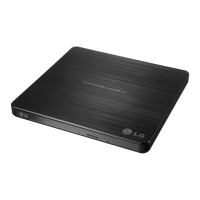
Details the front panel components: Disc Tray, Activity Indicator, Eject Button, and Emergency Eject Hole.
Describes the rear panel component: USB Connector (mini) for the USB 2.0 cable.
Procedure for safely removing the USB converter cable in Windows using system tray icon.
Details system requirements for the drive, including CPU, memory, hard disk, and OS compatibility.
Lists all supported disc types, including DVD, CD, and M-Disc formats.
Details the read and write speeds for various DVD and CD disc formats.
Specifies the power requirement for the drive, stating 5V DC.
Defines the operating and storage temperature and humidity ranges for the drive.
Instructions for installing authoring software, uninstalling previous versions, and updating firmware.
Warnings about laser eye damage, avoiding cover removal, and referring servicing to qualified personnel.
Warnings to reduce the risk of fire or electric shock by not exposing the appliance to rain or moisture.
Details FCC compliance for Class B digital devices, including interference guidelines and corrective measures.
States that unauthorized modifications can void the user's authority to operate the equipment.
 General
| CD write speed | - x |
|---|---|
| CD-R write speed | 24 x |
| DVD+R write speed | 8 x |
| DVD-R write speed | 6 x |
| DVD-RAM access time | 360 ms |
| Internal | No |
| Product color | Black |
| Purpose | Laptop |
| Interface | USB 2.0 |
| Plug and Play | Yes |
| Optical drive type | DVD Super Multi DL |
| Optical disc diameter | 120 mm |
| Drive device, buffer size | 1 MB |
| USB 2.0 ports quantity | 1 |
| Bundled software | LG Burning Tools, PowerDVD 7, Power Producer, Power Backup, Norton Internet Security, YouCAM 1.0 |
| Windows operating systems supported | Windows 7 Home Premium, Windows 8, Windows Vista Business, Windows Vista Home Basic, Windows Vista Home Premium, Windows Vista Ultimate, Windows XP Home, Windows XP Professional |
| Storage temperature (T-T) | -30 - 60 °C |
| Operating temperature (T-T) | 5 - 55 °C |
 Weight and Dimensions
| Depth | 137.5 mm |
|---|---|
| Width | 144 mm |
| Height | 14 mm |
| Weight | 200 g |

 To Next Page