Getting Started4
Getting Started
1
k
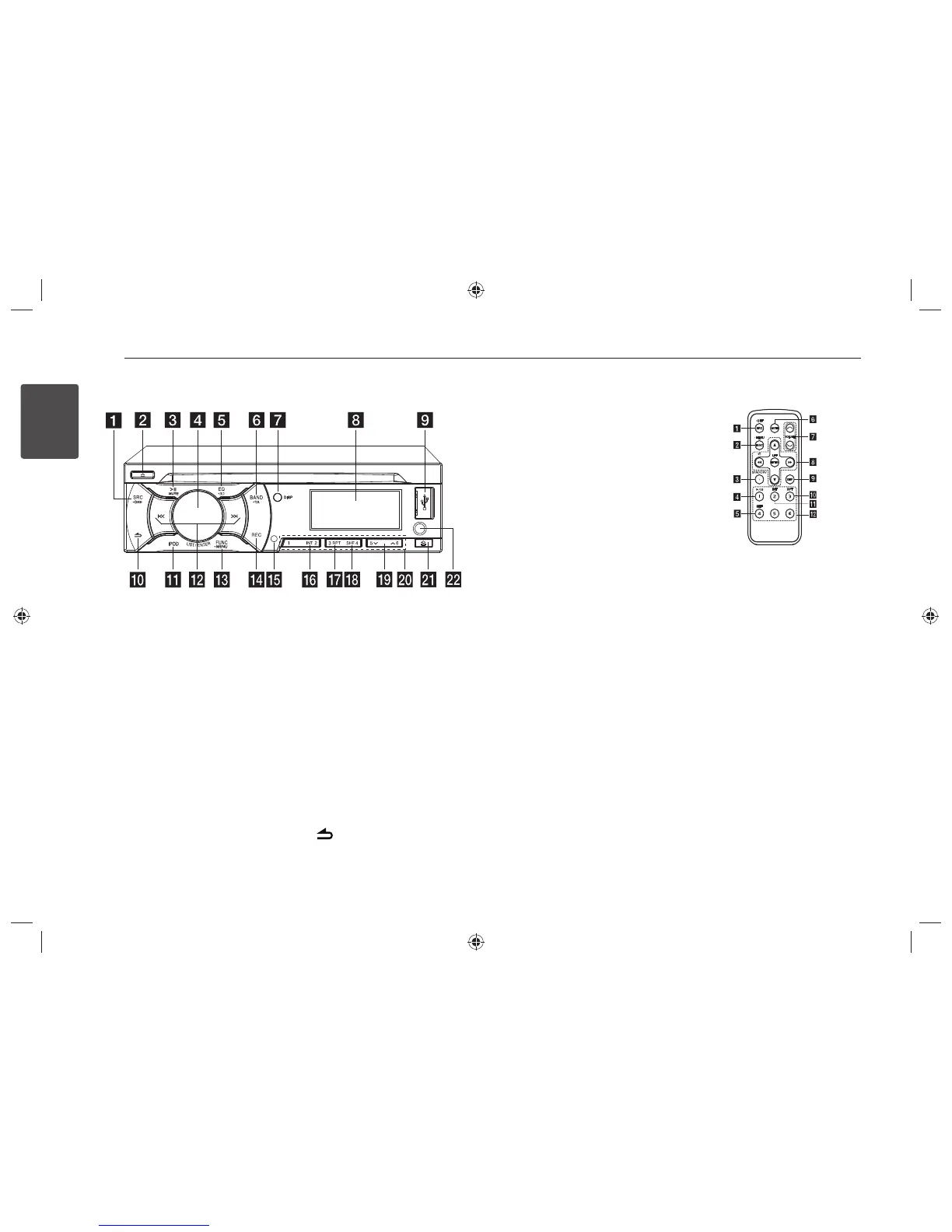
iPOD
Activates iPod/iPhone CONTROL
MODE.
l
Y/U
Skip / Search / Seek / Tune
m
FUNC
In each mode, sets playback items.
• MENU
Activates setting menu.
n
REC
Recording to USB.
o
Remote Sensor
p
INT
Intro scan.
q
RPT
Repeats playback.
r
SHF
Shu es playback.
s
W/S
- Moves 10 MP3 / WMA tracks
backward or forward if there is no
folder or one folder on a CD/ USB.
- Moves to the previous or next
folder if there are more than 2
folders on a CD/ USB.
t
Numeric buttons (1 to 6)
Selects a numbered preset station in
TUNER.
u
6
Opens the front panel.
v
AUX
If connected to other portable player,
you can enjoy music from it on the
unit.
Remote control
a
SRC / • OFF
- When pressed, selects function
sources.
- When pressed and held, powers
unit o .
b
FUNC
When pressed, sets playback items in
each mode.
• MENU
When pressed and held, activates
setting menu.
c
BAND
Selects a band in Tuner mode.
DRV
Moves to a next USB drive.
d
d/M
Plays or pauses playback.
e
SHF Shu es playback.
f
MUTE Temporarily stops the sound.
g
VOLUME
W
/
S
Adjusts volume level.
Front panel
a
SRC / • OFF
- When pressed, selects function
sources.
- When pressed and held, powers
unit on or o .
b
R
Ejects a disc.
c
T
Plays and pauses playback.
MUTE
Temporarily stops the sound.
d
LIST / ENTER
(Volume knob)
- Adjusts volume level.
- Confirms the settings.
- Checks tracks, les or preset
stations.
e
EQ / • 3D
Improves sound quality.
- When pressed, selects the EQ
function.
- When pressed and held, selects the
3D SOUND function.
f
BAND
- Selects a band in Tuner mode.
- Moves to a next USB drive.
• TA (Optional)
- Searches stations that have TA / TP
information, when it is pressed and
held.
g
DISP
- Press it, you can check the clock
time.
- Press and hold it, you can turn
on/o the display window and the
light of LED buttons.
h
Display window
i
USB port
j
Returns to the previous step.



 To Next Page