5
ENGLISH_Index
Home Dashboard Accessesthe[HomeDashboard].(DependingOnCountry)
User Guide Accessesthe[UserGuide].(DependingOnCountry)
Accessesyourfavoriteprogrammeslist.(DependingOnCountry)
,
Control buttons Controlsmediacontents.(DependingOnCountry)
Note
• Tousethebutton,pressandholdformorethan1second.
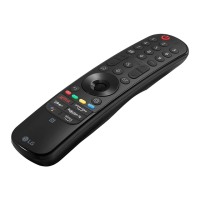
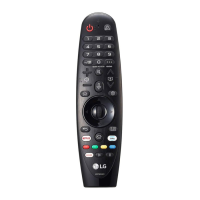
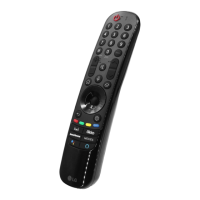
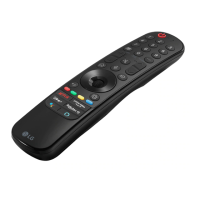
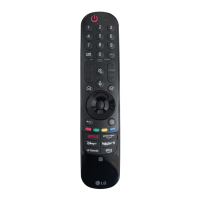
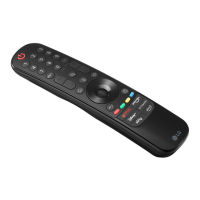
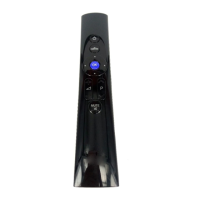
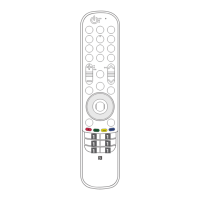
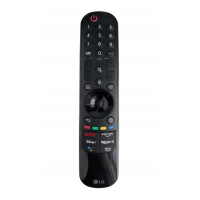
• Theremotecontrolimageshownmaydifferfromtheactualproduct.
• Theorderofdescriptionmaydifferfromtheactualproduct.
• Somebuttonsandservicesmaynotbeprovideddependingonmodelsorregions.
Connecting Smart Devices using NFC Tagging
Using the NFC Feature
NFCistechnologythatusesNearFieldCommunication,allowingyoutoconvenientlysendandreceive
informationwithoutseparatesettings.
BybringingasmartdeviceneartheNFC-enabledremotecontrol,youcaninstalltheLGThinQappand
connectthedevicetotheTV.
1. TurnonNFCinthesmartdevice’ssettings.TouseNFCwithAndroiddevices,settheNFCoptiontoenable
‘read/writetags’inthesmartdevice'ssettings.TheNFCsettingsmayvarydependingonthedevice.
2. Bringthesmartdevicenearthe (NFC)ontheremotecontrol.TherequireddistanceforNFCtaggingis
about1cm.
3. FollowtheinstructionstoinstalltheLGThinQapponyoursmartdevice.
4. Retaggingthesmartdevicetotheremotecontrolallowsyoutoconvenientlyaccessvariousfeatureson
theconnectedTVthroughtheLGThinQapp.
Note
• ThisfeatureisavailableforNFC-enabledsmartdevicesonly.
• ThisfeatureisonlyavailableiftheremotecontrolhasanNFClogo.


 To Next Page