Need help?
Do you have a question about the LG MR22GN and is the answer not in the manual?
Lists the included accessories such as the Magic Remote and batteries.
Provides instructions on how to open the battery cover and insert batteries.
Explains steps to register or disconnect the Magic Remote with the TV.
Details functions of Power, Number, Guide, Dash, List, Quick Access, and Home buttons.
Describes Volume, Mute, and AD/SAP buttons for audio adjustments and features.
Explains how Channel/Programme buttons navigate saved content.
Covers voice command features and changing the TV's input source.
Details the Wheel (OK) button for menu selection and Magic Explorer.
Explains navigation, back, Q. Settings, Red, and Streaming Service buttons.
Describes access to Home Dashboard, User Guide, and favorite programs.
Explains how to use NFC tagging to connect smart devices to the TV.
Lists essential precautions for using the remote, including range and battery safety.
Provides detailed technical specifications for the Magic Remote.
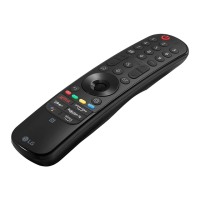
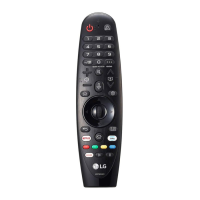
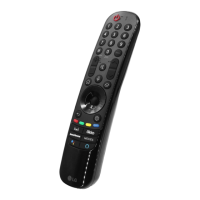
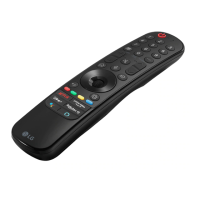
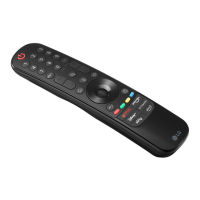
This document is an owner's manual for the LG Magic Remote, model MR22GN. It provides instructions on how to use, register, and maintain the remote control, as well as details on its various functions and features.
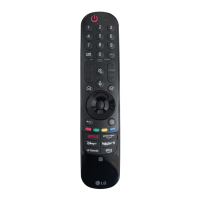
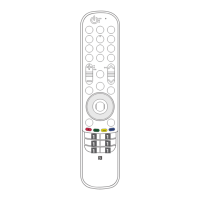
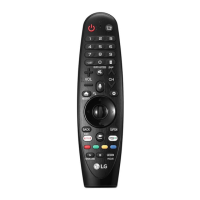
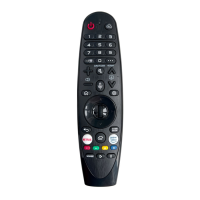
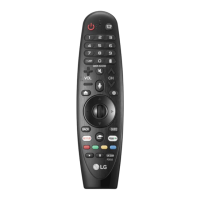
The LG Magic Remote is designed to control an LG TV, offering a range of functionalities beyond traditional remote controls. Its primary function is to turn the TV on or off using the Power button. It includes Number buttons for entering numbers and accessing specific functions like Quick Help and the Guide. The Dash button allows for inserting a dash between numbers (e.g., 2-1), useful for channel selection.
The remote features LIST for accessing saved channels or programs, and QUICK ACCESS for accessing the [Edit Quick Access] menu. The [Edit Quick Access] feature allows users to directly launch a specified app or Live TV by pressing and holding number buttons. The More actions button displays additional remote control functions.
For accessibility, the AD/SAP button enables video/audio descriptions (depending on country) and SAP (Secondary Audio Program) features. Volume buttons adjust the TV's volume level, while the Mute button mutes all sounds and also provides access to the [Accessibility] menu. Channel buttons / Programme buttons allow users to scroll through saved channels or programs.
The remote includes Home buttons: one to access the Home menu and another to launch the last used apps.
Voice recognition is a key feature, requiring a network connection. Users can speak while pressing and holding the dedicated button to use this function, which also checks for recommended content. The Input button changes the input source and accesses the [Home Dashboard].
The Wheel (OK) button is central to navigation. Pressing its center selects a menu, and users can change channels or programs by rotating the wheel. When the pointer color changes to purple, the Wheel (OK) button also accesses the [Magic Explorer] feature. This allows users to press and hold the pointer onto a video while watching a program, or press and hold on text when using [TV Guide], [Settings], [Sports Alert], or [Art Gallery].
Navigation is further supported by Up/Down/Left/Right buttons for scrolling through menus. If these buttons are pressed while the pointer is active, the pointer disappears, and the Magic Remote operates like a general remote. Shaking the Magic Remote left and right brings the pointer back.
The Back button returns to the previous level, clears on-screen displays, and returns to the last input viewing. Q. Settings provides quick access to [Quick Settings] and displays the [All Settings] menu.
Special functions are accessible in certain menus. A Red button runs the record function (country-dependent), and Streaming Service buttons connect to video streaming services.
Additional features include Home Dashboard access, User Guide access, and FAV for accessing favorite programs. Control buttons manage media content.
The Magic Remote is designed for intuitive use. To register the remote, users simply turn on the TV and press the Wheel (OK) button. To disconnect the Magic Remote, press and hold the Home and Back buttons together for more than 5 seconds. To disconnect and re-register simultaneously, press and hold the Home and Q. Settings buttons together for more than 5 seconds.
The manual highlights that some buttons, like those for Home Dashboard, User Guide, and FAV, may require pressing and holding for more than 1 second to activate their functions. The remote's image and description order may vary from the actual product, and some buttons and services might not be available depending on the TV model or region.
A significant usage feature is NFC Tagging for connecting smart devices. By enabling NFC on a smart device (and 'read/write tags' for Android), users can bring the device near the N (NFC) logo on the remote (within 1 cm) to install the LG ThinQ app. Retagging the device allows convenient access to various TV features through the app. This NFC feature is only available for NFC-enabled smart devices and if the remote control has an NFC logo.
The manual provides important precautions for maintaining the Magic Remote and ensuring its longevity. It advises using the remote within a specified range (10 m) to avoid communication failures, which can also occur due to obstacles or other accessories. Users are warned that devices like microwave ovens and wireless LANs operating in the same 2.4 GHz frequency band as the Magic Remote can cause interference. It's recommended to keep wireless routers (AP) more than 0.2 m away from the TV to prevent communication issues.
Battery replacement instructions are detailed: slide back the battery cover, replace alkaline batteries (1.5 V, AA) matching the polarity symbols (+ and -) inside the compartment, and close the cover securely. It's crucial not to mix old or used batteries with new ones.
Regarding battery safety, the manual explicitly states:
These guidelines are essential for safe and effective use of the LG Magic Remote.
 General
| Interface | IR Wireless |
|---|---|
| Input type | Press buttons/Wheel |
| Product color | Black |
| Backlight buttons | No |
| Brand compatibility | LG |
| Remote control proper use | Universal |
| Battery type | AA |
| Battery voltage | 1.5 V |
| Battery technology | Alkaline |
| Number of batteries supported | 2 |
| Maximum range | 10 m |
| Voice control | Yes |
| Frequency band | 2.400 - 2.4835 GHz |
| Number of devices supported | 1 |
| Operating temperature (T-T) | 0 - 40 °C |
| Package depth | 45 mm |
| Package width | 94 mm |
| Package height | 250 mm |
| Package weight | 260 g |
| Quantity per pack | 1 pc(s) |
 Weight and Dimensions
| Depth | 191 mm |
|---|---|
| Width | 31 mm |
| Height | 32 mm |
| Weight | 100 g |

 To Next Page