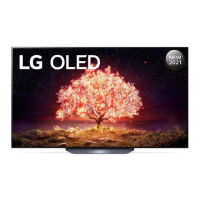
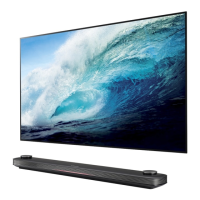
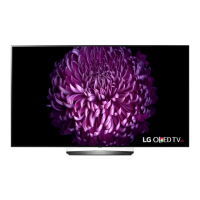
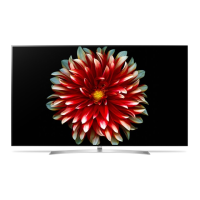
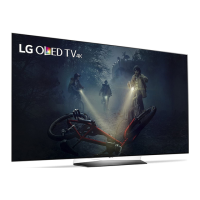
This document serves as the Owner's Manual for LG OLED TVs, providing essential safety information, setup instructions, and operational guidance. It is designed to be read thoroughly before operating the TV and kept for future reference.
Function Description
The LG OLED TV is a high-resolution display device that utilizes organic light-emitting diodes (OLEDs) to produce images. Unlike traditional LED/LCD TVs, OLED technology allows each pixel to emit its own light, resulting in perfect black levels and clear images without blurring. The TV supports various broadcasting specifications, including Digital TV (DVB-T/T2, DVB-C, DVB-S/S2) and Analogue TV (PAL B/B, PAL B/G, PAL D/K, PAL-I, SECAM B/G, SECAM D/K, NTSC-M). It can connect to external devices via HDMI and USB ports, and supports wireless connectivity through Wi-Fi (IEEE 802.11a/b/g/n/ac/ax) and Bluetooth. The TV also features a Magic Remote Control for intuitive navigation and smart device connectivity via NFC Tagging (on supported models).
Important Technical Specifications
Broadcasting Specifications:
- Digital TV: DVB-T/T2, DVB-C, DVB-S/S2
- DVB-S/S2 Programme Coverage: 950 ~ 2,150 MHz
- DVB-C Programme Coverage: 46 ~ 890 MHz
- DVB-T/T2 Programme Coverage:
- VHF III: 174 ~ 230 MHz
- UHF IV: 470 ~ 606 MHz
- UHF V: 606 ~ 862 MHz
- S Band II: 230 ~ 300 MHz
- S Band III: 300 ~ 470 MHz
- Maximum Number of Storable Programmes (Digital TV): 6,000 (DVB-S/S2), 3,000 (DVB-C, DVB-T/T2)
- Analogue TV: PAL B/B, PAL B/G, PAL D/K, PAL-I, SECAM B/G, SECAM D/K, NTSC-M
- Analogue TV Programme Coverage: 46 ~ 862 MHz
- External Antenna Impedance: 75 Ω
- CI Module (W x H x D): 100.0 mm x 55.0 mm x 5.0 mm
Environment Condition:
- Operating Temperature: 0 °C to 40 °C
- Operating Humidity: Less than 80%
- Storage Temperature: -20 °C to 60 °C
- Storage Humidity: Less than 85%
Wireless Module Specifications (LGSBWAX12 - for OLEDC27*, OLEDC28*,OLEDC29*):**
- Wireless LAN (IEEE 802.11a/b/g/n/ac/ax):
- 2,400 to 2,483.5 MHz: 17 dBm
- 5,150 to 5,725 MHz: 15 dBm
- 5,725 to 5,850 MHz: 13 dBm
- 5,945 to 6,425 MHz (Only EU/UK): 11 dBm
- Bluetooth:
- 2,400 to 2,483.5 MHz: 9 dBm
Wireless Module Specifications (LGSBWAC95 - Except for OLEDC27*, OLEDC28*,OLEDC29*):**
- Wireless LAN (IEEE 802.11a/b/g/n/ac):
- 2,400 to 2,483.5 MHz: 19 dBm
- 5,150 to 5,725 MHz: 18 dBm
- 5,725 to 5,850 MHz: 13.5 dBm
- Bluetooth:
- 2,400 to 2,483.5 MHz: 9 dBm
Magic Remote Specifications (MR22GN, MR22GA):
- Bluetooth:
- 2,400 to 2,483.5 MHz: 7 dBm
- NFC (MR22GN only):
- 13.553 to 13.567 MHz: -13.27 dBuA/m @ 10 m
Usage Features
Setup and Installation:
- Mounting on the Table: Lift and tilt the TV into an upright position on a table, ensuring a minimum 10 cm space from the wall for ventilation. Connect the power cord to a wall outlet. Avoid applying foreign substances to screw parts during assembly.
- Securing TV to the Wall: Insert and tighten eye-bolts or TV brackets on the back of the TV. Mount wall brackets to the wall, matching their location with the eye-bolts. Connect eye-bolts and wall brackets tightly with a sturdy rope, keeping it horizontal. Use a strong platform or cabinet to support the TV. Brackets, bolts, and ropes are not provided and can be obtained from a local dealer.
- Mounting to the Wall (Optional Wall Mount Bracket): Attach an optional wall mount bracket to the rear of the TV on a solid wall. LG recommends professional installation and using LG's wall mount bracket for ease of cable connection. If not using LG's bracket, ensure sufficient space for external device connectivity. Remove the stand before wall mounting. Connect all cables before installing fixed wall mounts. Avoid installing the TV where it could be exposed to oil or oil mist. Use the accessory cable holder when hanging on the wall (OLED48/83C2* only).
- Antenna/Cable Connection: Connect the TV to a wall antenna socket with a 75 Ω RF cable. A signal splitter can be used for multiple TVs. A signal amplifier may be needed for poor image quality. Realign the antenna if image quality is poor. Antenna cable and converter are not supplied. This TV may not receive Ultra HD broadcasts directly in unsupported locations. Use the AV cover for aesthetics, but remove it if too many cables cause lifting problems.
- Satellite Dish Connection: Connect the TV to a satellite dish with a 75 Ω satellite RF cable (depending on model).
- HDMI Connection: Connect HDMI cables with the product and external devices turned off and unplugged. Use certified HDMI logo cables (Ultra High Speed HDMI®/™ cable 3 m or less). If the connected device supports HDMI Deep Colour, the picture may be clearer; otherwise, turn off the TV's [HDMI Deep Colour] setting.
- USB Connection: Connect USB devices directly to the TV's USB port. Some USB Hubs may not work. For optimal connection, HDMI cables and USB devices should have bezels less than 10 mm thick and 18 mm width. Use a USB 2.0 extension cable if needed.
- IR Blaster: Control set-top boxes, Blu-ray/DVD players, soundbars, game consoles, etc., using the IR Blaster. Connect the IR Blaster cable to the TV's IR Blaster port and secure it with 3M tape. Use universal control settings.
Turning On and Basic Operation:
- Turning on the TV: Operate TV functions using the button.
- A-type button: Press for Power On, Press and Hold for Power Off, Press for Menu Control, Press and Hold for Menu Selection.
- B-type buttons: Press for Power On, Press and Hold for Power Off, Volume Control, and Programmes Control.
- Magic Remote Control:
- Power: Turns TV on/off.
- Number buttons: Enters numbers.
- LIST: Accesses saved programmes list.
- QUICK ACCESS: Accesses [Edit Quick Access] to enter a specified app or Live TV directly by pressing and holding number buttons.
- Volume buttons: Adjusts volume.
- Mute: Mutes all sounds, accesses [Accessibility] menu.
- Home: Accesses Home menu, launches last used apps.
- Wheel (OK): Selects menu, changes programmes. Accesses [Magic Explorer] (when pointer color is purple).
- Up/Down/Left/Right: Scrolls menu. Pointer disappears if pressed while pointer is in use; shake remote to reappear.
- Back: Returns to previous level, clears on-screen displays.
- Microphone/Voice recognition: Speak while pressing and holding for voice recognition (requires network connection).
- Input: Changes input source, accesses [Home Dashboard].
- Q. Settings: Accesses Quick Settings, displays [All Settings] menu.
- Red button: Runs record function.
- Streaming Service buttons: Connects to Video Streaming Service.
- Registering Magic Remote: Put batteries in, turn on TV, point remote at TV, and press Wheel (OK). If registration fails, turn TV off and on again.
- Deregistering Magic Remote: Press (Back) and (Home) buttons simultaneously for five seconds. To disconnect and re-register, press and hold (Home) and (Q. Settings) buttons for more than five seconds.
- Connecting Smart Devices using NFC Tagging (on supported models): Turn on NFC in smart device settings. Bring the smart device near the N (NFC) on the remote control (about 1 cm distance). Follow instructions to install LG ThinQ app. Retagging allows access to TV features via LG ThinQ app.
Maintenance Features
Safety Instructions:
- Power Cord Protection: Protect from physical/mechanical abuse. Do not move TV with cord plugged in. Do not use damaged cords. Grasp plug, not cord, when unplugging. Avoid connecting too many devices to one AC outlet.
- Disconnecting from Main Power: Power plug is the disconnecting device; ensure it's readily accessible.
- Children Safety: Do not let children climb or cling onto the TV to prevent falls.
- Outdoor Antenna Grounding: Follow precautions for outdoor antenna installation. Do not touch during lightning storms.
- Foreign Objects: Ensure power cord is securely connected. Do not insert metallic or inflammable objects into the product. If a foreign object enters, unplug and contact customer service.
- Unplugging in Case of Malfunction: If product is damaged, water/substance enters, smoke/odors are detected, or during lightning storms/long periods of disuse, unplug immediately and contact customer service.
- High Voltage Equipment: Do not use near TV (e.g., bug zapper).
- Modifications: Do not modify product without LG Electronics authorization.
- Accessories: Use only authorized attachments/accessories.
- AC Adapter/Power Cord: Never disassemble. Handle carefully to avoid damage.
- Wet Hands: Do not touch TV with wet hands or dusty/wet power plug.
- Batteries: Store out of reach of children. Do not short circuit, disassemble, overheat, or dispose of in fire. Risk of fire/explosion if replaced by incorrect type.
- Moving: Turn off, unplug, and remove all cables. Requires 2+ people for larger TVs. Do not press or stress front panel.
- Packing Materials: Keep anti-moisture/vinyl packing out of reach of children.
- Screen Protection: Avoid impact shock, dropping objects, strong pressure on the panel (nails, pencils, pens).
Cleaning:
- Unplug power cord. Wipe gently with a soft/dry cloth. Do not spray water or liquids directly on TV. Do not use chemical cleaners (glass cleaner, air freshener, insecticide, lubricants, wax, abrasive, thinner, benzene, alcohol) as they can damage the product/panel. Wring excess water/cleaner from cloth. Spray just enough water/cleaner onto a dry cloth.
Troubleshooting:
- Remote Control Issues: Check sensor, obstacles, batteries, and proper installation.
- No Image/Sound: Check if TV is on, power cord connected, and wall outlet is working.
- TV Turns Off Suddenly: Check power control settings, auto-off function, and if there's no signal (TV turns off after 15 minutes of inactivity).
- No Signal (PC HDMI): Turn TV off/on, reconnect HDMI cable, restart PC.
- Abnormal Display: Small "flicker" when turned on is normal. Tiny black/colored dots (1 ppm) are normal for advanced panels and not a malfunction. Brightness/color may vary by viewing position. Prolonged still images can cause image sticking; avoid fixed images.
- Generated Sound: "Cracking" noise from plastic thermal contraction is normal. Electrical circuit humming/panel buzzing from high-speed switching circuit is normal and does not affect performance.
Precautions for Protecting the OLED TV Screen:
- Image Retention: OLED displays can experience image retention (burn-in) due to the nature of organic materials. This is a common phenomenon in all OLED panels. The TV has a built-in screen protection feature.
- Images Likely to Cause Image Retention: Images with black bars (top/bottom/left/right), 4:3 or 21:9 aspect ratios, fixed images (program number, station logo, game console icon, set-top box menu), or repeatedly displayed images.
- Running [Pixel Cleaning]: This feature checks screen status and prevents image retention. It automatically runs when the TV is turned off based on accumulated viewing time. Horizontal lines may appear during execution. It requires the product to be connected to power. To run manually: press button → [General] → [OLED Care] → [OLED Panel Care] → [Pixel Cleaning].
- Minimizing Image Retention: When watching for a long time, set [Picture] mode to [Eco], [Brightness] to a lower level, and [OLED Pixel Brightness] to a lower level. Set [Adjust Logo Brightness] to [High] (button → [General] → [OLED Care] → [OLED Panel Care]). When showing images with black bars, use [Aspect Ratio] → [User Selection] → [Vertical Zoom] or [4-Way Zoom] to remove them. Turn off device setup menus (e.g., set-top boxes) that display on screen for long periods.
- Automatic Brightness Reduction: When a fixed image is displayed for a long time, screen brightness will automatically reduce and then restore when content changes. This is a normal function to minimize image retention.

 Need help?

 To Next Page
 General