EasyManua.ls Logo

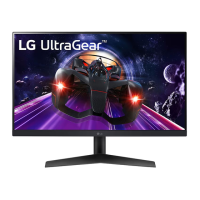
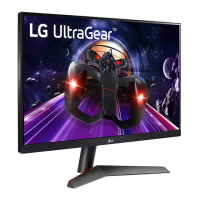
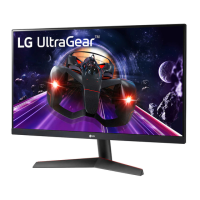
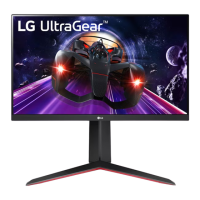
LG UltraGear 24GN60R-B.BEU - User Manual

LG UltraGear 24GN60R-B.BEU
12 pages
Print Icon
To Next Page IconTo Next Page
Loading...
+
a
b
or
(/327GN603 32GN03
24GN603
27GN603
32GN03
(2-REV0)
*MBM67*
www.lg.com
㮦⿍ᵉ曃
ὦ䔏⇭揿媲Ỹざ⇭揿˛
㜑㻦㭙⹣ℹ󰶕䛲垉⸼㭙Ọ󰶒㮶⤐䛲垉⸼瀹奨嵬怵⯶㘩˛
娤⌈
ὦ䔏怵⺍〷₞⮚好⊂˛
Depending on country / Selon les pays /
En función del país /Dependendo do país /
Abhängig vom Land / Závisí na zemi /
Zależnie od kraju/ Zavisno od zemlje /
Závisí od krajiny / A seconda del Paese /
Ülkeye bağlı /
Afhænger af landet/Avhengig av landet /
Beroende på land / Maasta riippuen / В зависимости от страны /
Залежно від країни / Mamlakatga bog’liq ravishda / În funcţie de ţară /
/ Tergantung pada negaranya /
視國家 /

Questions and Answers

  • H
    Hannah GregoryAug 18, 2025
    What to do if nothing is displayed on my LG Monitor screen?
    • N
      Nathan MccoyAug 18, 2025
      If your LG Monitor screen is blank, start by checking if the power cord is securely plugged into the power outlet. Ensure the power cable is properly connected and press the power button. Also, verify that the connected input source is enabled via Menu > Input. If the monitor is in sleep mode, try moving the mouse or pressing a key on the keyboard. Confirm that your computer is turned on. If the problem persists, the signal cable between the PC and the monitor might be missing or disconnected; check the cable and reconnect it. Finally, ensure that the display driver is installed from the LG website and that your graphics card supports Plug and Play.
  • J
    Jeffrey MckeeAug 20, 2025
    What to do if there is no sound from the headphone port on my LG UltraGear 24GN60R-B.BEU Monitor?
    • V
      vbutlerAug 21, 2025
      If you're not getting any sound from the headphone port on your LG Monitor, first, make sure that the headphone port connections are properly made. Next, try increasing the volume using the joystick. Finally, set the audio output of your PC to the monitor you are using by going to Control Panel > Hardware and Sound > Sound on Microsoft Windows and setting the Monitor as the default device.
  • D
    Danielle HendrixAug 23, 2025
    How to fix no sound from the headphone port on LG UltraGear 24GN60R-B.BEU Monitor?
    • K
      Kimberly MillerAug 23, 2025
      If there is no sound from the headphone port on your LG Monitor, first ensure that the headphone port connections are properly made. Then, try increasing the volume using the joystick. Finally, set the audio output of the PC to the monitor by going to Control Panel > Hardware and Sound > Sound and setting the Monitor as the default device on Microsoft Windows.
  • K
    Katherine FordAug 26, 2025
    Why is nothing displayed on my LG UltraGear 24GN60R-B.BEU Monitor screen?
    • M
      mjohnsonAug 26, 2025
      If your LG Monitor screen is blank, try these steps: First, ensure the power cord is securely plugged into the outlet. Next, verify the power cable connection and press the power button. Also, confirm that the correct input is enabled by going to Menu > Input. If the monitor is in sleep mode, move the mouse or press a key. Check that your computer is turned on. If you see a message about the signal cable, inspect the cable between the PC and monitor, and reconnect it if necessary. Finally, install the display driver from LG's website and check that your graphics card supports Plug and Play.
  • J
    Jacob GatesAug 27, 2025
    How to troubleshoot no sound from the headphone port on LG UltraGear 24GN60R-B.BEU?
    • T
      Tim GuzmanAug 27, 2025
      If you're not getting any sound from the headphone port on your LG Monitor, first ensure that the headphone connections are properly made. Next, try increasing the volume using the joystick. Finally, set the audio output of your PC to the monitor by going to Control Panel > Hardware and Sound > Sound and setting the Monitor as the default device.
  • H
    Harry HillAug 29, 2025
    Why is my LG Monitor display color abnormal?
    • J
      Joshua SummersAug 29, 2025
      If the display color on your LG Monitor appears abnormal, first, set the color to 24 bit (true color) or higher via Control Panel > Display > Menu > Color Quality in Windows. Then, check the signal cable connection and reconnect it, or reinsert the PC's graphics card. It's also worth noting that pixilated spots (red, green, blue, white, or black) may appear on the screen, which is normal for an LCD screen and not an error.
  • D
    drushSep 1, 2025
    How to fix unstable and shaky screen display on LG UltraGear 24GN60R-B.BEU?
    • C
      Connor BryantSep 1, 2025
      If your LG Monitor's screen display is unstable, shaky, or images leave shadow trails, and the selected resolution is HDMI 1080i 60/50 Hz (interlaced), the screen may be flickering. Try changing the resolution to 1080p or the recommended resolution.
  • K
    Kimberly JacksonSep 3, 2025
    What to do if the display color is abnormal on my LG Monitor?
    • C
      Cassandra ValdezSep 3, 2025
      If the display color on your LG Monitor seems off, try setting the color to 24 bit (true color) or higher via Control Panel > Display > Menu > Color Quality in Windows. Also, check the signal cable connection, reconnecting it or reinserting the PC's graphics card. Note that some pixilated spots (red, green, blue, white, or black) may appear – this is normal and not a defect.
  • M
    Michele ThompsonSep 6, 2025
    Why are some features disabled on my LG UltraGear 24GN60R-B.BEU Monitor?
    • T
      Timothy KingSep 6, 2025
      Some features on your LG Monitor might be disabled because the OSD is locked. To unlock it, go to Menu > General and set OSD Lock to Off.
  • C
    cruzlisaSep 8, 2025
    How to prevent image retention on my LG UltraGear 24GN60R-B.BEU Monitor screen?
    • J
      joshua86Sep 8, 2025
      Displaying a still image for a prolonged time may cause damage to the screen of your LG Monitor, resulting in image retention. To extend the monitor's lifetime, use a screensaver.

LG UltraGear 24GN60R-B.BEU Specifications

General IconGeneral
Screen Size24 inches
Panel TypeIPS
Resolution1920 x 1080 (Full HD)
Refresh Rate144 Hz
Response Time1 ms (GtG)
Brightness300 cd/m²
Contrast Ratio1000:1
Color GamutsRGB 99%
Ports2 x HDMI, 1 x DisplayPort, 1 x Headphone Out
VESA Mount100 x 100 mm
Adaptive SyncAMD FreeSync Premium
HDRHDR10
Aspect Ratio16:9
Viewing Angle178° (H) / 178° (V)

Related product manuals