EasyManua.ls Logo

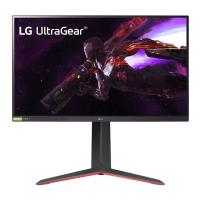
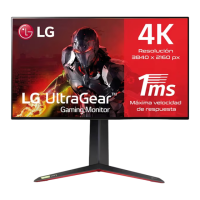
LG UltraGear 27GP950-B - User Manual

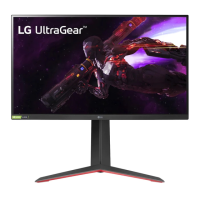
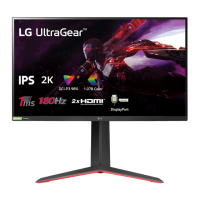
LG UltraGear 27GP950-B
42 pages
Print Icon
To Next Page IconTo Next Page
Loading...
* LG LED Monitor applies LCD screen with LED
backlights.
Please read this manual carefully before operating
your set and retain it for future reference.
27GP950
27GP95B
www.lg.com
Copyright © 2021 LG Electronics Inc. All Rights Reserved.
OWNER’S MANUAL
(LED Monitor*)

Questions and Answers

  • J
    Joanna MartinAug 12, 2025
    How to fix an LG Monitor when nothing is displayed on the screen?
    • N
      Natalie JosephAug 12, 2025
      If nothing is displayed on your LG Monitor screen, try these steps: First, ensure the power cord is correctly plugged into the outlet and that the power cable is properly connected, then press the power button. Next, verify that the connected input is enabled in the monitor's settings under Input. If the monitor is in sleep mode, move the mouse or press a key on the keyboard. Also, ensure your computer is turned on. If the issue persists, check the signal cable between the PC and monitor, reconnecting it if necessary. Finally, install the display driver from the LG website and confirm your graphics card supports Plug and Play.
  • A
    Angela JacksonAug 16, 2025
    What to do if there is no sound from the headphone port on my LG UltraGear 27GP950-B?
    • M
      Maria Snyder DVMAug 16, 2025
      If you're not getting any sound from the headphone port on your LG Monitor, start by ensuring the headphone port connections are correctly made. Then, try increasing the volume using the joystick. Finally, set the audio output of your PC to the monitor: in Windows, go to Control Panel > Hardware and Sound > Sound and set the Monitor as the default device.
  • M
    mariomaynardAug 19, 2025
    Why is the screen display unstable and shaky on my LG UltraGear 27GP950-B Monitor, and how do I fix it?
    • D
      David RiveraAug 20, 2025
      If your LG Monitor's screen display is unstable, shaky, or images leave shadow trails, it may be due to the selected resolution. If the resolution is HDMI 1080i 60/50 Hz (interlaced), the screen might flicker. Change the resolution to 1080p or the recommended resolution to resolve this issue.
  • J
    Jennifer NelsonAug 25, 2025
    How to enable 3840 x 2160 resolution in DisplayPort at 144 Hz or higher on my LG Monitor?
    • E
      Eric MccarthyAug 25, 2025
      If the 3840 x 2160 resolution is unavailable in DisplayPort on your LG Monitor, and you want to enable 144 Hz or higher refresh rates, ensure that you connect with DisplayPort input instead of HDMI. Then, navigate to Settings > General > DisplayPort Version and set the option to 1.4(DSC). For 160 Hz, go to Settings > Game Adjust > Overclock and set the option to On. Also, verify that your graphics card supports DSC (Display Stream Compression) and that the graphics card driver is updated to the latest version.
  • A
    Angelica WarrenAug 27, 2025
    Why is 3840 x 2160 resolution not available in HDMI at 120 Hz on my LG UltraGear 27GP950-B Monitor?
    • B
      barryfergusonAug 27, 2025
      If you cannot get 3840 x 2160 resolution at 120 Hz in HDMI on your LG Monitor, verify that your graphics card supports 3840 x 2160 / 120 Hz in HDMI. Also, ensure that your graphics card driver has been updated to the latest version.
  • M
    Michael RossAug 31, 2025
    Why is the display color on my LG Monitor abnormal, and how can I fix it?
    • T
      Tracy GarciaAug 31, 2025
      If the display color on your LG Monitor appears abnormal, first, ensure that the color is set to 24 bit (true color) or higher via Control Panel > Display > Settings > Color Quality in Windows. Also, check the signal cable connection; reconnect the cable or reinsert the PC's graphics card to ensure it's properly connected. Note that sometimes, a slight color variation is not an error and is not related to the monitor's performance.
  • K
    Kimberly ShepherdSep 4, 2025
    Why are some features disabled on my LG UltraGear 27GP950-B Monitor, and how can I enable them?
    • S
      Shannon AndrewsSep 4, 2025
      If some features are disabled on your LG Monitor, go to Settings > General and set OSD Lock to Off. This should re-enable the features.
  • N
    Norma HernandezSep 8, 2025
    What to do if my LG UltraGear 27GP950-B Monitor screen retains an image?
    • R
      ryan84Sep 8, 2025
      If your LG Monitor screen retains an image, it might be due to displaying a still image for a prolonged time, which can damage the screen. To extend the monitor's lifetime, use a screensaver.

Summary

LICENSE

OPEN SOURCE SOFTWARE NOTICE INFORMATION

ASSEMBLING AND PREPARING

Supported Drivers and Software

Product and Button Description

How to Use the Joystick Button

How to Use the Lighting Button

Moving and Lifting the Monitor

Installing on a Table

Adjusting the Stand Height

Adjusting the Angle

Pivot Feature

Tidying up Cables

Using the Kensington Lock

Installing the Wall Mount Plate

Installing on the Wall

USING THE MONITOR

Connecting to a PC

How to connect the monitor to a computer.

HDMI Connection

Transmits digital video and audio signals from your PC.

DisplayPort Connection

Connecting AV Devices

Connecting Peripherals

USB Device Connection

Details on using the monitor's USB ports as a hub.

Connecting Headphones

USER SETTINGS

Activating the Main Menu

Steps to access and navigate the main menu using the joystick.

Main Menu Features

Menu Settings

Game Mode Settings

Game Adjust Settings

Picture Adjust Settings

Input Settings

General Settings

Game Mode Settings (SDR)

Game Mode Settings (HDR)

Overclock Settings

Adaptive-Sync;FreeSync Premium Pro Settings

Black Stabilizer Settings

Response Time Settings

Crosshair and FPS Counter Settings

Game Reset

Brightness, Contrast, and Sharpness Settings

Gamma and Color Temperature Settings

R;G;B and Six Color Settings

Black Level Settings

Local Dimming Settings

DFC and Picture Reset Settings

Input List and Aspect Ratio Settings

Waves MaxxAudio Settings

Language and User-defined Key Settings

SMART ENERGY SAVING Settings

Lighting Option Settings

Power LED and Automatic Standby Settings

HDMI ULTRA HD Deep Color Settings

DisplayPort Version Settings

Buzzer Settings

OSD Lock Settings

Information and Reset to Initial Settings

TROUBLESHOOTING

Nothing is displayed on the screen

Troubleshooting steps when the screen remains blank.

Screen flickers or shows resolution error

Resolving flickering or resolution compatibility issues.

No Signal message displayed

Troubleshooting steps when the monitor displays "No Signal".

Display driver issues

Ensuring correct display driver installation and compatibility.

Features disabled or unavailable

Solutions for when monitor functions are not accessible.

Image sticking or retention

Unstable or shaky screen display

3840 x 2160 resolution issues (DisplayPort)

3840 x 2160 resolution issues (HDMI)

Abnormal display color

Spots on the screen

No sound from headphone port

PRODUCT SPECIFICATION

Factory Support Mode

HDMI Timing (Video)

Power LED

Suppliers Declaration of Conformity

LG UltraGear 27GP950-B Specifications

General IconGeneral
Screen Size27 inches
Resolution3840 x 2160 (4K UHD)
Panel TypeIPS
Response Time1ms (GtG)
Adaptive SyncNVIDIA G-SYNC Compatible, AMD FreeSync Premium Pro
HDRVESA DisplayHDR 600
Color GamutDCI-P3 98%
Aspect Ratio16:9
Contrast Ratio1000:1
VESA Mount100 x 100 mm
Refresh Rate144Hz (160Hz Overclock)
Ports2x HDMI 2.1, 1x DisplayPort 1.4, 2x USB 3.0, 1x Headphone Out
Brightness400 cd/m² (Typical)
Stand AdjustabilityHeight, Tilt, Pivot
Weight16.7 lbs (with stand)

Related product manuals