Custom-designed Features 24
Disabling Floating Bar
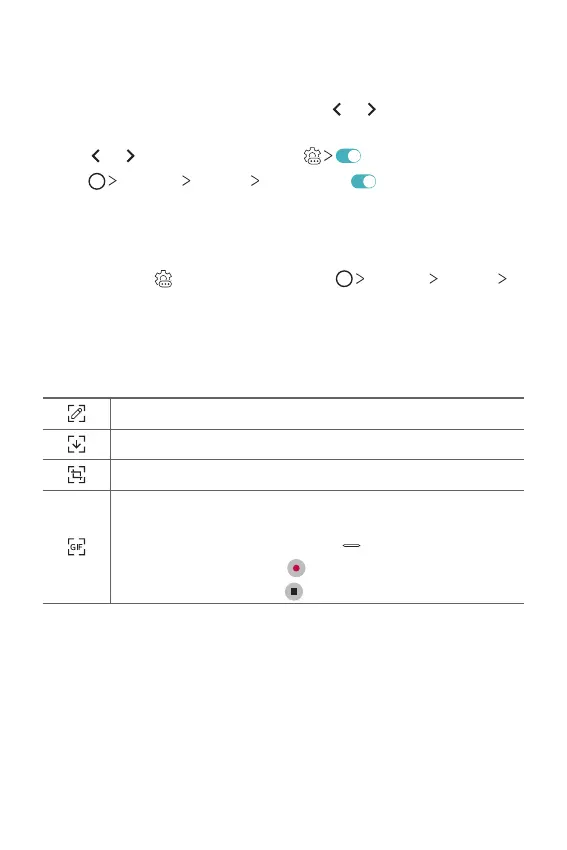
You can disable Floating Bar by using one of the following methods:
• With Floating Bar closed, touch and hold
or and then drag it to
Hide at the top of the screen.
• Tap
or on Floating Bar, then tap at the top of the screen.
• Tap Settings General Floating Bar .
Setting Floating Bar
You can select contents to display on Floating Bar and change their
display order. Tap
from Floating Bar or tap Settings General
Floating Bar.
• Shortcuts: Quickly access frequently used apps or features.
• Screen capture: Capture the screen to crop the desired part or to
create a GIF file.
Launch Capture+ on the desired screen.
Launch Extended capture to capture a scrolling screen.
Capture a desired part of a screen.
Save a current screen as a GIF file. You can adjust the size of the
image you want to capture.
•To move to the desired location, drag
.
•To start recording a GIF, tap .
•To stop recording a GIF, tap .
• Music player: Control the music you are listening to.
• Quick contacts: Call or message people set as quick contacts.


 To Next Page