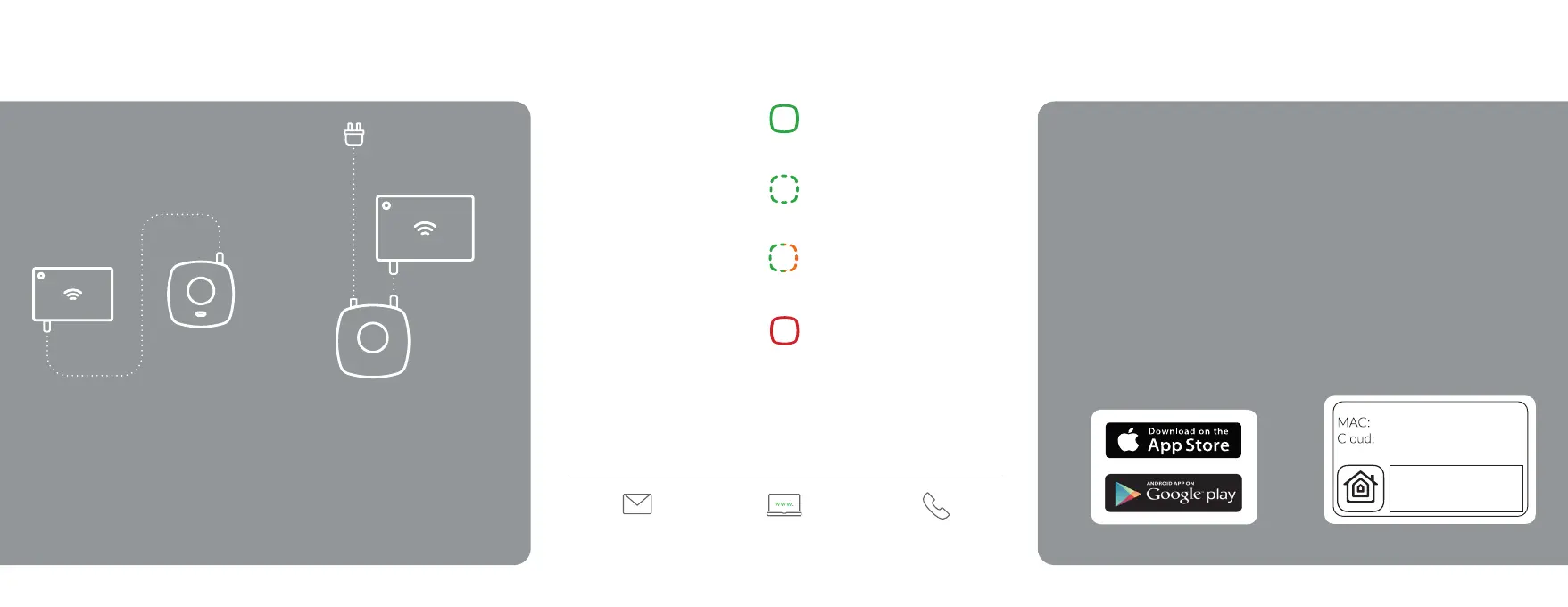
Steady green: Status normal
Flashing green: Transming
Flashing green / amber: Linking mode
Steady red: Cannot contact server
Seng up the Link Plus
2.1 Aach the Ethernet cable
Take the Ethernet cable (supplied) and connect it to
any spare available LAN port on your wireless router.
Connect the other end of the cable to the Lightwave
Link Plus’ single port.
2
2.2 Aach the power supply
Plug in the power supply and push the Micro USB
connector into the socket on the back of the Link Plus.
The Link Plus will now enter its startup sequence and
will aempt to nd a connecon to the Lightwave
server. A solid amber light indicates that a connecon is
being aempted, and a solid green light will show once
a connecon has been established. Once the green
light appears, the Link Plus is ready to be set up on the
Lightwave Link Plus App.
2.3 Check the indicator light
The LED indicator is used to indicate the status of the
Link Plus and also to indicate if there is a problem. If
there is a problem reported, it will usually refer to an
insecure cable connecon or a server connecon
problem (see list on the right). If the Link Plus has already
been set up, the App will display details of any specic
problem; otherwise, please visit the support secon at
www.lightwaverf.com for advice.
3
Seng up the App
3.1 Download & open the App
Download the Lightwave Link Plus App from the
App Store. Open the App and follow the instrucons
and tutorials which will take you through the setup
procedure.
You can also use the Lightwave Web App to set up and
control your Link Plus. This is a more extensive plaorm
very suited to seng up and viewing large installs. This
can be accessed at www.lightwaverf.com.
3.2 Follow the in-app instrucons
Once your Link Plus is set up, you will be able to register
mulple smartphones or tablets to control any number
of Lightwave devices in your home.
HomeKit
You will also be able to control Lightwave devices via
HomeKit using the code below. To do this, open the
Home app on your iPhone or iPad, select the Link Plus
and manually enter the code.
Communicaon between iPhone, iPad, or iPod
touch and the HomeKit-enabled Link Plus is secured
by HomeKit technology. Controlling this HomeKit
enabled accessory automacally and away from home
requires an Apple TV with tvOS 10.3.2 or later or an
iPad with iOS 10.3.2 or later set up as a home hub.
Apple, iPhone, iPad and iPod touch are trademarks of
Apple Inc., registered in the U.S. and other countries.
HomeKit is a trademark of Apple Inc.
LED Indicator lights
xx-xx-xx-xx
www.lightwaverf.com
Need some help?
+44 (0)121 250 3625support@lightwaverf.com


 To Next Page
 Loading...