4
5
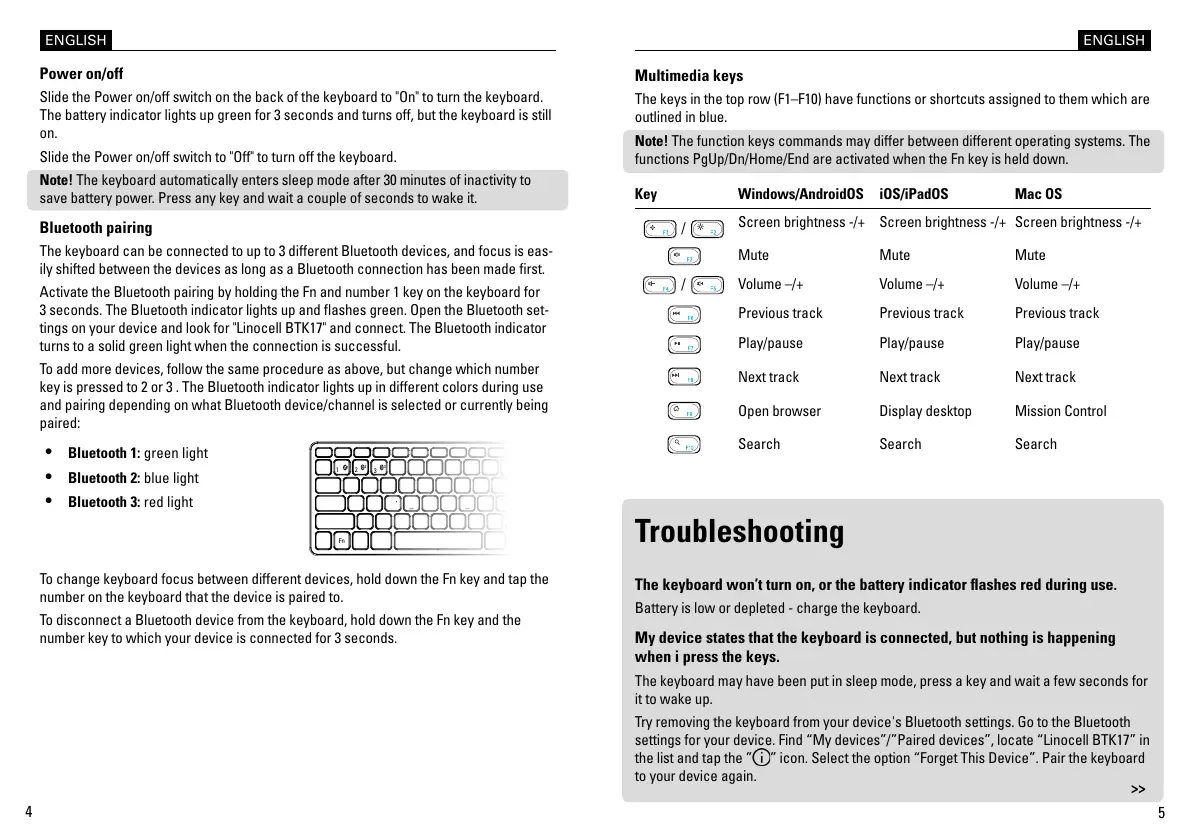
Power on/off
Slide the Power on/off switch on the back of the keyboard to "On" to turn the keyboard.
The battery indicator lights up green for 3 seconds and turns off, but the keyboard is still
on.
Slide the Power on/off switch to "Off" to turn off the keyboard.
Note! The keyboard automatically enters sleep mode after 30 minutes of inactivity to
save battery power. Press any key and wait a couple of seconds to wake it.
Bluetooth pairing
The keyboard can be connected to up to 3 different Bluetooth devices, and focus is eas-
ily shifted between the devices as long as a Bluetooth connection has been made rst.
Activate the Bluetooth pairing by holding the Fn and number 1 key on the keyboard for
3 seconds. The Bluetooth indicator lights up and ashes green. Open the Bluetooth set-
tings on your device and look for "Linocell BTK17" and connect. The Bluetooth indicator
turns to a solid green light when the connection is successful.
To add more devices, follow the same procedure as above, but change which number
key is pressed to 2 or 3 . The Bluetooth indicator lights up in different colors during use
and pairing depending on what Bluetooth device/channel is selected or currently being
paired:
•
Bluetooth 1: green light
•
Bluetooth 2: blue light
•
Bluetooth 3: red light
1
2
3
1
Fn
2
3
Multimedia keys
The keys in the top row (F1–F10) have functions or shortcuts assigned to them which are
outlined in blue.
Note! The function keys commands may differ between different operating systems. The
functions PgUp/Dn/Home/End are activated when the Fn key is held down.
Key Windows/AndroidOS iOS/iPadOS Mac OS
/
Screen brightness -/+ Screen brightness -/+ Screen brightness -/+
Mute Mute Mute
/
Volume –/+ Volume –/+ Volume –/+
Previous track Previous track Previous track
Play/pause Play/pause Play/pause
Next track Next track Next track
Open browser Display desktop Mission Control
Search Search Search
Troubleshooting
The keyboard won’t turn on, or the battery indicator ashes red during use.
Battery is low or depleted - charge the keyboard.
My device states that the keyboard is connected, but nothing is happening
when i press the keys.
The keyboard may have been put in sleep mode, press a key and wait a few seconds for
it to wake up.
Try removing the keyboard from your device's Bluetooth settings. Go to the Bluetooth
settings for your device. Find “My devices”/”Paired devices”, locate “Linocell BTK17” in
the list and tap the ”
” icon. Select the option “Forget This Device”. Pair the keyboard
to your device again.
ENGLISH ENGLISH
>>
To change keyboard focus between different devices, hold down the Fn key and tap the
number on the keyboard that the device is paired to.
To disconnect a Bluetooth device from the keyboard, hold down the Fn key and the
number key to which your device is connected for 3 seconds.


 To Next Page
 Loading...