EasyManua.ls Logo

Lipman NURIT 8000 - User Manual

Default Icon
72 pages
Print Icon
To Next Page IconTo Next Page
Loading...
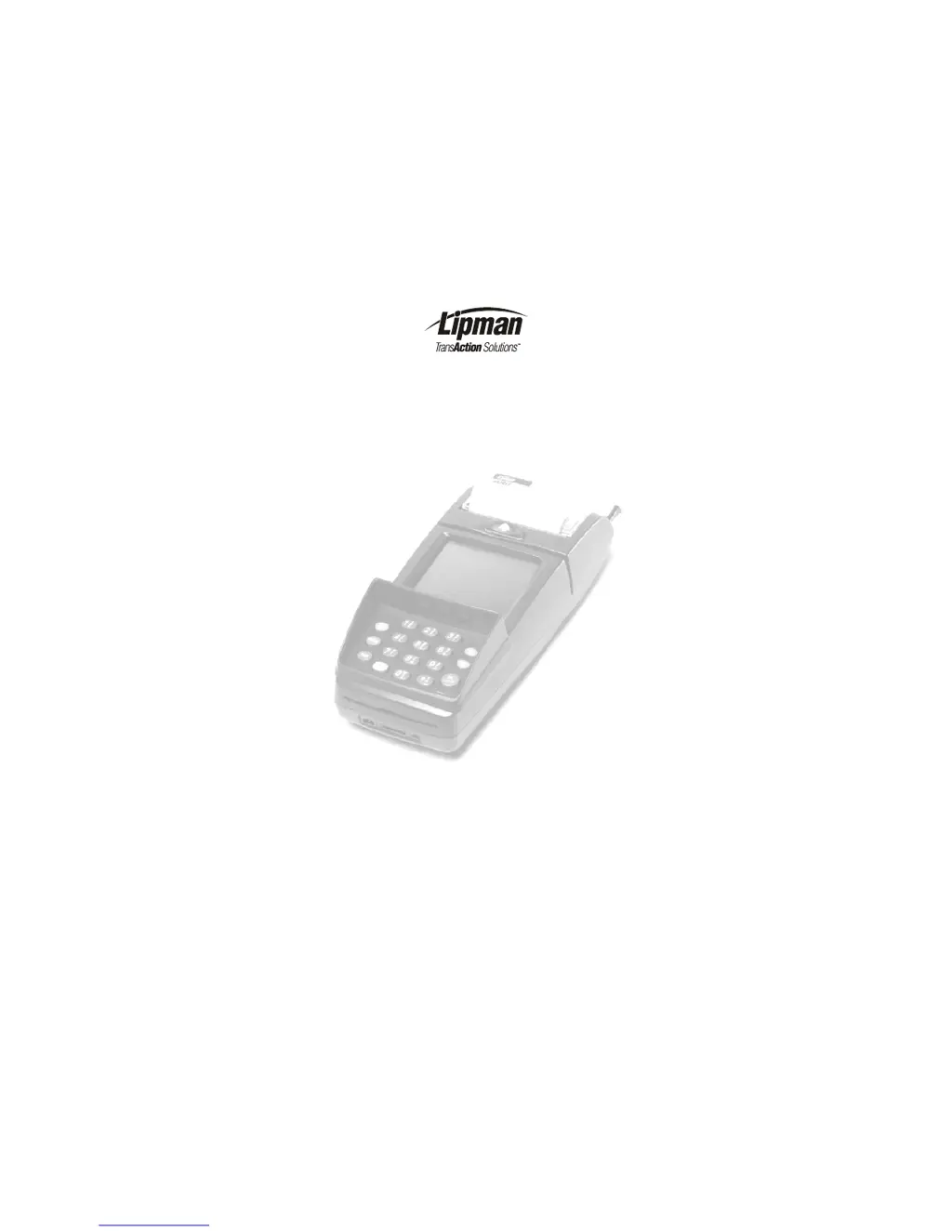
NURIT 8000
Wireless Palmtop
Solution
Installation Manual

Table of Contents

Other manuals for Lipman NURIT 8000

Questions and Answers

  • R
    Robert JacobsAug 14, 2025
    How to troubleshoot a Lipman Payment Terminal with no power?
    • J
      Jackson BeasleyAug 14, 2025
      If your Lipman Payment Terminal appears to have no power, try the following steps: 1. Ensure the AC/DC Power Adapter is fully plugged into the AC power outlet and properly connected to the terminal power jack. 2. Test the AC power outlet by plugging in another device. If issues persist, consult a certified electrician. 3. Press and hold the ‘ON’ key for three seconds. 4. Confirm the battery pack is securely installed and sufficiently charged. 5. If possible, try a different Lipman-supplied AC/DC Power Adapter. 6. Connect the terminal to a different AC power outlet. 7. Adjust the LCD screen contrast settings using the appropriate key combination for your model. 8. If the issue continues, contact an authorized service representative.
  • J
    Joseph BensonAug 18, 2025
    How to troubleshoot a Lipman Touch terminal that won't turn on?
    • I
      ihamiltonAug 18, 2025
      If your Lipman Touch terminal isn't powering on, try these steps: 1. Ensure the AC/DC power adapter is fully plugged into the outlet and properly connected to the terminal. 2. Test the outlet with another device to confirm it's working. If you suspect an issue with the outlet, consult a certified electrician. 3. Press and hold the ‘ON’ key for three seconds. 4. Make sure the battery pack is securely installed and charged. 5. If possible, try a different Lipman AC/DC power adapter. 6. Connect the terminal to a different AC power outlet. 7. Adjust the LCD screen contrast settings using the appropriate key combination for your model.
  • S
    srichmondAug 21, 2025
    What to do if transactions fail on my Lipman Touch terminal?
    • J
      John Levine DVMAug 21, 2025
      If transactions are failing on your Lipman Touch terminal, consider the following: 1. Try completing the transaction with a different card. 2. Ensure the card is inserted or swiped correctly. 3. Attempt several manual transactions using the keypad. If these succeed, contact a service representative. 4. If manual transactions fail, check the wireless signal strength and try moving to a location with better reception.
  • B
    brooke01Aug 25, 2025
    How to fix a Lipman Touch terminal printer that is not working?
    • K
      Kristy ThomasAug 25, 2025
      If the printer on your Lipman Touch terminal isn't working correctly, try the following: 1. Recharge or replace the battery pack. 2. Connect the terminal to the AC power outlet using the AC/DC Power Adapter. 3. Verify the AC/DC adapter is properly connected and the LCD display is lit. 4. Ensure the paper roll compartment is fully closed. 5. Check if the paper roll is empty and replace if needed. 6. Confirm the paper roll and spindle are correctly installed. 7. Make sure the paper feeds from the bottom of the roll. 8. Check for and clear any paper jams or damage.
  • E
    Ethan BarronAug 27, 2025
    Why is wireless communication failing on my Lipman Touch terminal?
    • A
      Angela BrownAug 28, 2025
      If you are experiencing issues with wireless communication on your Lipman Touch terminal: 1. Try moving to a more open area, as enclosed spaces can degrade wireless signal quality. 2. Verify that the SIM card is correctly installed and not damaged. 3. Hold the terminal at an angle not exceeding 30 degrees for optimal usage.
  • B
    Brianna BellAug 31, 2025
    What to do if the magnetic card reader is not working on Lipman Touch terminal?
    • S
      Spencer JordanAug 31, 2025
      If the magnetic card reader on your Lipman Touch terminal isn't working, try these steps: 1. Ensure the card is swiped with the magnetic stripe at the bottom, facing the user. 2. Try swiping the card in the opposite direction. 3. If possible, test with a different magnetic card.
  • P
    Paul JohnsonSep 3, 2025
    What to do if a peripheral device isn't working with my Lipman Touch terminal?
    • M
      Madison CookSep 3, 2025
      If a peripheral device isn't operating correctly with your Lipman Touch terminal: 1. Ensure the peripheral device is properly connected to the terminal. 2. Verify that the peripheral device is functioning correctly. 3. Try replacing the cable or adapter cable used with the peripheral device.
  • R
    Randy JacksonSep 7, 2025
    How to troubleshoot a Lipman Touch terminal when the smart card reader isn't working?
    • B
      Brianna IrwinSep 7, 2025
      If the smart card reader on your Lipman Touch terminal is not functioning correctly: 1. Verify that the chip end of the smart card is fully inserted with the chip side up. 2. If possible, try using a different smart card.
  • M
    Michelle LangSep 10, 2025
    What causes a Lipman Touch terminal printer to run when out of paper?
    • B
      brentkimSep 10, 2025
      If the printer continues to run even when out of paper on your Lipman Touch terminal, verify that the paper sensor inside the paper roll compartment isn't blocked by torn paper or dirt.

Summary

Foreword

Document Conventions

Product Regulatory Information

FCC Compliance Statement

Details FCC compliance for the NURIT 8000, including Class B digital device limits.

FCC Part 15 Requirements

Specifies limits for Class B digital devices to ensure protection against harmful interference in commercial environments.

FCC Part 68 Requirements

Addresses direct connection to the telephone network, using standardized cords and modular jacks, and restrictions on usage.

FCC Part 90 Requirements

Details requirements for radio transceiver modules operating under Part 90 of FCC rules, and service restrictions.

EU Directives Compliance Statement

Confirms the product meets the requirements of applicable EU Council Directives.

General Safety Instructions

Radio Frequency Energy Emission

Safety Precautions for Medical Devices

Pacemakers

Provides recommended separation distances between the NURIT 8000 and pacemakers to prevent interference.

Other Medical Devices

Advises consulting medical device manufacturers regarding shielding levels and potential interference.

Safety Precautions for Other Electronic Devices

Specifications

Initial Setup

Unpacking the Box

Step-by-step instructions for safely opening the NURIT 8000 package and verifying its contents.

Contents Checklist

Lists all items expected to be found inside the NURIT 8000 box for proper setup.

Installing the Battery Pack

Removing the Battery Pack

Step-by-step guide on how to safely detach the battery pack from the NURIT 8000 terminal.

Battery Pack Maintenance

Provides guidelines for the care, charging, lifespan, and storage of the NURIT 8000's Lithium-ion battery pack.

Connecting the NURIT 8000 to an AC Power Outlet

Installing the External Modem

Connecting the Car Adapter

Removing the Car Adapter

Instructions for safely disconnecting the car adapter battery charger from the NURIT 8000 and vehicle.

Loading Paper in the Printer

Installing the Keypad Privacy Shield

Removing the Keypad Privacy Shield

Procedure for safely detaching the keypad privacy shield from the NURIT 8000 terminal.

Installing a SIM or SAM Card

Installing the SIM;SAM Cardholder Compartment Cover

Procedure for covering the installed SIM/SAM cardholders and securing with a void label.

Installing a SIM Card in the TEL SIM Slot

Detailed steps for inserting a SIM card into the dedicated TEL SIM slot on the NURIT 8000.

Connecting Peripheral Devices

Connecting a Barcode Reader

Procedure for connecting a barcode reader to the NURIT 8000 using an optional adapter cable.

Connecting a Cellular Headset

General Care and Maintenance

Cleaning the NURIT 8000

Guidelines for cleaning the NURIT 8000 terminal body, keypad, and LCD screen safely and effectively.

Cleaning the Printer

Instructions for cleaning the internal printer mechanism and ensuring proper paper feeding.

Maintenance Recommendations

Technical Assistance

Shipping the NURIT 8000

Troubleshooting

Terminal Has No Power

Steps to diagnose and resolve issues when the NURIT 8000 terminal does not power on.

Transaction Completion Errors

Guidance for troubleshooting issues that prevent successful completion of transactions on the NURIT 8000.

Printer Out of Paper Issues

Addresses problems where the printer continues to operate despite being out of paper.

Magnetic Card Reader Malfunctions

Steps to resolve issues when the magnetic card reader on the NURIT 8000 is not functioning correctly.

Smart Card Reader Errors

Troubleshooting steps for when the smart card reader on the NURIT 8000 fails to operate properly.

Using the Smart Card Reader

Installation Notes

Lipman NURIT 8000 Specifications

General IconGeneral
BatteryRechargeable Li-Ion battery
PrinterThermal printer
SecurityPCI PED approved
Display128 x 64 pixels, monochrome LCD
ConnectivityRS-232, Ethernet, Modem
Card ReaderMagnetic stripe, Smart card
Dimensions210mm x 100mm x 70mm
Keypad19 keys
Power SupplyAC adapter (100-240V)
Operating Temperature0°C to 40°C
Processor32-bit ARM processor
Memory8MB Flash