5
1. Connect one end of the RF coaxial cable to the aerial socket on the
wall and the other end of the cable to the RF (75Ω) socket at the rear
right side of your TV.
Do not connect the TV to the mains supply until you
have completed all the connections.
2. Connect the mains cable to the mains socket after you have
completed all the connections.
3. Switch on the POWER ON/OFF switch which is located at the front
right side under the frame. At this stage, the TV switches to
standby mode. The red LED indicator will illuminate on the front
panel of the TV.
4. In standby mode, press the button on the right side panel of the
TV or on the remote control to turn the TV on. The red LED
indicator will turn blue.
29” HD Ready LED TV
Well done, your new TV is now ready to use. You will nd that there are many exciting features available. To get to know all these features, please
take some time to read the instruction manual provided with your TV.
1. The rst time you turn the TV on, it will go
straight into First Time Installation menu.
Press the OK button to start First Time
Installation menu.
2. Press the buttons to select your
desired language to be displayed on the
menu. The default on-screen menu language
is set as English. Press the OK button to
conrm.
4. Press the buttons to select DVB-T /
DVB-C and then press the OK button to
conrm.
5. Channel tuning will commence. This operation
may take up to 6 minutes. The display will
show the progress of the tuning and the
number of channels found.
First Time Installation
Please ensure aerial is plugged in!
Then press OK button.
OK
English
Svenska
Dansk
ýesky
Slovak
Norsk
Suomi
Please select an OSD Language
DVB-C
DVB Select type
DVB-T
OK
Home Mode
Shop Mode
Mode Select
Tune Type DTV
Germany
Greece
Hungary
Italy
Ireland
Luxembourg
Netherlands
Norway
Poland
MENU
DVB-C Scan Menu
Scan type Full
610000
Auto
Auto
Frequency
Network ID
Symbol(ks/s)
OK MEN U
Channel Tuning
DTV : 3 Channel(s)
Radio : 0 Channel(s)
Data : 0 Channel(s)
36% UHF CH
Press [MENU] to skip.
(DTV)
4b. If you select DVB-C, the next step is to
congure the DVB-C system (Scan type /
Frequency / Network ID / Symbol(ks/s)). Press
the OK button to go to the tune type and
add country select menu. This step is the
same as the DVB-T's select the tune type (DTV
/ ATV) process. Press the buttons to
select the desired country and then press the
OK button to start tuning.
Remove all packaging from the TV. Retain the packaging. If you
dispose of it please do so according to any local regulations.
TV with Stand Support
TV Base
Remote Control /
AAA Batteries x 2
Screw A x 3
Quick Start Guide
Instruction Manual
Component Adapter Cable (YPbPr)
1. Lay the TV down on a at surface with the back side facing up. Please
make sure a soft cushioned material (such as a pillow or thick piece
of foam) is placed beneath the screen.
2. To install the TV stand, rst attach the base stand to the TV by using
screw A. Align the screw holes, then secure with a screw driver (not
included) using the 3 screw A provided.
Install the batteries correctly by following the polarity (+
and -) indications in the battery compartment.
1. Press and lift the back
cover up to open the
battery compartment of
the remote control.
2. Insert two AAA size
batteries. Close the
battery compartment
cover.
Screw A x 3
TV Front
Base Stand
Front
screw
GB
Thank you for purchasing your new Logik TV.
Your new TV incorporates the latest technology to enhance your viewing experience. We would suggest that you allow about 20 mins for initial setup.
Please follow this guide for a successful rst time installation.
Quick Start Guide
L29HE13N
29” HD LED TV
4a. If you select DVB-T, press the buttons to
select DTV / AT V / ATV + DTV. Press the
button and then press the buttons
to select the desired country and. Press the
OK button to start tuning.
USB HDMI2 HDMI1(ARC) PC IN RF
COMMON INTERFACE (CI)
HEADPHONE PC AUDIO
1
2
3
To mains
socket
RF Coxial Cable
(not included)
OR
During tuning your TV may have received signals
from more than one transmitter. If this has
occurred the Target Region Setting screen will be
displayed. This will enable you to select the
correct regional transmission for the local news
service that you require.
Press the buttons to adjust each option's
setting and then press the OK button to conrm.
Target Region Setting
Country Code GBR
Primary Region England
Secondary Region
Tertiary Region
London
This will be shown as GBR for the UK.
Target Region Setting
1
2
3
4
1
This will show the regional country (England, Wales,
Scotland, NI).
2
This will allow you to set the region for your local
news service on BBC and ITV (London, Beds and
Cambs etc).
3
You may receive signals from more than one
transmitter within the Secondary Region, (e.g Beds
and Cambs may have Luton or Sandy Heath).
4
3. Press the buttons to select your desired
mode and then press the OK button. Press the
button to select Ye s to conrm or the
button to select No to cancel and return to the
Mode Select menu.
(QSG-L29HE13N-130808V2-1)
C
M
Y
CM
MY
CY
CMY
K
L29HE13N_QSG_RC130808_Annie.ai 1 8/8/13 5:28 PML29HE13N_QSG_RC130808_Annie.ai 1 8/8/13 5:28 PM


 To Next Page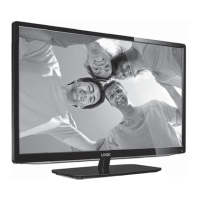


 General