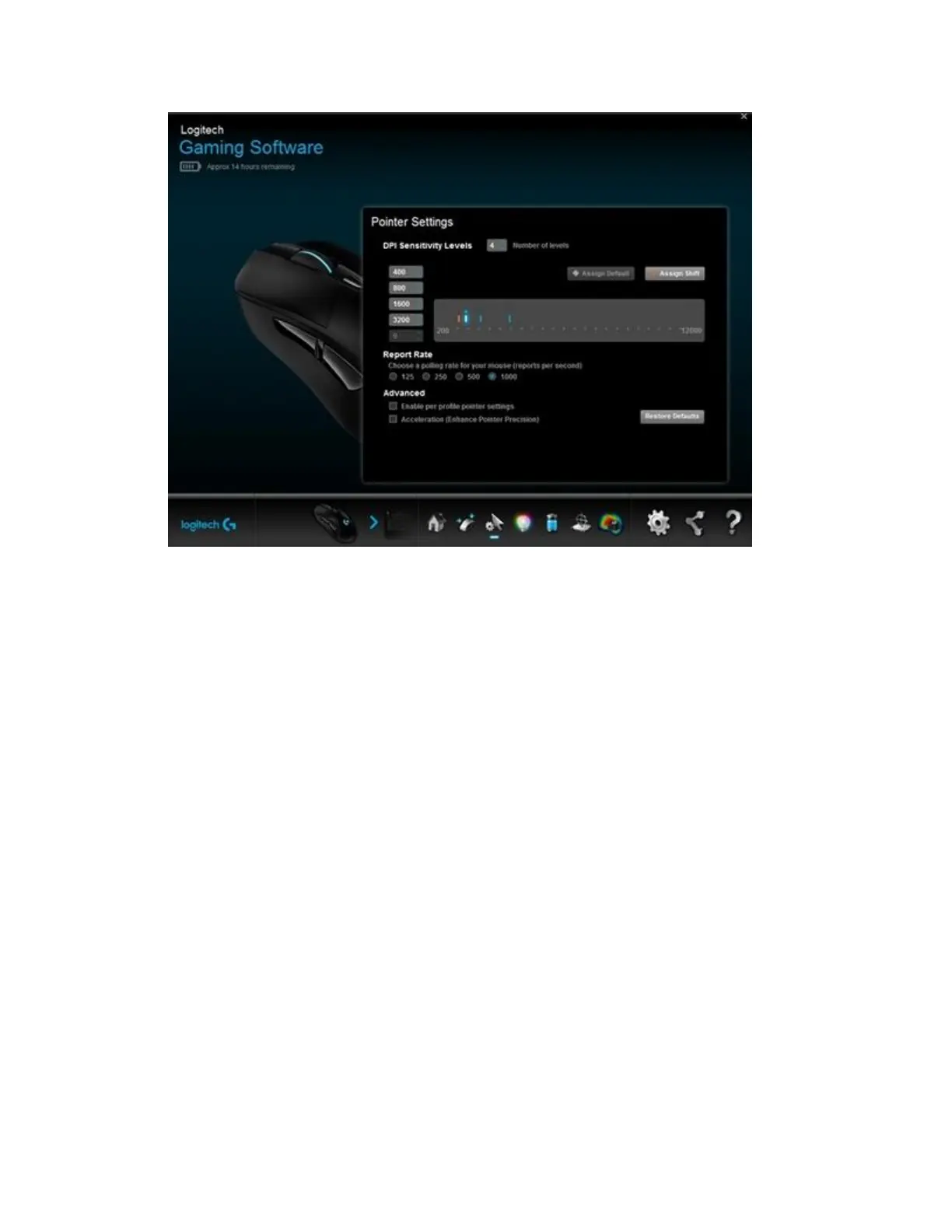
Your gaming mouse supports the following pointer customizations in Automatic Game
Detection mode:
DPI levels — Configure up to five levels, from 200-12000 in 50 DPI increments.
Report rate — Update from 125/sec (8ms response time) to 1000/sec (1ms response
time).
Per profile pointer settings — Enable different pointer behavior for each game profile.
Acceleration — Enhance pointer precision – the mouse pointer increases speed when
you move it. For some games, this can be turned off to improve accuracy.
To configure your pointer settings:
1. Under DPI Sensitivity Levels, drag the tick mark along the graph. For each DPI level
you set, you'll see a tick mark. You can set up to five.
NOTE: If you prefer, you can edit the list of DPI values to the left of the graph from 200-
12000. For each DPI level you set, you'll see a tick mark rounded to the nearest 50. For
example: If you type in "682", the software will round to 700 DPI.
o Assign Default — (Required) One DPI level must always be the default. To
change the default, click a DPI level that doesn't have a blue diamond above it,
and then click Assign Default. This is the DPI level the mouse will return to
when you:
Press the default DPI button
Switch between profiles
Power up the computer
Wake the computer from sleep mode





 To Next Page