Shortcut — Assign a button to launch a file/folder/drive on your
computer.
Function — Assign a button to act like a Microsoft function button (ex. to
open your web browser).
After you've selected the function to assign to the button, click OK. This will
apply the new function and you'll the command's name next to the button (ex.
mouse function "DPI Cycling" assigned to Button 5 below).
IMPORTANT: At least one button must be configured as "Left Click" and one as
"Right Click" at all times. To reprogram either of these buttons, you'll first have to
assign that function to another button.
To reassign a button back to the standard behavior of the mouse, right-click the button and select
"Use Generic".
To un-assign a button, either right-click and select "Unassign" or drag the command from the
button to the trash icon.
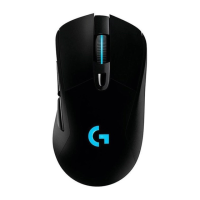
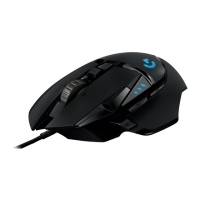
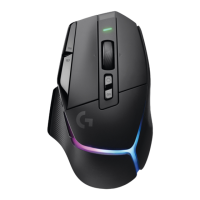
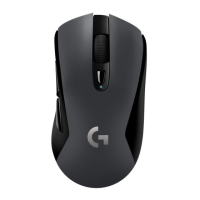
+Purchase a new gaming mouse receiver
If you’ve lost or misplaced the receiver for your gaming mouse:
1. Go to support.logitech.com.





 To Next Page