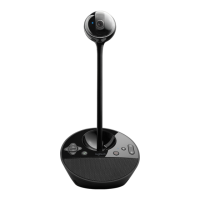
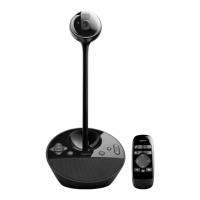
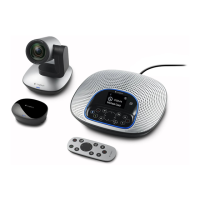
Logitech BCC950 ConferenceCam
6
Troubleshooting
ConferenceCam does not work
•Check the AC power connection.
•Check the USB cable connection. Use
another USB port on your computer.
Connect directly to your computer. Do
not use a USB hub.
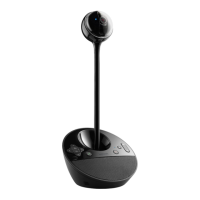
•If you are using the eye-level stand,
remove the stand from the webcam
and speakerphone base, and then
attach the webcam directly to the
speakerphone base.
Sound or video issues
•Adjust the volume with Volume Up and
Volume Down. Also check the volume
setting on the Windows® taskbar. Press
Mute to unmute the sound. Plugging
earphones into ConferenceCam mutes
sound through the speaker on the
speakerphone base.
•Adjust the recording (voice) level
using the Windows Control Panel. For
Windows® 7 and Windows® Vista, go
to Start > Control Panel > Sound >
Recording tab. For Windows XP, go to
Start > Control Panel > Sounds and Audio
devices > Voice tab.
•Restart your video conferencing software.
•Check your router function and internet
connection. (For more information,
refer to your router or networking
documentation.) Test your Internet
connection speed. To learn how, go to
www.logitech.com/support/bcc950.
•Specify the ConferenceCam as the
default input/output device in your
video conferencing software. (For
more information, refer to your video
conferencing software documentation.
Note: In many applications, the
ConferenceCam’s webcam, speaker,
and mic are listed separately. Each
are identified by the ConferenceCam’s
product name.)


 To Next Page