
 Need help?
Do you have a question about the Logitech MX Anywhere and is the answer not in the manual?
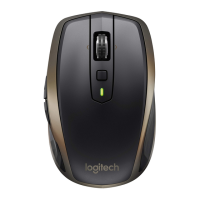
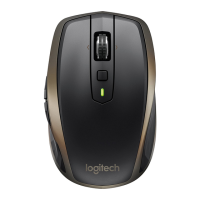
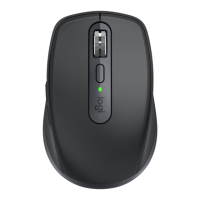
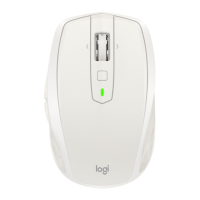
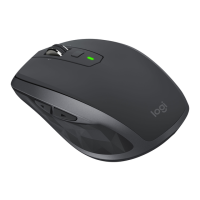
The Logitech MX Anywhere 3 is a versatile wireless mouse designed for productivity and seamless multi-device use. It offers a range of features to enhance navigation, customization, and cross-computer workflow.
The MX Anywhere 3 functions as a high-performance wireless mouse, providing precise cursor control and a variety of customizable buttons. Its primary function is to facilitate interaction with computers, offering both traditional mouse capabilities and advanced features for enhanced productivity. It supports connection via a wireless USB receiver or directly via Bluetooth, allowing for flexible setup across different devices. The mouse is designed to work with Logitech Options software, which unlocks its full potential for customization, advanced shortcuts, and app-specific settings.
The mouse features a MagSpeed scroll wheel, which offers two distinct scrolling modes: line-by-line (ratchet) and hyper-fast (free-spin). The speed-adaptive scroll wheel automatically shifts between these modes based on scrolling speed, providing precise navigation for lists and items, and near-frictionless spinning for quickly navigating long documents and web pages. Users can also manually switch between these modes using the mode shift button located on top of the mouse. Logitech Options software allows users to disable SmartShift if they prefer to stay in one scrolling mode or adjust the SmartShift sensitivity to control the speed required for automatic shifting.
The MX Anywhere 3 includes back/forward buttons, which simplify navigation by allowing users to move between web pages or document pages. These buttons can be customized through Logitech Options software to perform other functions, such as undo/redo, OS navigation, or volume control, especially useful for Mac users who require the software for these buttons to function.
A unique feature is horizontal scrolling, achieved by pressing and holding one of the side buttons while simultaneously scrolling the wheel. This feature is enabled by default and can be customized in the Point & Scroll tab of Logitech Options.
The mouse supports app-specific settings, meaning its buttons can be assigned different functions depending on the application in use. For example, side buttons can control volume in Spotify, perform copy/paste in Microsoft Excel, or undo/redo in Adobe Photoshop. Logitech Options provides predefined app-specific settings that adapt the mouse button behavior to selected applications, and these settings can also be manually customized.
The top button of the mouse can be assigned as a "Gesture Button," transforming it into a multi-function button for desktop navigation, app management, pan, zoom, and more. By holding the gesture button while moving the mouse, users can perform various actions, such as switching between windows and desktops, or accessing Mission Control and App Expose.
One of the most powerful usage features is Logitech Flow, which allows the mouse cursor to seamlessly move between multiple computers. With Flow, users can copy and paste text, images, and files between computers. If a compatible Logitech keyboard (such as MX Keys) is also in use, the keyboard will follow the mouse and switch computers simultaneously, creating a unified multi-computer workspace. This feature requires Logitech Options software to be installed on all connected computers.
The Easy-Switch button on the bottom of the mouse enables pairing with up to three different computers. A short press on this button allows users to switch between paired channels. To connect to a new device, users can press and hold the Easy-Switch button for three seconds to put the mouse into discoverable mode, indicated by a fast-blinking LED. Connection can then be established via Bluetooth by opening computer Bluetooth settings or via a USB receiver by plugging it into a USB port and using Logitech Options to set up a Unifying device.
The MX Anywhere 3 is designed for easy maintenance, primarily focusing on its power source. It features a USB-C charging port, allowing for convenient recharging. A three-minute charge provides enough power for a full day of use, and a full charge can last up to 70 days, though battery life may vary based on usage.
The mouse includes a battery status LED on its top, which indicates the current charge level. A green light signifies a charge between 100% and 10%, a red light indicates 10% charge or below, and a pulsing green light means the mouse is currently charging. Logitech Options software can also provide battery status notifications, including low-charge warnings, helping users manage their power more effectively.
Customization options within Logitech Options also contribute to maintenance by allowing users to optimize the mouse's performance and feel. For instance, in Ratchet mode, users can adjust the "Scroll force" on the "Point & Scroll" tab to make the scroll wheel's ratchet feel more subtle and smooth or more firm and precise, tailoring the physical interaction to their preference. This level of customization helps maintain a comfortable and efficient user experience over time.
 General
| DPI Range | 200-4000 DPI |
|---|---|
| Number of Buttons | 6 |
| Battery Type | Rechargeable Lithium-ion |
| Battery Life | Up to 70 days on full charge |
| Compatibility | Windows, macOS, Linux, Chrome OS |
| DPI | Adjustable up to 4000 DPI |
| Scrolling | Hyper-fast scrolling |
| Connectivity | Bluetooth or USB Unifying Receiver |
| Weight | 99 grams |
| Color | Black, Rose |

 To Next Page

