7
|
English English
|
8
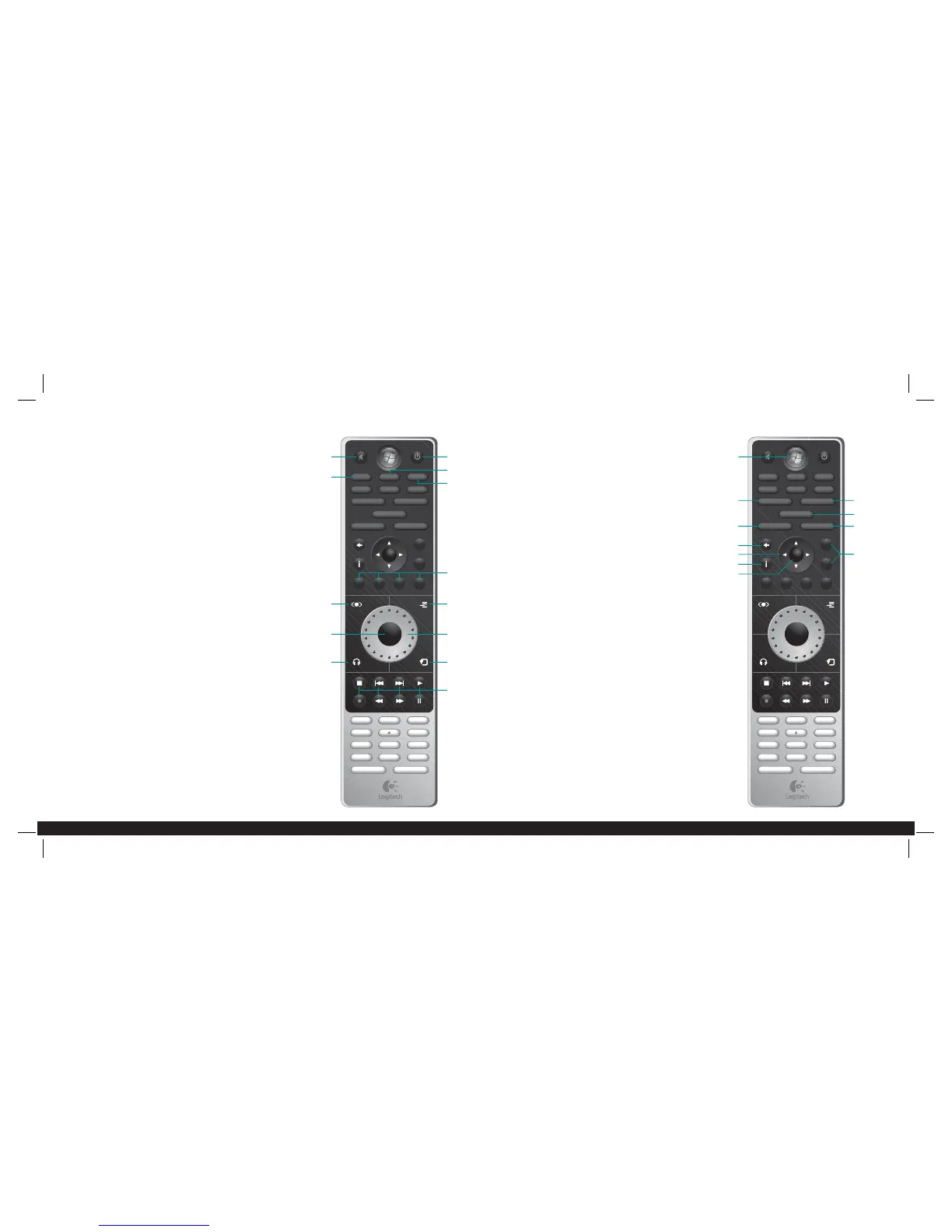
B. Windows® Media Center Controls
Note: TV-related buttons will only operate with Windows® Media
Center when a TV tuner card is installed.
1. Windows® Media Center Start Button – Launch Windows®
Media Center.
2. Direction Pad – Press up, down, left or right to navigate
within Windows® Media Center.
3. OK – Confi rm your selection.
4. Back – Navigate back one page within Windows®
Media Center.
5. Recorded tv – Shortcut to your recorded TV programs.
6. Live tv – Shortcut to Live TV.
7. Full screen – Toggles full screen/windowed mode.
8. Guide – Shortcut to the Guide for TV.
9. DVD menu – Shortcut to the DVD main menu.
10. More – Show more information about the
highlighted item.
11. Channel (Ch +/Ch -) – Change the TV channel up/down.
The numeric keypad can be used to enter numbers and text in
the Windows® Media Center application. Use the clear button to
erase and the enter button to confi rm your entry.
Using Your Speakers
Using Your Speakers
A. Speaker System Controls
1. Level Dial – Turn the dial to adjust volume, bass, treble, center
and surround levels.
2. Level Button – Press to change level adjustment for volume,
bass, treble, center and surround.
• Center and surround levels are only available when SRS®
TruSurround HD™ is turned on.
3. SRS® TruSurround HD™ – Turn on/off SRS® TruSurround HD™.
4. SRS® TruSurround HD™ can only be turned on when Logitech®
Z Cinéma software is running on your PC.
• Headphone Mode is only available when SRS® TruSurround
HD™ is turned on.
5. Shuffl e – Turns on/off shuffl e mode in select
multimedia applications.
6. Repeat – Turns on/off repeat in select multimedia applications.
7. Multimedia track controls – Navigate tracks in your multimedia
application (stop, previous track, next track, play, record,
rewind, fast forward, and pause).
• The record function is only available in Windows® Media
Center when a TV tuner card is present.
8. Power – Turn on/off your speaker system.
9. Mute – Mute/unmute your speaker system.
10. USB – Change audio input to USB.
11. AUX – Change audio input to auxiliary input.
12. Display – Push once to temporarily show the Z Cinéma display
on your PC screen. Immediately push a second time to
permanently show the display. Press a third time to remove
the display.
13. Presets 1-4 – Press and hold to store a playlist or Internet radio
station in select multimedia applications. Press again to recall
the playlist or Internet radio station.
clear
clear
enter
enter
clear
clear
0
0
#
#
7 pqrs
7 pqrs
4 ghi
4 ghi
1
1
2 abc
2 abc
3 def
3 def
6 mno
6 mno
8 tuv
8 tuv
9 wxyz
9 wxyz
5 jkl
5 jkl
stop replay skip play
rew fwd pause
rec
1 2 3 4
Ch–
presets
Ch+
channelback
more
OK
guide
music video photos
usb aux display
dvd menu
recorded tv live tv
full screen
12
3
5
64
7
9
8
13
10
11
12
clear
clear
enter
enter
clear
clear
0
0
#
#
7 pqrs
7 pqrs
4 ghi
4 ghi
1
1
2 abc
2 abc
3 def
3 def
6 mno
6 mno
8 tuv
8 tuv
9 wxyz
9 wxyz
5 jkl
5 jkl
stop replay skip play
rew fwd pause
rec
1 2 3 4
Ch–
presets
Ch+
channelback
more
OK
guide
music video photos
usb aux display
dvd menu
recorded tv live tv
full screen
7
5
3
6
1
11
2
4
8 9
10
Zcinema_MNL_AMR.indd Sec1:7-Sec1:8Zcinema_MNL_AMR.indd Sec1:7-Sec1:8 8/9/07 3:52:43 PM8/9/07 3:52:43 PM





 To Next Page