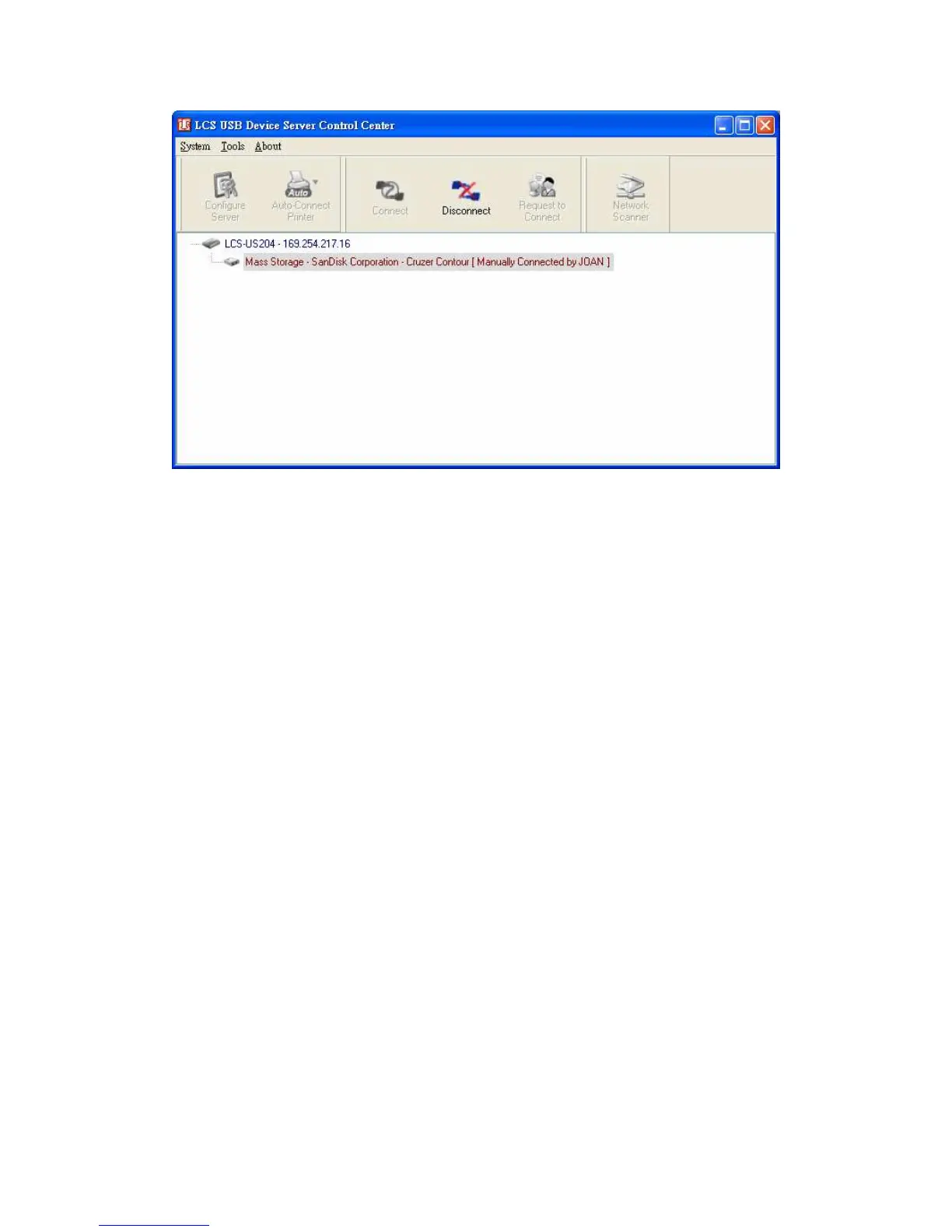
Figure 5 Device Connected
G. Now, the installation program will detect the USB device and
continue to install driver.
H. After the installation is completed, click the USB device in the
Control Center and then click the “Disconnect” button to
disconnect the USB device.
⑩
⑩⑩
⑩
.
Use the USB Device
A. In the Control Center, click the USB device server that has the
desired USB device attached.
B. Click the desired USB device as Fig 4.
C. Click the “Connect” button. Then the message “Manually Connect
by your_computer_name” will be shown, as Fig 5.
D. Now, PC will detect the plug-in of the USB device. The “connect”
operation is a software operation that simulates an actual USB
device plug-in. That is to say, when you do a “connect” operation
in the Control Center, PC can then detect a USB device’s plug-in,
although actually you do not plug in any USB device.
E. Then, just use the USB device as if it is connected directly to your
PC’s USB port.
F. After you finish using the USB device, click the USB device in the
Control Center and then click the “Disconnect” button to
disconnect the USB device, as Fig 6. Other PCs can not “Connect”


 To Next Page
 Loading...