Connection
1. Connect to the network via WiFi
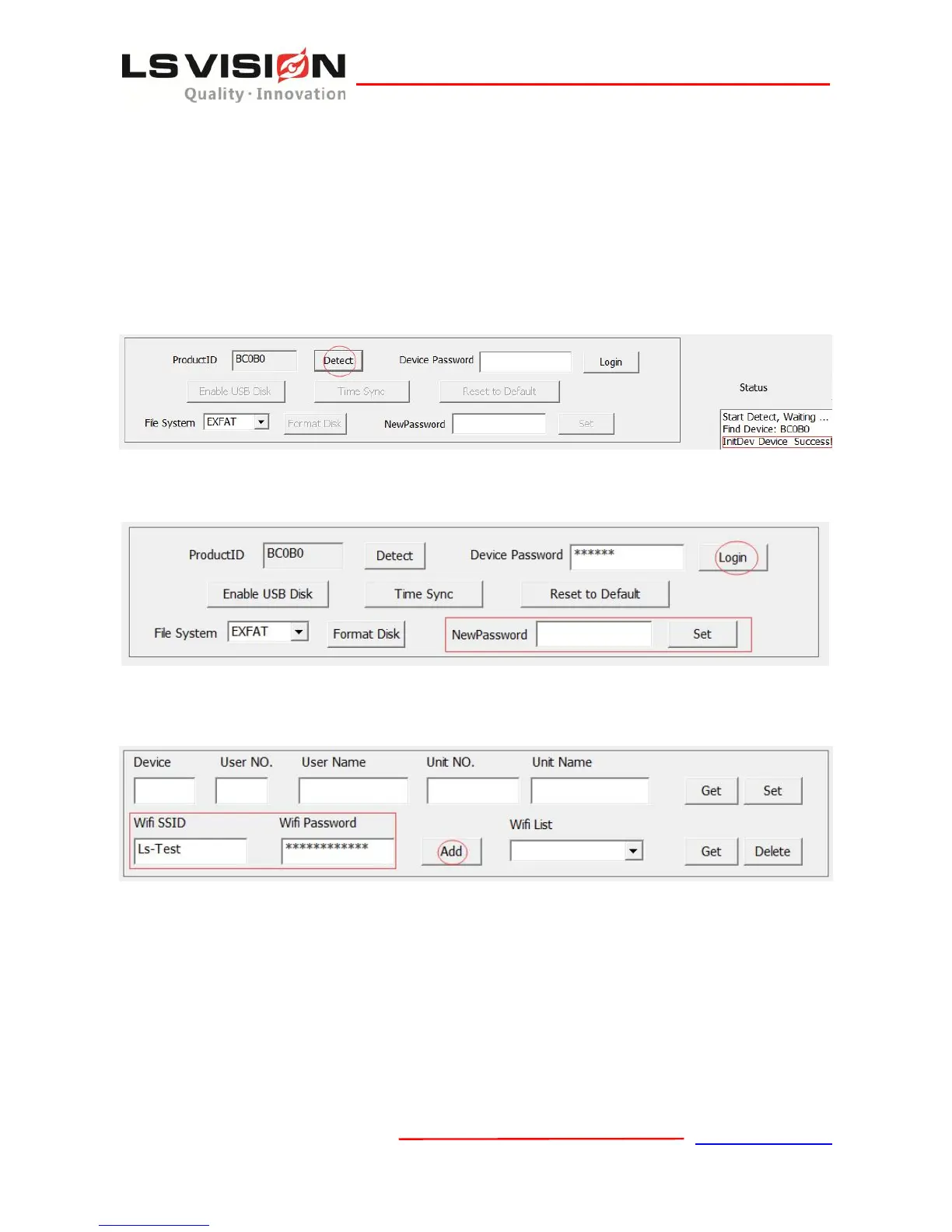
① Connect the device to the PC through USB cable (it’s better to take the battery out of camera
before conencting to PC).
② Unzip the Tool.zip and open the BodyCamTool.exe (It’s a green software).
③ Click on Detect, then the Status Window displays “Success”. If not, try click or insert USB again.
④ Input password “888888” (Default), click on Login. It will display “Success” in Status. And also
user can change the password in NewPassword Box.
⑤ Input WiFi SSID and WiFi password, then click on Add. It will display “Wifiadd Success” in
Status. Then user can exit the Tool, disconnect USB cable and PC, turn WiFi on in Setting Menu. It
means a successful connection when the WiFi icon light in the monitor.
2. Connect to the network via 3G/4G-LTE
① Shut down the device, and insert 3G or 4G card into it, please hold the SIM chip-side in the same
direction as the front of the device, the bevel-edge outward!
② Start up the device, turn 3G/4G on in Setting Menu. It means a successful connection when the
signal icon display in the monitor.
3. Enter the Disk
① Connect the device to the PC through USB cable, run BodyCamTool.exe.


 To Next Page