
EasyManua.ls Logo

Lumens VC-B20UA - User Manual

Lumens VC-B20UA
20 pages
Print Icon
To Next Page IconTo Next Page
Loading...
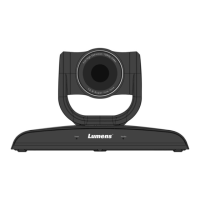
VC-B20U
HD Camera
(PTZ Video Camera)
Installation Guide - English
[Important]
To download the latest version of Quick Start
Guide, multilingual user manual, software, or
driver, etc., please visit Lumens
http://www.MyLumens.com

Questions and Answers

  • K
    Kyle BaldwinAug 14, 2025
    What to do if Lumens VC-B20UA IP Camera cannot be operated by remote control?
    • R
      Regina RogersAug 14, 2025
      If your Lumens IP Camera's remote control isn't working, make sure the Camera Select on the remote control can be used together with the IR Select on VC-B20U. Also, prevent direct sunlight on the VC-B20U. Keep energy-saving bulbs and IR touch screens away to avoid interference, and it's best to use only one remote control.
  • M
    Miss Jenna WhiteAug 17, 2025
    What to do if there is no image output from Lumens VC-B20UA IP Camera?
    • C
      Colton GallagherAug 17, 2025
      If you're not getting any image from your Lumens IP Camera, first check the power. Then, ensure your display supports the output resolution, such as 1080p60, 1080i60, or 720p60. Finally, try replacing the cables to rule out any faulty connections.
  • M
    Michael TaylorAug 21, 2025
    Why does Lumens VC-B20UA image flicker when connected to a MAC computer?
    • V
      vsmithAug 21, 2025
      If the image flickers when your Lumens IP Camera is connected to a MAC computer, try adjusting the DIP4 switch located at the bottom of the camera to the “ON” position in the camera settings.
  • S
    Samantha WalkerAug 25, 2025
    What to do if Windows Vista/ Windows 7 do not support YUV2 resolution on Lumens VC-B20UA?
    • J
      Jonathan HortonAug 25, 2025
      If Windows Vista or Windows 7 doesn't support YUV2 1920 x 1080 resolution at 60 fps on your Lumens IP Camera, connect to USB 3.0 Host 2, as YUV2 1920 x 1080@60 fps is supported by USB 3.0 only. Alternatively, adjust the resolution to 720P.
  • K
    Kathryn CooperAug 27, 2025
    What to do if Lumens Camcorder VC-B20U cannot be operated by remote control?
    • M
      Mr. John YoungAug 27, 2025
      If the Lumens Camcorder VC-B20U cannot be operated by remote control, confirm if the Camera Select on the remote control can be used with the IR Select on VC-B20U. Also, prevent the VC-B20U from direct sunshine. To avoid interference, ensure the energy-saving bulb and the IR touch screen are as far as possible. It is also recommended to use only one remote control.
  • S
    Sherry GreenAug 31, 2025
    What to do if there is no image output from Lumens Camcorder VC-B20U?
    • M
      matthew57Aug 31, 2025
      If there is no image output from your Lumens Camcorder VC-B20U, first check the power. Then, ensure that the display supports the output resolution, such as 1080p60, 1080i60, or 720p60. Finally, replace the cables to make sure they are not faulty.
  • L
    lisa64Sep 3, 2025
    Why does Lumens Camcorder automatically activate Standby mode?
    • M
      morgancastanedaSep 3, 2025
      The Lumens Camcorder VC-B20U will automatically activate Standby mode 5 seconds after the user turns off the video of the video conference software.
  • S
    Stacie WallaceSep 7, 2025
    How to fix image flickering on Lumens Camcorder when connected to a MAC computer?
    • J
      Jessica MooreSep 7, 2025
      To resolve image flickering on your Lumens Camcorder when connected to a MAC computer, change the camera settings by adjusting the DIP4 on the DIP switch located at the bottom of the camera to 'ON'.
  • K
    Kevin GoodmanSep 10, 2025
    What to do if Windows Vista/Windows 7 do not support YUV2 1920 x 1080 resolution @60 fps on Lumens Camcorder?
    • S
      Shaun IngramSep 12, 2025
      If Windows Vista or Windows 7 does not support YUV2 1920 x 1080 resolution at 60 fps on your Lumens Camcorder, connect to USB 3.0 Host 2. If the issue persists, adjust the resolution to 720P.

Lumens VC-B20UA Specifications

General IconGeneral
Image Sensor1/2.8" CMOS
Video Resolution1920 x 1080
Frame Rate30 fps
Optical Zoom20x
Digital Zoom12x
Viewing Angle58.2° to 3.4°
Minimum Illumination0.5 Lux (F1.6, 50IRE, 30fps)
S/N Ratio> 50dB
Preset Positions256
Power SupplyDC 12V
Weight2.5 kg
Camera TypePTZ Camera
Effective Pixels2.07 Mega Pixels
ApertureF1.6 to F3.5
Shutter Speed1/1 ~ 1/10, 000 sec
Pan/Tilt SpeedMax 300°/s
Control InterfaceRS-485, RS-232
AudioTwo-way audio
Sensor1/2.8 inch CMOS
Lens3x Optical Zoom
Video CompressionH.264, MJPEG
Network Interface10/100/1000 Base-T
Power Consumption12W (max)
Operating Temperature-10°C to 50°C
Operating Humidity20% ~ 80%
Lens TypeMotorized zoom lens
Focal Length4.7 to 94 mm

Related product manuals
