56
M3T User Manual
Picture Memo
Setting
Category
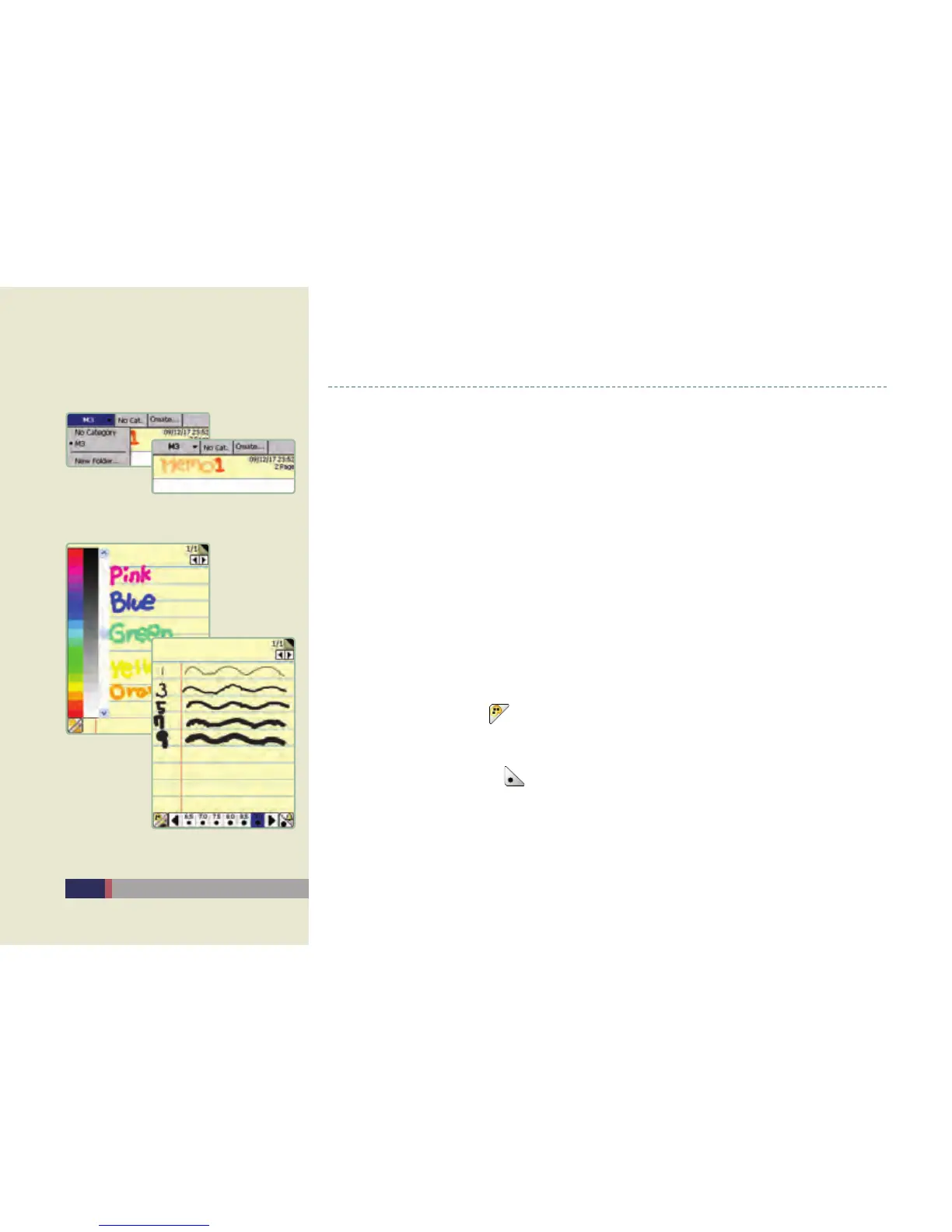
After launching the Picture Memo, you can create, edit, or delete the category from the
Category menu located on the top.
Select the upper left corner to move to the upper level category, and select [New Folder...] to
create a new folder in the upper category.
Move to the upper level category and select [Create...] from the upper tab to create a lower
level category.
Setting Program
You can set the default data save path and category of the picture memo using the setting
menu at the lower side of the Picture Memo screen.
If the Menu Animation is enabled, the menu boxes in new memo will move smoothly.
Memo Menu
Changing Color
Select the palette icon ( ) at the lower left corner to change the color of the pen.
The left side is for color control and the right side is for brightness control.
Changing Thickness
Select the thickness icon ( ) at the lower right corner to change the thickness of the pen.
•
-
-
-
•
-
-
•
-
-
•
-
Changing Color /Changing Thickness
Category Setting Menu and View


 To Next Page