Chapter 2 Get started 15
Quickly open apps
Your Mac mini comes with apps for all the things you love to do—browse the web, check email,
share photos, enjoy movies, and more.
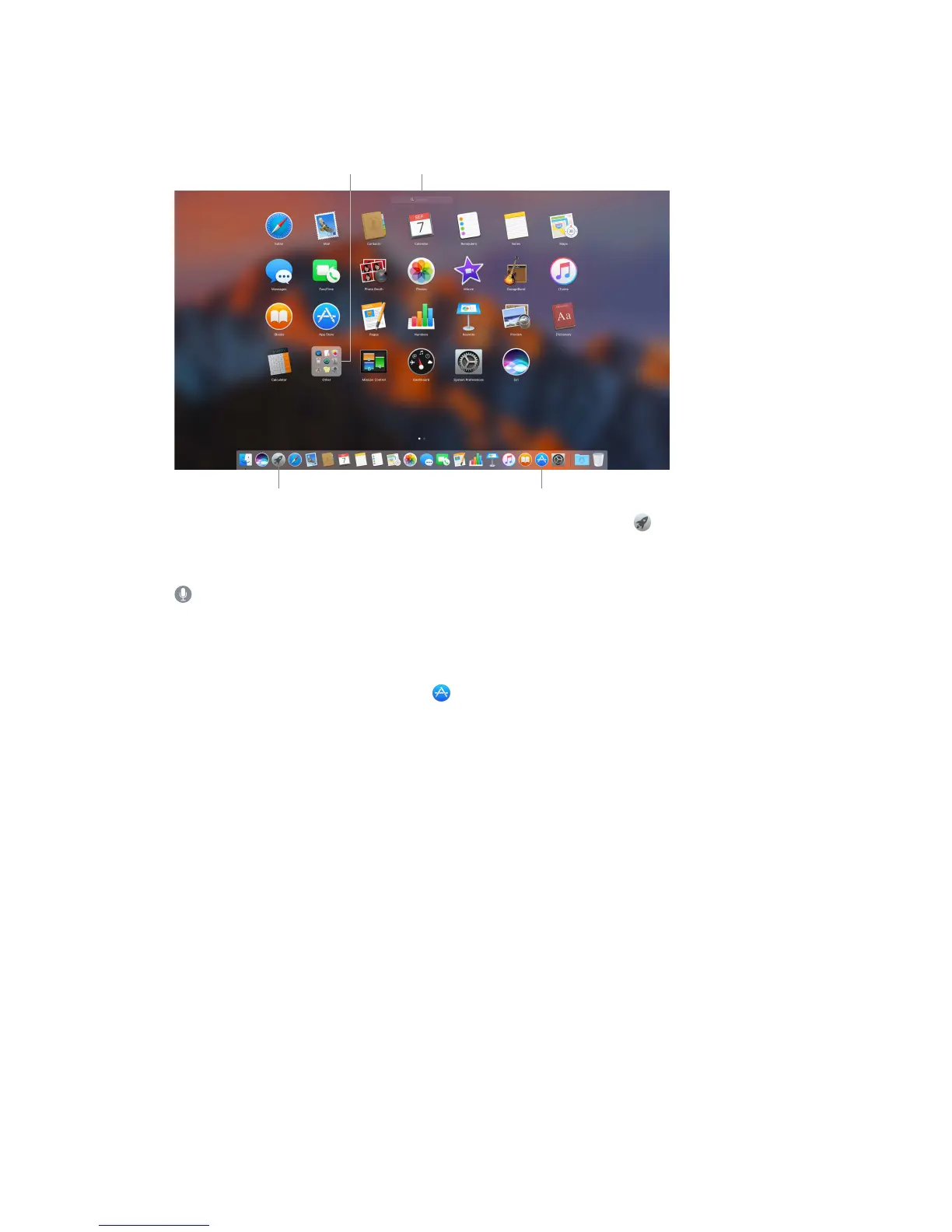
Launchpad icon
Folder containing apps
a grid. Click an app icon to open it.
App Store icon
Open an app. Click an app icon in the Dock, or click the Launchpad icon in the Dock and click
the app you want. You can also search for an app using Spotlight, then open the app directly
from your Spotlight search results.
Ask Siri. Say something like: “Open Calculator.”
Organize apps in Launchpad. Launchpad organizes your apps in a grid. Drag an app to a new
location to rearrange apps. Drag an app onto another app to create a folder. Drag more apps to
the new folder to add them. To remove an app from a folder, drag it out.
Get more apps. Click the App Store icon
in the Dock and search for apps you want. Apps you
download from the App Store appear automatically in Launchpad. To quickly get updates for
apps and macOS, click Updates in the App Store.
74% resize factor


 To Next Page
 Loading...