Chapter 2 Get started 17
Access your content anywhere with iCloud
iCloud is the easiest way to make sure all your important content is everywhere you are. iCloud
stores your documents, photos, music, apps, contacts, and calendars, so you can access them any
time you’re connected to Wi-Fi.
An iCloud account is free, and it comes with 5 GB of free storage space. Purchases you make from
the iTunes Store, App Store, or iBooks Store don’t count toward your available space.
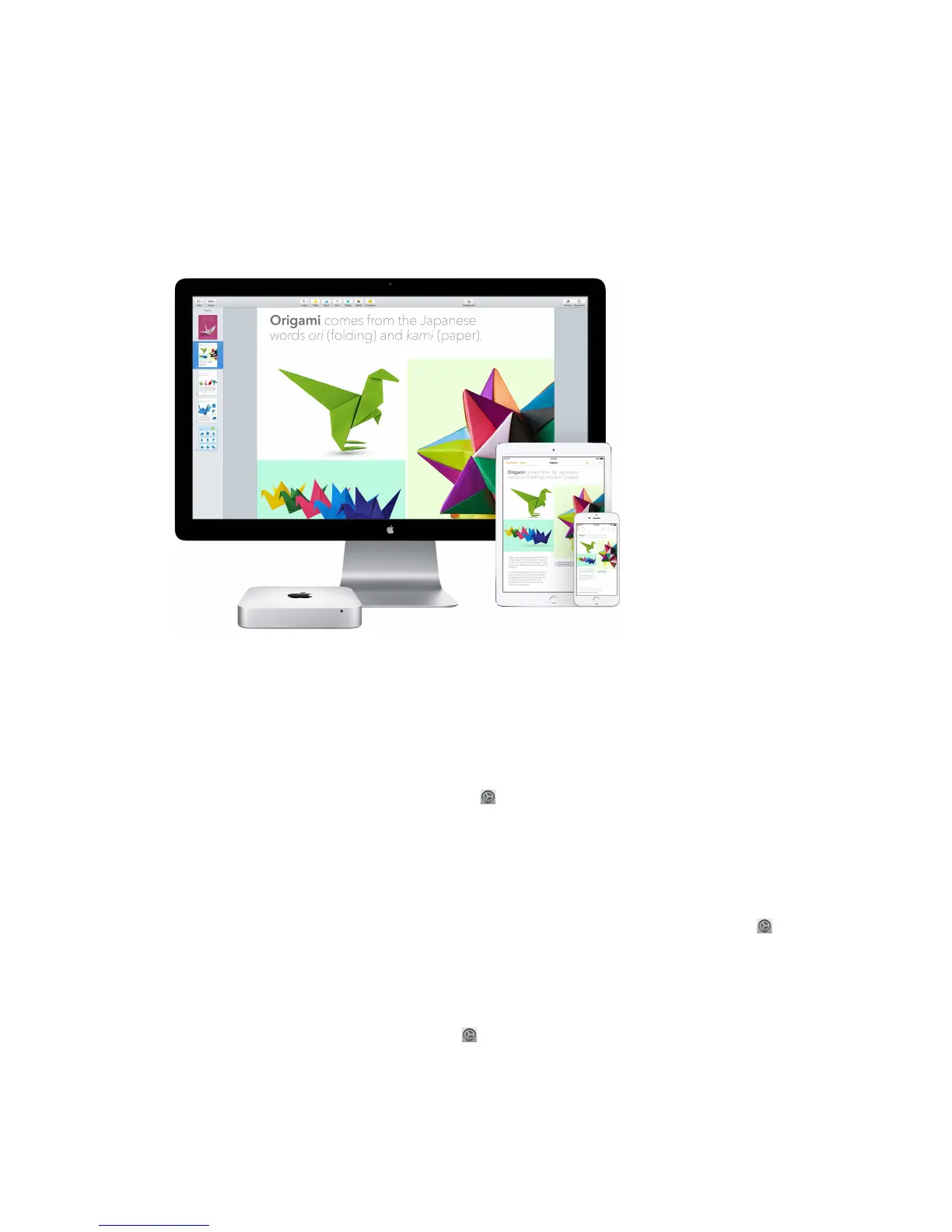
iCloud also keeps everything up to date on your devices. So if you have an iPhone or iPad, just
sign in to iCloud using the same account and you’ll have everything you need.
Here are some of the things you can do with iCloud.
Automatically store your desktop and Documents folder in iCloud Drive. Save les in your
Documents folder or on your desktop, and they’re automatically available on iCloud Drive and
accessible wherever you are. Working with iCloud Drive, you have access to les on your iPhone
or iPad in the iCloud Drive app, on the web at iCloud.com, or on a Windows PC in the iCloud app.
When you change your le in iCloud Drive, you’ll see your edits wherever you view the le.
To get started, click the System Preferences icon in the Dock, click iCloud, select iCloud Drive,
click Options, then select “Desktop & Documents Folders.”
Share purchases with Family Sharing. Up to six members of your family can share their
purchases from the iTunes Store, App Store, and iBooks Store—even if they use dierent iCloud
accounts. Pay for family purchases with one credit card, and approve kids’ spending right from
your Mac mini or iOS device. Plus, share photos, a family calendar, reminders, and locations. To set
up Family Sharing if you didn’t when you set up your Mac, click the System Preferences icon in
the Dock, click iCloud, then click Set Up Family.
Share photos using iCloud Photo Library and iCloud Photo Sharing. Store your photo library
in iCloud and see your photos and videos on all your devices. Share photos and videos with
only the people you choose, and let them add their own photos, videos, and comments. To
get started, click the System Preferences icon in the Dock, click iCloud, select Photos, then
click Options.
74% resize factor


 To Next Page
 Loading...