Chapter 2 Get started 19
Hando
With Hando, you can pick up on one device where you left o on another. Work on a
presentation on your Mac mini, then continue on your iPad. Or start an email message on your
iPhone, then nish it on your Mac mini. View a message on your Apple Watch, and respond to
it on your Mac mini. You don’t have to worry about transferring les. When your Mac mini and
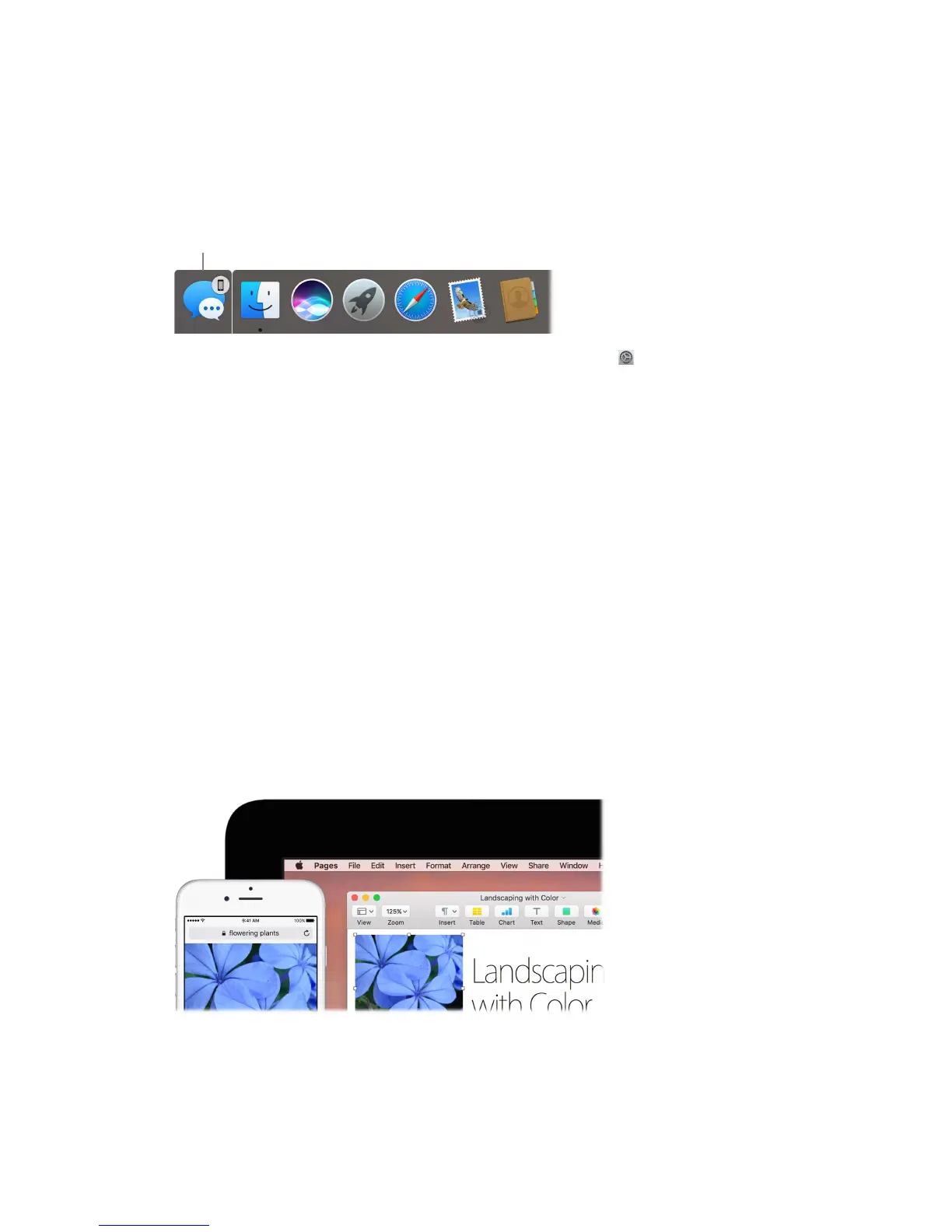
devices are near each other, an icon appears in the Dock whenever an activity is being handed
o; to continue, just click the icon.
were doing on your iPhone.
Turn on Hando on your Mac mini. Click the System Preferences icon in the Dock, click
General, then select “Allow Hando between this Mac and your iCloud devices.”
Turn on Hando on your iOS device. Go to Settings > General > Hando & Suggested Apps,
then tap to turn on Hando. If you don’t see the option, your iOS device doesn’t support Hando.
Turn on Hando on your Apple Watch. In the Apple Watch app on iPhone, go to Settings >
General, then tap to turn on Enable Hando.
Note: To use Hando, you need an iPhone, iPad, or iPod touch with the Lightning connector
and iOS 8 (or later) installed. Make sure your Mac mini and iOS device have Wi-Fi and Bluetooth
turned on and are signed in to the same iCloud account.
Hando works with Safari, Mail, Calendar, Contacts, Maps, Messages, Notes, Reminders, Keynote,
Numbers, and Pages.
Universal Clipboard
Copy content from one device, and paste it into another nearby device within a short period of
time. The contents of your clipboard are sent over Wi-Fi and made available to all Mac and iOS
devices logged in with the same Apple ID that have Hando, Wi-Fi, and Bluetooth turned on. See
Hando for more information.
Note: To use Universal Clipboard, you need an iPhone, iPad, or iPod touch with the Lightning
connector and iOS 10 (or later) installed.
Use across apps. You can copy and paste images, text, photos, and video between any apps that
support copy and paste on your Mac, iPhone, iPad, and iPod touch.
74% resize factor


 To Next Page
 Loading...