Chapter 2 Get started 26
Back up and restore
To keep your les safe, it’s important to back up your Mac mini regularly. The easiest way to back
up is to use Time Machine—which is built into your Mac mini—with a wireless AirPort Time
Capsule (sold separately), or an external storage device connected to your Mac mini.
Files stored in iCloud Drive and photos in iCloud Photo Library are automatically backed up to
the cloud and don’t need to be part of your backup.
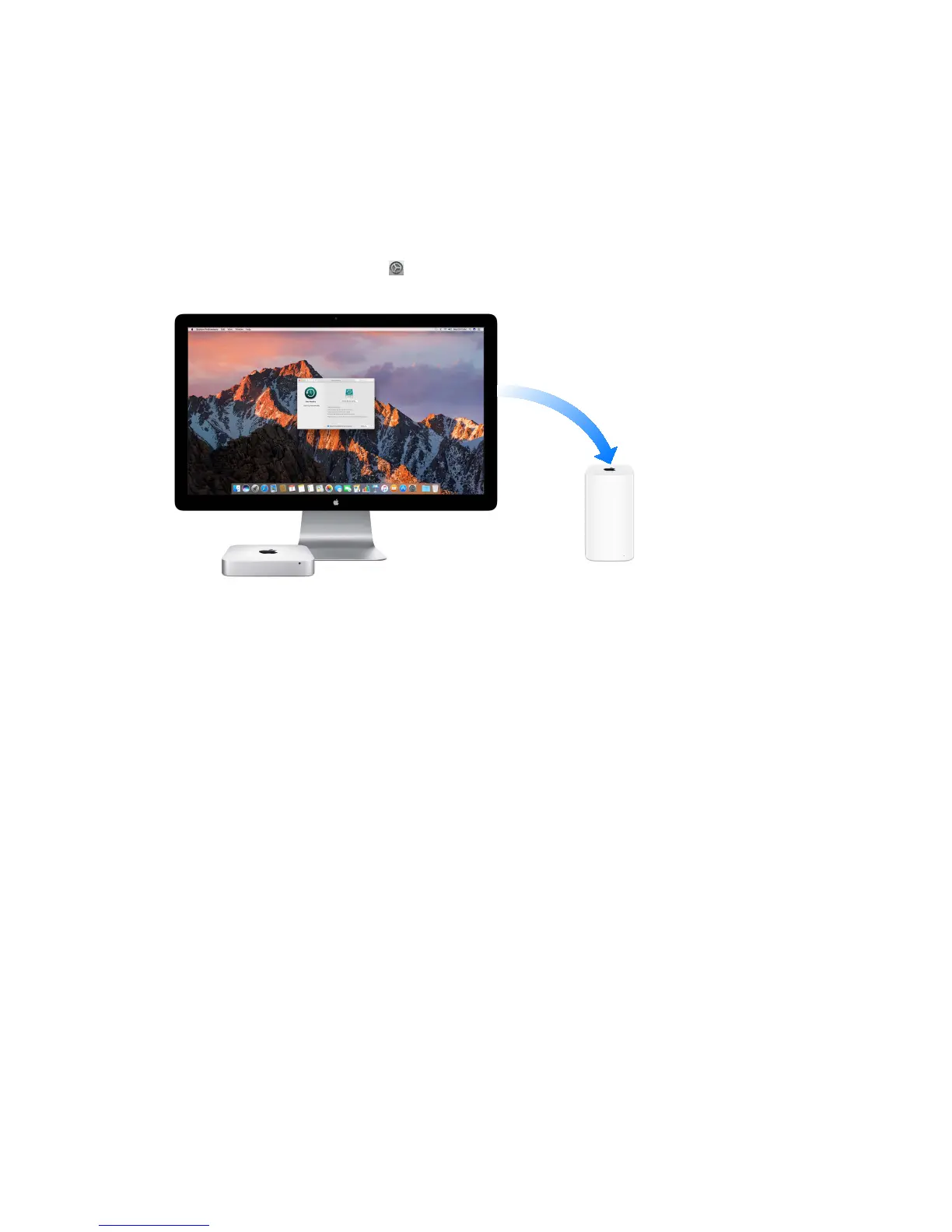
Set up Time Machine. Make sure your Mac mini is on the same Wi-Fi network as your AirPort
Time Capsule, or connect your AirPort Time Capsule or external storage device to your Mac mini.
Click the System Preferences icon in the Dock, click Time Machine, then click On. Select the
drive you want to use for backup, and you’re all set.
Time Machine:
•
Automatically backs up your entire Mac mini, including system les, apps, accounts,
preferences, music, photos, movies, and documents.
•
Remembers how your computer looked on any given day, so you can revisit your Mac mini as
it appeared in the past or retrieve an older version of a document.
•
Lets you restore your entire system from a Time Machine backup. So if anything happens to
your Mac mini, your les and settings are safe and sound.
To learn more about backing up and restoring your Mac mini, go to Mac Help (see Mac Help) and
search for “Time Machine,” “external storage device,” “backup,” or “restore.” To learn more about
AirPort Time Capsule, go to www.apple.com/airport-time-capsule.
AirPort Time Capsule is sold separately at apple.com or your local Apple Store.
74% resize factor


 To Next Page
 Loading...