Chapter 3 Apps 28
Safari
Safari is the fastest, safest, and most energy ecient way to surf the web on your Mac.
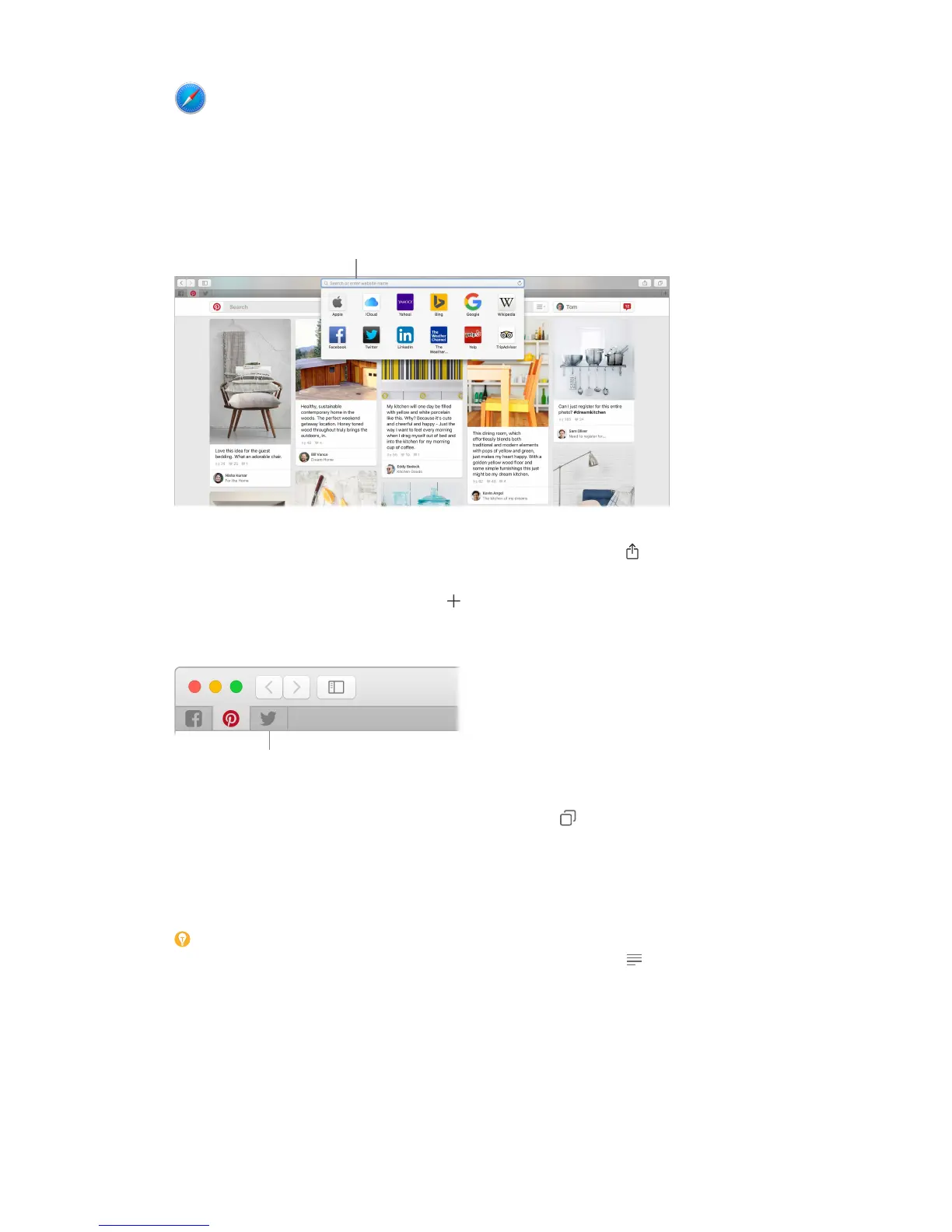
Start searching. Click the Smart Search eld at the top of the window to see websites you visit
most frequently. Or start typing a word or website address—Safari shows you matching websites,
as well as Safari Suggestions for news, Wikipedia articles, iTunes music, weather forecasts, sports
scores and player stats, stock prices, help from Apple, and nearby points of interest.
for or click a favorite.
Spread the word. It’s easy to share a webpage on social media, save it to your bookmarks or
reading list, or add it to Notes or Reminders. Just click the Share button at the top of the
window and choose an option.
View multiple pages in one window. Click at the far right of the tab bar to open a new tab,
then enter an address. To keep a website handy, drag its tab left to “pin” it, and it stays put in the
tab bar.
Drag a tab to the left
to pin it in the tab bar.
See what’s open on your devices. You can see open webpages on devices that are signed in to
the same iCloud account. Just click the Show All Tabs button at the top of the window and
scroll down if necessary.
Shop with Apple Pay. When you’re shopping online on a supported website, click the Apple Pay
button to make a purchase. To complete the transaction, use Touch ID or the passcode on your
iPhone, or double-click the side button on your unlocked Apple Watch.
Tip: If the article you’re reading includes animations or ashy ads, you can use Reader view to
strip out the distractions and focus on the text. Click the Reader button in the Smart Search
eld (if it’s available).
74% resize factor


 To Next Page
 Loading...