Chapter 3 Apps 30
Notes
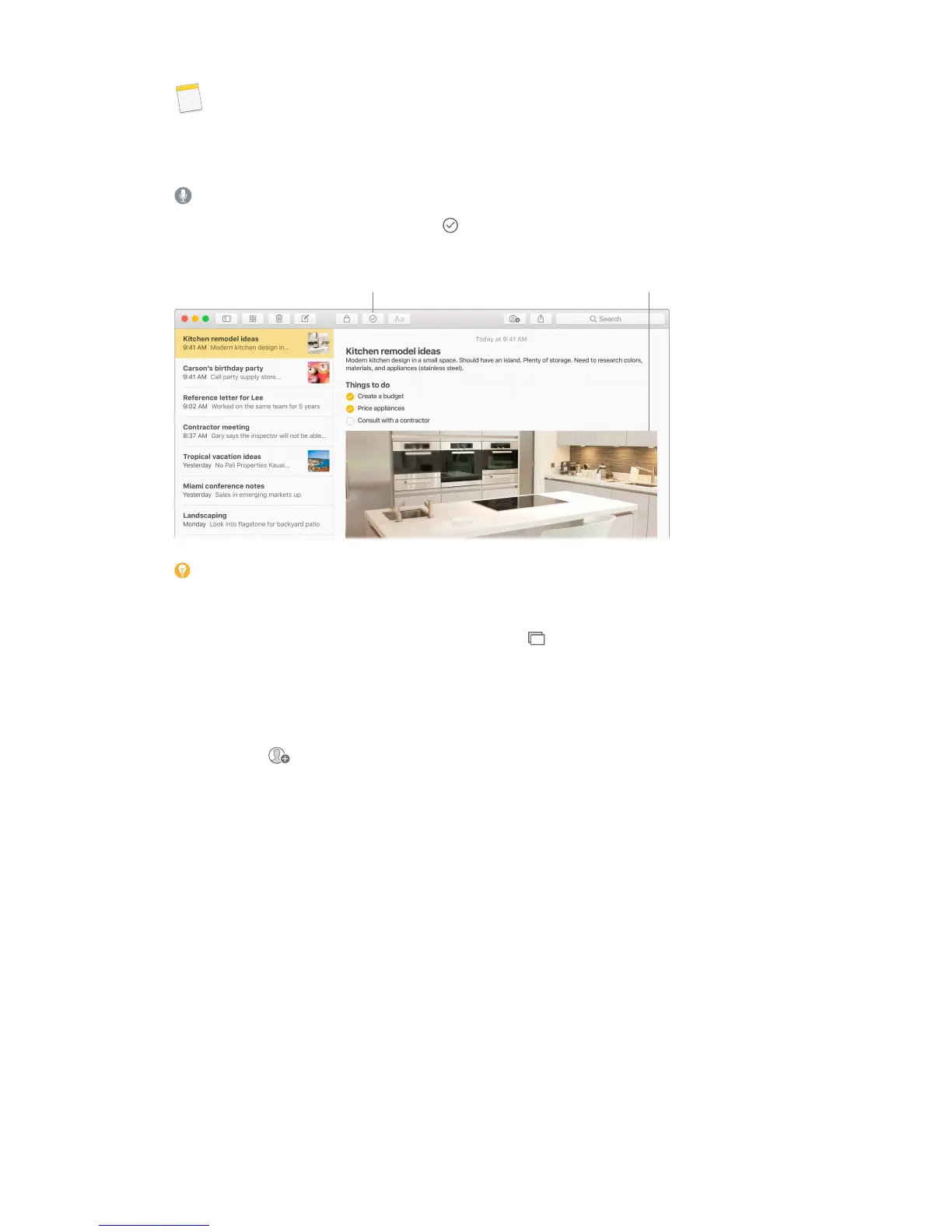
Notes are more than just text. Add a checklist and check o items as you complete them. Or
add photos, videos, and content from other apps, such as a web link from Safari or a location
from Maps.
Ask Siri. Say something like: “Create a new note.”
Check o tasks. Click the Checklist button to add an interactive checklist to a note—perfect
for completing a to-do list or working through a recipe.
Create a checklist.
items into your notes.
Tip: When you’re signed in to iCloud, your notes are kept up to date on all your devices—so
you can create a to-do list on your Mac, then check items o on your iPhone while you’re on
the go.
Add photos, videos, and more. Click the Photos button to add items from your Photos library
to a note. Or drag a photo, video, PDF, or other document from the desktop.
Sort notes. You can sort your notes by Date Created, Date Edited, or Title. Select “All iCloud,”
“Notes,” or a folder, then choose View > Sort Notes By and select a sort option.
Share a note. You can invite people to view and edit your notes by sharing them. Click the
People button
and select a method for sending the link.
Lock a note. You can lock a note with a password to make sure that only those who know the
password can see the note. Choose Notes > Set Password to assign a password to use with all
locked notes. Then select the note you want to lock, and choose File > Lock Note.
74% resize factor


 To Next Page
 Loading...