Chapter 3 Apps 40
Keynote
Create professional, cutting-edge presentations with Keynote. Start with one of the more than
30 predesigned themes and make it your own by adding text, new objects, and customizing the
color scheme.
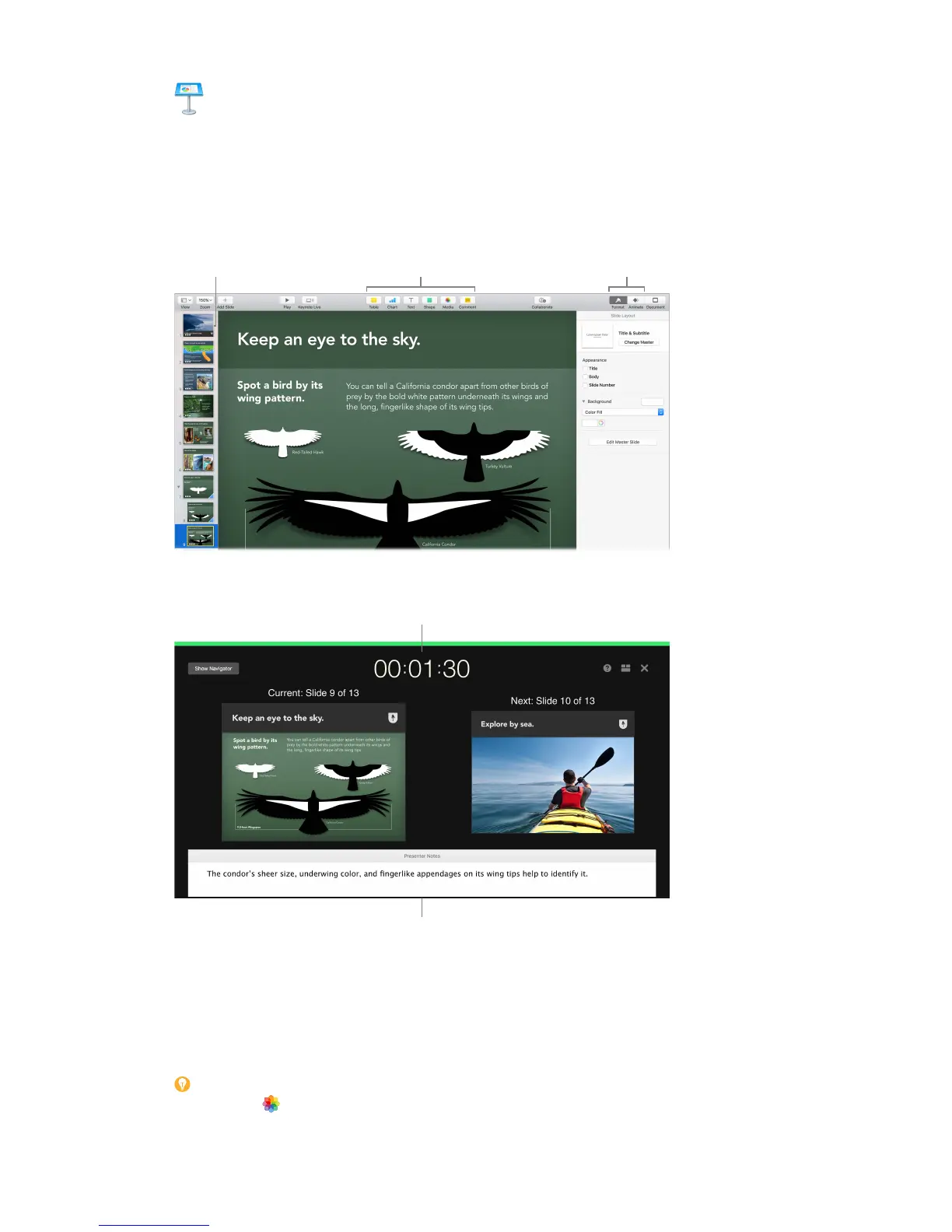
Organize visually. Use the slide navigator on the left to quickly add, delete, or rearrange slides.
Click a slide to see it in the main window, drag a slide to change its order, or select it and press
Delete to remove it.
animation options.
Practice makes perfect. To rehearse your presentation, choose Play > Rehearse Slideshow. You’ll
see each slide along with your notes—and a clock to keep you on track.
Remind yourself
of key points to make.
Share your presentation. If your manager wants to review your presentation or you want to
share it with others on a conference call, choose Share > Send a Copy to send a copy using Mail,
Messages, AirDrop, or even social media.
Follow the bouncing ball. Get their attention by animating an object on a slide. Select the
object, click Animate in the toolbar, click Action in the sidebar, then click Add an Eect.
Tip: You can embed a video in your presentation. Click where you want it to be, then click the
Media button in the toolbar. Click Movies, then nd the movie you want and drag it to your slide.
74% resize factor


 To Next Page
 Loading...