8 9
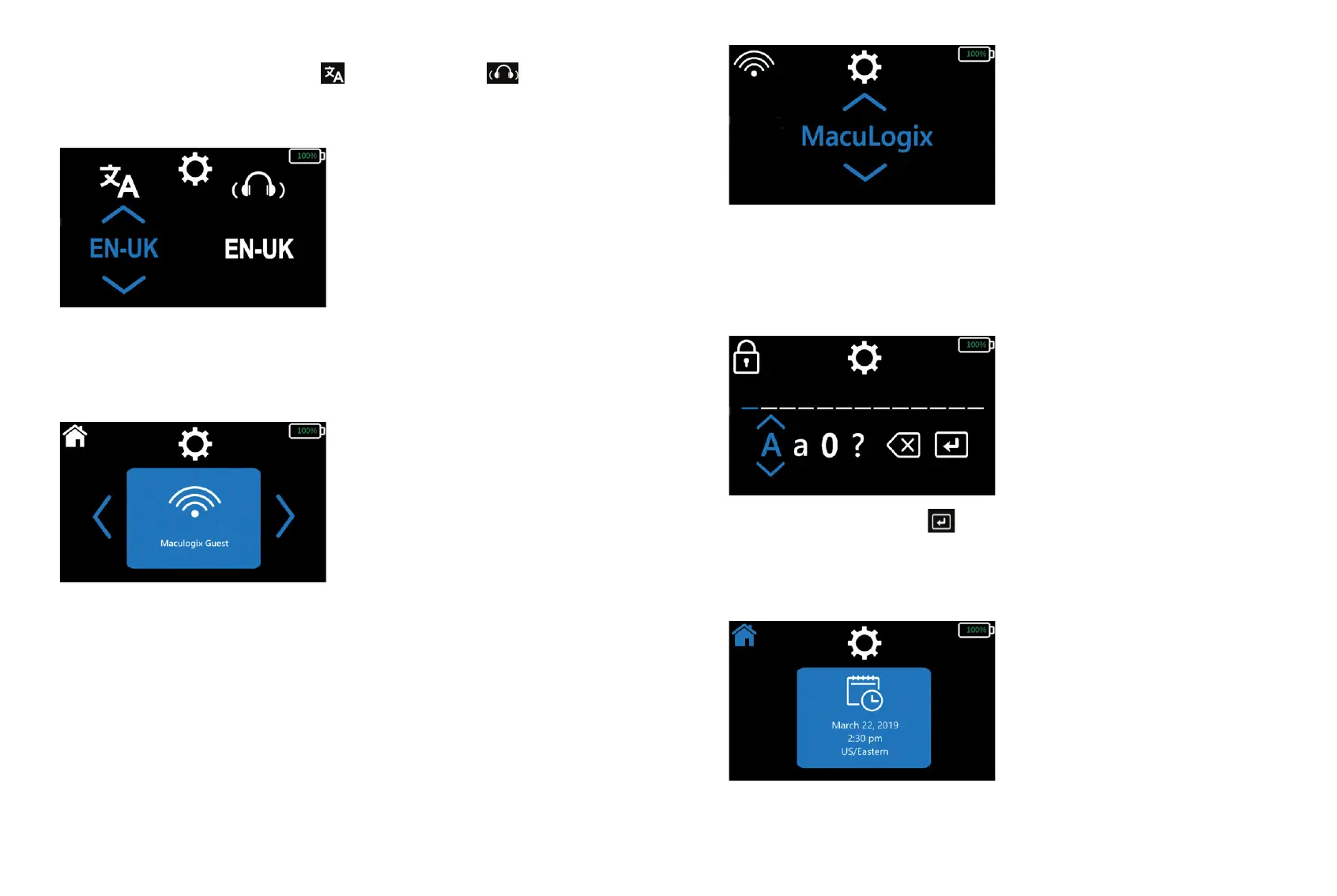
Use the arrows on the top or bottom of each item on the next screen to scroll through options
(up and down arrows) for user interface language and patient testing audio . Once you have
made your selections, navigate to the “System Tool” icon at the top of the screen to save
your settings.
Set up your wireless connection
Select the “System Tools” icon at the top of your screen. Scroll through setup options and choose “Select
Network.”
• If connectivity parameters have been completed, the connection will be shown on the screen.
• If no wireless connection has been established or to add a new connection
- Scroll through the available networks using the up and down arrows and choose the desired
network.
- Next, enter the network password by using the up and down arrows to select each character.
- Navigate to the “Enter” button to save the password.
Set date and time
Select the “System Tools” icon at the top of your screen. Scroll through setup options and choose “Set
Date/Time.”
• You can choose a time zone by scrolling through your options, using the up and down arrows.
Navigate to and choose the desired time zone.



 To Next Page