12 13
AdaptDx Pro in Action
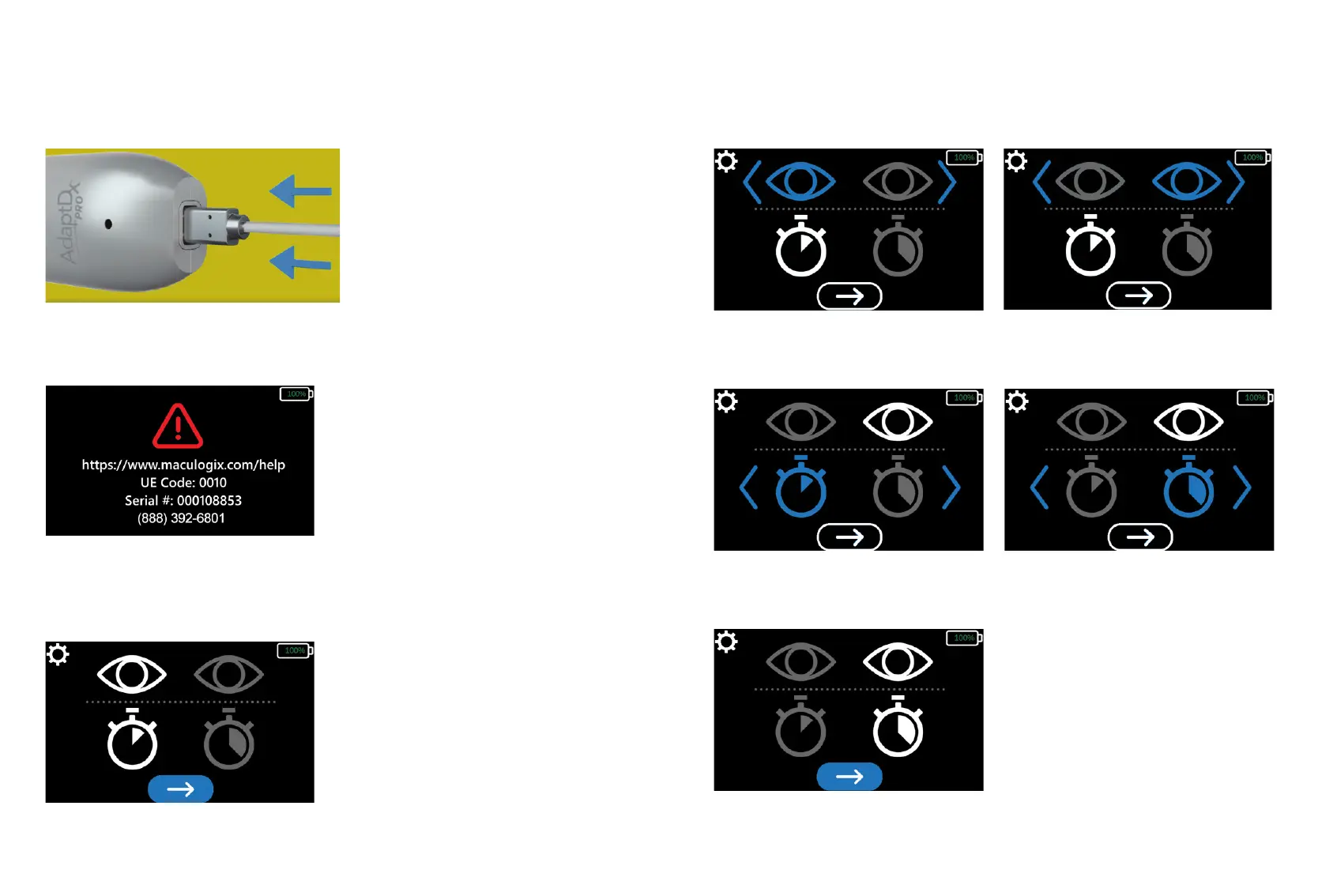
The AdapDx Pro will run through a sequence of self-checks when you rst turn it on. Your screen will
display an error warning if corrective action is needed (e.g., connect the handheld controller to the
headset).
If an error is detected during self-check, you will be prompted to contact MacuLogix tech support and
supplied with reference data for your case.
Once the self-check has been completed, the AdaptDx Pro Home screen will be displayed, showing
your selected default settings. If you wish to proceed with these settings, select the blue button with the
white arrow at the bottom of the screen.
If you would like to use settings other than your defaults, select the “System Tools” icon at the top of
your screen and navigate to the item you would like to change. Use the left and right arrows to make
your selection. For example, if you wish to change the eye tested, navigate to the eye icon and use the
arrows on the left and right to scroll through your options.
Follow the same process to change test type if needed. (Click on the “timer” icon and use left and right
arrows to scroll through the options.)
Once you have selected the test eye and the test type, select the blue button with the white arrow at
the bottom of the screen.


 To Next Page
 Loading...