The madVR Envy is a video processor designed to optimize video quality for various viewing conditions and content types. It utilizes a sophisticated profile system to manage and apply settings, offering extensive flexibility and ease of use for both basic and complex home theater setups.
Function Description:
The core function of the madVR Envy is to process incoming video signals and apply a wide range of image enhancements and adjustments. This includes upscaling, sharpening, artifact reduction, HDR processing, and calibration settings. The device's profile system allows users to create and manage custom collections of these settings, which can be activated manually or automatically based on various criteria. This enables the Envy to deliver optimal video quality for different sources, content types (e.g., SDR, HDR, 3D), resolutions (e.g., 1080p, 4K), aspect ratios, and even viewing environments (e.g., daytime, nighttime).
Usage Features:
The madVR Envy's profile system is a central feature, offering unparalleled control over video settings. Here's a breakdown of its key usage features:
- Profiles: Profiles are custom collections of Envy menu pages and their settings. They allow users to group specific adjustments for a particular purpose, such as "1080p Movies," "4K HDR Content," or "Apple TV Source." When a profile is activated, only the settings defined within that profile are applied, while all other settings revert to system defaults or are passed through from other active profiles. This "transparency" ensures that only desired changes are made without affecting unrelated settings.
- Predefined Profiles: The Envy comes with several predefined profiles that are automatically activated based on the properties of the incoming video signal. These include profiles for:
- Incoming Resolution (SD, 720p, 1080p, 4K, 8K)
- Incoming Frame Rate
- Incoming Aspect Ratio
- Incoming Colorimetry
- Incoming Flags
- Source Devices
- Displays
These predefined profiles serve as a foundation, allowing users to quickly set up basic optimizations without extensive manual configuration.
- Custom Profiles: Users can create an unlimited number of custom profiles for any specific need. For example, a "Sci-Fi" profile could be created with preferred settings for science fiction movies, or "Daytime" and "Nighttime" profiles for different ambient light conditions.
- Profile Groups: To help organize profiles, the Envy supports profile groups. Only one profile within a group can be active at a time, making it ideal for mutually exclusive conditions like "Viewing Conditions" (Daytime, Nighttime, Batcave) or "Sports" (Hockey, Basketball, Football). Predefined profiles for "Source Devices" and "Displays" are also organized into profile groups.
- Profile Bar: The Profile Bar in the Envy's menu system allows users to select whether the currently displayed settings are for the "Base Settings," "Active Settings," or a specific profile. This provides a clear visual indication of which settings are being viewed or modified.
- Base Settings: This is the root layer of the Envy's settings management. All default values are set and inherited from the Base Settings. Changes made here become the new system defaults unless overridden by an activated profile or temporary settings.
- Active Settings: These reflect the current settings in use by the Envy after all activated profiles and temporary settings have been applied. Any changes made in the Active Settings are instantly applied and are temporary.
- Temporary Settings: Users can make temporary changes to settings in the Active Settings. These changes are applied immediately but automatically revert when there's an HDMI signal change (e.g., a movie ends, player returns to menu), HDMI input changes, or the Envy is turned off or restarted. This feature is excellent for experimenting or making quick, non-permanent adjustments.
- Making Temporary Settings Permanent: Temporary settings can be saved permanently either to the Base Settings (making them new system defaults) or to a specific profile (applying them only when that profile is active). This is done via "Save to Base" or "Save to Profile" options, often accessible through colored buttons on the remote.
- Menu Tags (BASE, TEMP, PROF, SET, THRU): These tags provide crucial information about where each setting's value originates:
- BASE: Indicates the setting is inherited from the Base Settings.
- TEMP: Indicates the setting is temporarily overridden in the Active Settings.
- PROF: Indicates the setting's value is being set by an active profile.
- SET: Appears when viewing a specific profile and indicates that the profile is actively setting that menu item's value.
- THRU: Appears when viewing a specific profile and indicates that the profile is not overriding this setting; it's "passing through" the value from the Active Settings or Base Settings.
- Profile Priority: In cases of conflicting settings across multiple active profiles, the Envy applies settings based on a defined priority order (highest to lowest):
- Any custom profiles created by the user.
- "Source Devices" profiles.
- "Displays" profiles.
- Profiles based on properties of the incoming video signal.
Temporary changes made to the Active Settings always have the highest priority, overriding even custom profile settings.
- Profile Management:
- Creating Profiles: Profiles can be created by saving temporary settings or by manually adding menu pages to a new or existing profile.
- Deleting Profiles/Menu Pages: Users can delete a menu page from a profile or remove an entire profile using the remote control.
- Renaming Profiles/Groups: Profile and group names can be customized. A keyboard attached to one of the Envy's USB ports is recommended for this.
- IP Control API: For advanced users and integrators, the Envy offers an IP Control API, allowing external control systems (like Crestron, RTI, Control4, Savant) or custom programs to activate and manage profiles and profile groups automatically.
- Configuration Download/Upload: Installers can configure one Envy with all desired custom profiles and then download that configuration. This configuration can then be uploaded to other Envy units, streamlining setup for multiple installations.
- Remote Control Interface: The Envy is operated using a remote control, with dedicated buttons for accessing the Profile menu and context-sensitive help. The menu system is designed for intuitive navigation.
Maintenance Features:
While the manual doesn't detail specific hardware maintenance, the software-based profile system offers a form of "maintenance" by allowing users to easily adapt and update their settings over time without disrupting the entire configuration.
- Flexibility in Settings Modification: The transparent nature of profiles means that if a user decides to change a global setting (e.g., "Add Grain" from Off to 1 for all viewing conditions), they only need to modify it in the Base Settings. Since this setting is typically "THRU" in most profiles, the change in Base Settings will propagate through all profiles to the Active Settings, applying to everything watched without needing to edit each individual profile.
- Experimentation: The temporary settings feature allows for safe experimentation with new settings without the risk of permanently altering preferred configurations. If a new setting proves beneficial, it can then be saved to a profile or Base Settings.
- System Updates: The manual implies that the profile system is beta software, suggesting ongoing development and potential updates that would enhance its functionality and stability.
In summary, the madVR Envy is a highly adaptable video processor that empowers users to achieve optimal image quality across diverse viewing scenarios through its robust and intuitive profile management system.

 Need help?
 General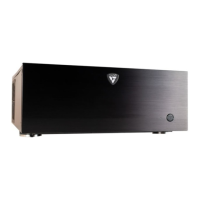

 To Next Page