When the camcorder is recording, this indicator will
blink blue light.
When the GPS dongle is inserted, this indicator will
show constant green light.
For HDMI connection to TV etc.
1. To turn on/off the device
2. Short press to go to screensaver mode when the
camcorder is recording (the screen goes black
while recording continues)
Note:
* Power Button: Press it once to turn on the camera, long press (2-3s) to turn off the camera.
Press it once when recording to turn the camera into screen saver mode.
* To go to Menu, make sure the camera is not recording. If the camera is recording, press OK
button to stop the recording first, then press Menu button to go to Menu.
* Same rules apply (stop recording first) if you want to change the camera from Recording
Mode to Picture Mode or Playback Mode.
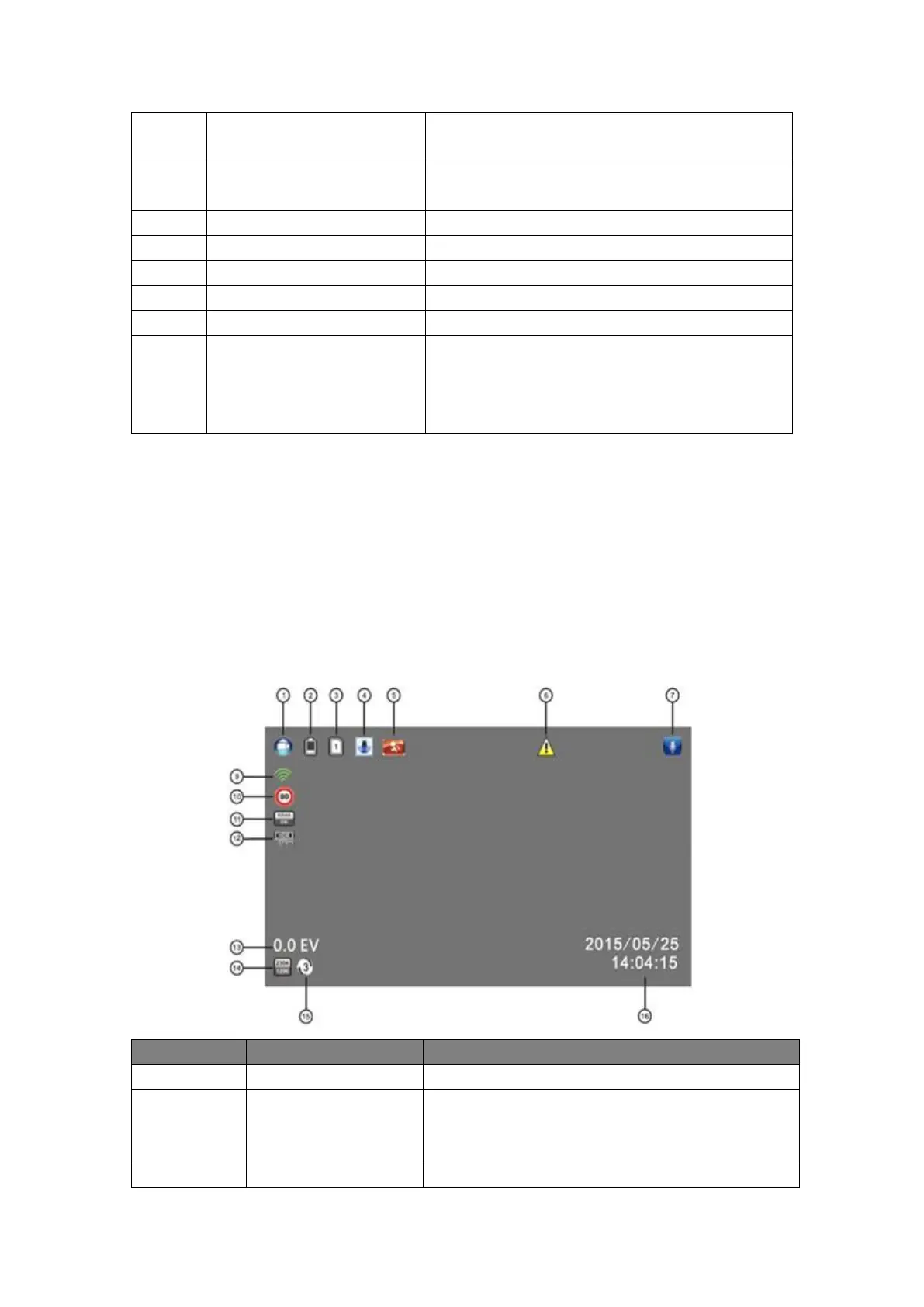
1.4 Screen Interface Illustration
Indicating the camcorder is in Recording Mode
Indicating the remaining power for the device. The
average life of the battery is about 30min. Please
charge your camcorder when the power is low.
When the card is properly inserted and recognized


 To Next Page
 Loading...