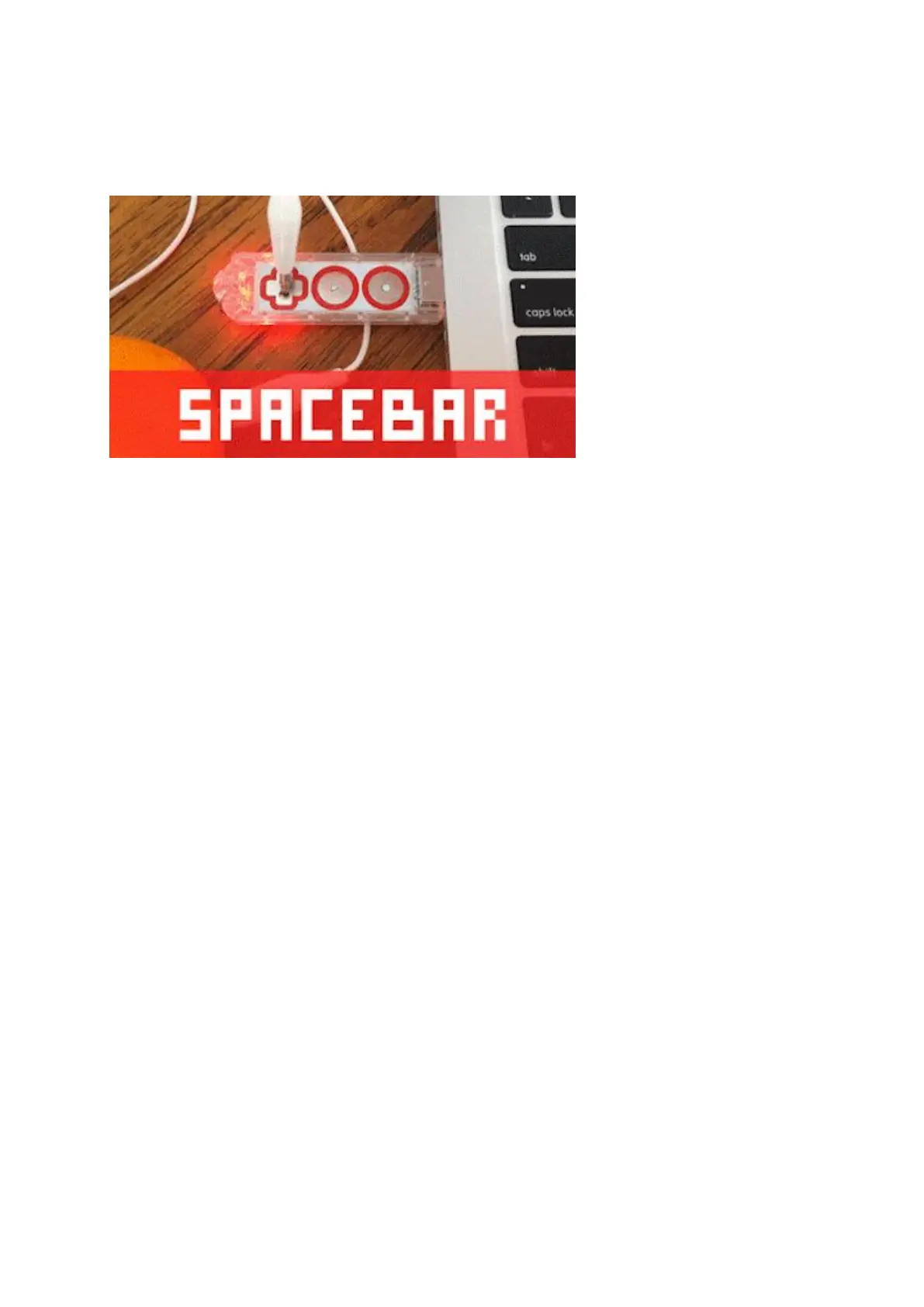
To switch between "mouse left-click" and "space bar," tap the Gear Button on the
Makey Makey GO. This will turn the light Red. Now tapping your clemintine will send
a "space bar" signal to your computer.
Red light = space bar
Blue light = mouse left-click
Green light = active sensor
Use different keys!
If you want to go beyond "left click" and "spacebar", visit makeymakey.com/remap
and follow the instructions to change what key command is triggered by the Makey
Makey when the light is Red.
"Left click" will always be there when you switch to the Blue light.
Unplugging your GO will reset the keys to "space bar" and "left click".
Sensitive Setting
Press and hold the Play Button <="" cup!="" the="" through="" water="" of=""
glass="" a="" trigger="" like="" stuff="" cool="" do="" to="" setting="" sensitive=""
enable="" setting.="" seconds="" 2="">
The Sensitive Setting is still calibrating to the specific object you have connected,
although with greater sensitivity. Tap the Play Button again to leave the Sensitive
Setting.
Say you've got a big pot, and you tap play, and then you tap the pot, but Makey
Makey GO can't tell you're touching the pot (the light doesn't turn green). This is a
good time to try the sensitive setting.
Extras


 To Next Page
 Loading...