EasyManua.ls Logo

Manhattan 525756 - User Manual

Manhattan 525756
29 pages
Print Icon
To Next Page IconTo Next Page
Loading...
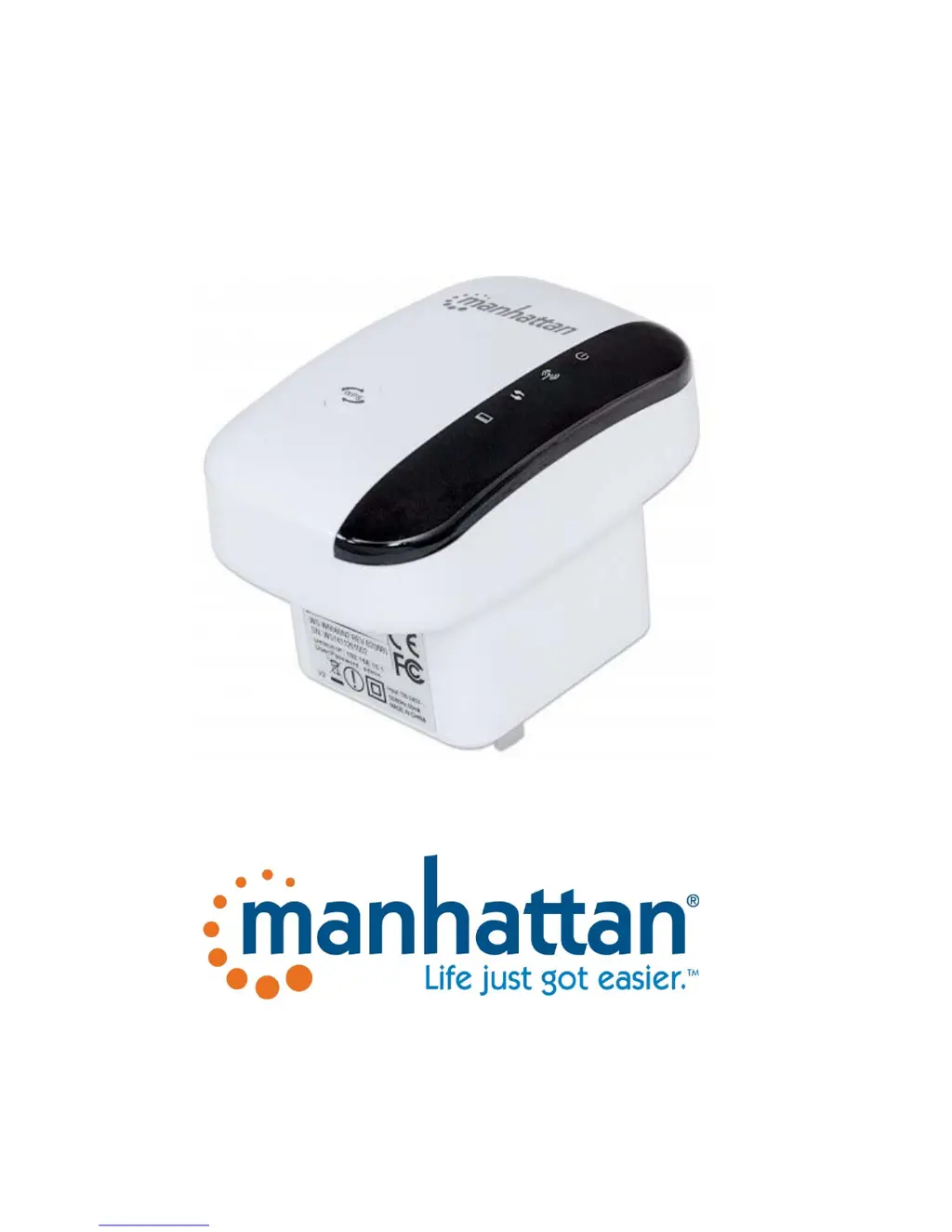
WIRELESS 300N RANGE EXTENDER
USER MANUAL
MODEL 525756
MH525756UM051501

Questions and Answers

  • N
    Nicole HubbardJul 30, 2025
    Why is the signal strength high but the wireless speed is not good on my Manhattan 525756?
    • S
      Susan GardnerJul 30, 2025
      If the signal strength on your wireless adapter is high but the wireless speed isn’t very good with your Manhattan Extender, it could be due to a weak signal between the extender and your home wireless network. Try moving the extender closer to your wireless router to establish a more reliable connection.
  • K
    Kristen RamosAug 3, 2025
    How to fix a Manhattan Extender when the power LED is not lit?
    • S
      Shaun RothAug 3, 2025
      If the power LED on your Manhattan Extender is not lit, ensure that the power switch is properly inserted into the power outlet and that the outlet is providing power.
  • J
    John HernandezAug 8, 2025
    What to do if the LAN LED does not light up on my Manhattan Extender?
    • T
      Tiffany RuizAug 8, 2025
      If the LAN LED on your Manhattan Extender doesn't light up, check the network connection between the extender and the Ethernet port of the device you're connecting. Ensure the network cable is properly inserted and the Ethernet device is turned on. If possible, try using a different network cable.
  • K
    Kimberly RayAug 12, 2025
    Why is the hardware reset not working on my Manhattan Extender?
    • E
      Eric CarterAug 12, 2025
      If the hardware reset is not working on your Manhattan Extender, make sure that you press and hold the reset button for 10 seconds while the extender is powered on. The reset button could be malfunctioning.
  • R
    Ryan MooreAug 16, 2025
    What does it mean if the WLAN LED is not lit on my Manhattan 525756?
    • R
      rodrigueznicholeAug 16, 2025
      If the WLAN LED is off, but you have a working wireless connection with your Manhattan Extender, the LED may have failed. If the wireless function is enabled in the wireless setting, but the LED is off and you cannot connect to any wireless network, the wireless range extender needs to be replaced through your dealer (place of purchase).
  • D
    Dennis RiveraAug 21, 2025
    Why doesn't the WPS setup work on my Manhattan 525756 Extender?
    • J
      jimenezrobertAug 21, 2025
      If the WPS setup on your Manhattan Extender isn't working as described, it may be because WPS is disabled in the router settings, or you haven't pressed the WPS button on the extender within 120 seconds of pressing the button on the router. Refer to Section 2.2 – 'Manual Installation.'
  • T
    Tammy WallaceAug 26, 2025
    What to do if I don’t know the password of my wireless network and cannot connect the Manhattan 525756 Extender?
    • S
      Shane BakerAug 26, 2025
      If you've forgotten your wireless network password and can't connect your Manhattan Extender, you can connect via WPS if your router supports it, or manually enter the passphrase. If you have forgotten the password, there is no way of connecting the wireless range extender to your wireless network. Your only way out is to set up your wireless network with a new password.

Summary

Introduction

What is the Manhattan Wireless 300 N Range Extender?

Explains what the Manhattan Wireless 300N Range Extender is and its benefits for boosting WiFi signal.

Package Contents

Lists the items included in the package with the wireless range extender.

Hardware Housing

Device Status LEDs

Installation as Wireless Range Extender

Installation Using WPS

Provides step-by-step instructions for installing the range extender using the WPS button for easy connection.

Manual Installation

Configuration Options

Connecting to the Administrator Web Interface

Explains how to access the device's web interface using its IP address or hostname for configuration.

Default Settings for Operational Modes

Details the default settings and connection methods for various operational modes of the range extender.

Change Wireless Network Name (SSID)

Guides on how to change the network name (SSID) of the wireless range extender.

Setup as Access Point

Explains how to configure the device to function as a wireless access point instead of a range extender.

Change IP Address of Range Extender

Provides instructions on how to change the IP address of the wireless range extender for network compatibility.

Wireless Schedule Function

Details how to set up a schedule to activate or deactivate wireless service at specific times.

Change Wireless Security

Explains how to modify wireless security settings, including encryption types and passwords.

Save and Reload Settings

Describes how to save current settings to a file or load previously saved configurations.

Reset to Factory Default Settings

Explains two methods to reset the device to its original factory default settings.

Time Settings

Guides on setting the correct date and time for the schedule function to work properly.

Change Administrator Password

Instructs on changing the default administrator password for enhanced security.

Upgrade Firmware

Details the process of downloading and installing new firmware for the wireless range extender.

Appendix A: Changing Network Adapter IP

Windows 8 IP Address Change

Provides step-by-step instructions for changing the IP address of a network adapter in Windows 8.

Windows 7 IP Address Change

Provides step-by-step instructions for changing the IP address of a network adapter in Windows 7.

Windows XP IP Address Change

Provides step-by-step instructions for changing the IP address of a network adapter in Windows XP.

Mac OS X IP Address Change

Details how to change the IP address of a network adapter on a Mac OS X system.

Troubleshooting

LED Indicators Not Working

Solutions for issues with Power, LAN, and WLAN LED indicators on the device.

Reset and WPS Connection Problems

Troubleshooting for hardware reset failures and WPS connection issues.

Wireless Network Connectivity Issues

Resolving problems with connecting to the wireless network and poor performance.

Specifications

Wireless Standards & Security

Details supported wireless standards (802.11b/g/n) and security options (WEP, WPA2).

Hardware Features

Overview of hardware features including LAN port, buttons, LEDs, and power specifications.

Physical & Package Details

Physical dimensions, weight, and contents of the product package.

Warranty Information

English Warranty Information

Provides information on where to find warranty details for the product.

Mexico Warranty Information

Details warranty information and contact information for Mexico.

Manhattan 525756 Specifications

General IconGeneral
BrandManhattan
Model525756
CategoryExtender
LanguageEnglish

Related product manuals