Set Up Your MarCELL PRO Base
Click on Register near top right of home page
Follow instructions for setting up a new account
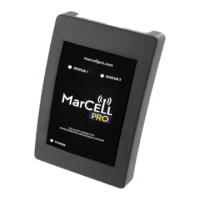
Enter Device ID (from label on top of unit), name & location
Accept or change Temperature, Humidity safe ranges
Set up notifications (What you want MarCELL PRO to do when an
alert condition is detected)
Next, sign up for service to activate the unit
You can now plug in your MarCELL PRO
The outlet and unit should be indoors and/or protected from
direct contact with the elements (snow, rain, etc.). When
selecting an outlet, stay away from a location which gets direct
sunlight or subject to drafts
After 20 seconds to 1 minute, the LED power light should turn to
a steady green light signaling it has registered online and it is
ready to begin monitoring the environment & reporting alerts.
If you do not receive a solid green light for power – refer to the
trouble shooting chart
IMPORTANT NOTE: No temperature or humidity alerts will be sent out
in the first 30 minutes after your
first plugged in as the
sensors get used to their new environment & stabilize.
This test should only be done once the unit has been registered
and the unit is plugged into a live wall outlet and the status light
on the MarCELL PRO is on and solid green
To test the unit, simply unplug it from the wall for 30 seconds.
This will have the same effect as a power outage. MarCELL PRO
will detect that power has been lost, connect to the
send the alert(s) you have set up.
Depending on your connection – you should receive a
notification (depending on what type was set up in step 1)


 To Next Page