EasyManua.ls Logo

Marschall STANMORE II - User Manual

Marschall STANMORE II
22 pages
Print Icon
To Next Page IconTo Next Page
Loading...
STANMORE II VOICE WITH THE GOOGLE ASSISTANT BUILT-IN
USER MANUAL

Questions and Answers

  • L
    Luis MartinAug 16, 2025
    What to do if my Marschall Speakers Stanmore II does not turn on?
    • S
      Samantha WintersAug 16, 2025
      If your Marschall Speakers Stanmore II doesn't turn on, it might not be properly connected to a power source. Ensure the mains lead is connected to both the speaker and a working wall socket. Then, pull and hold the power lever towards the front of the speaker until the indicator lights illuminate.
  • M
    Michael SuttonAug 19, 2025
    Why can't I connect or pair my Bluetooth device with Marschall Speakers?
    • S
      Suzanne MartinAug 19, 2025
      If you're having trouble connecting a Bluetooth device to your Marschall Speakers, there could be a few reasons: * Bluetooth might not be enabled on your device. * There might already be two devices connected to the speaker. * The speaker might not be in pairing mode. To resolve this, first, activate Bluetooth on your device. If two devices are already connected, disconnect one of them. Then, put the speaker into pairing mode by pushing and holding the Bluetooth button for 3 seconds.
  • C
    Cheryl SullivanAug 22, 2025
    What to do if there is no audio or audio is too low on my Marschall STANMORE II?
    • A
      Arthur BradyAug 22, 2025
      If you're experiencing low or no audio on your Marschall Speakers, the issue might be with the selected audio source or the volume levels. Make sure your device is properly connected to the Stanmore II and that no other device is playing audio. Also, check the volume levels on both your audio source and the speaker, and increase them slightly if needed.
  • M
    Mr. Charles McfarlandAug 25, 2025
    What to do if my Marschall STANMORE II Speakers are not responding?
    • N
      Nichole BurnsAug 25, 2025
      If your Marschall Speakers aren't responding, it could be due to a software issue. Try unplugging the speaker from the wall socket, waiting 15 seconds, and then plugging it back in. If that doesn't work, perform a factory reset by pushing and holding both the Source button and the Play/pause button for 7 seconds. Keep in mind that this will erase all user settings, and you'll need to set up the speaker again.
  • C
    Christy NewmanAug 27, 2025
    How to fix Bluetooth connection drops on Marschall STANMORE II Speakers?
    • E
      Ernest MartinezAug 28, 2025
      Bluetooth connection drops on your Marschall Speakers can occur if the devices are too far apart, if there are obstacles in the way, or if there's a strong electric field nearby. Try moving the devices closer together, ensuring they're within 10 meters and free from obstructions like walls or doors. Also, be aware that devices like microwave ovens or fluorescent lights can cause electrical disturbances.
  • S
    Sarah BarnesAug 31, 2025
    Why is there a crackling sound from my Marschall STANMORE II?
    • P
      Peter LewisAug 31, 2025
      A crackling sound from your Marschall Speakers indicates that the amplifier is clipping because it has run out of output power. To fix this, decrease the volume on your audio source and lower the volume or bass on the Stanmore II.
  • M
    Matthew WestSep 2, 2025
    Why is the audio distorted on my Marschall STANMORE II Speakers?
    • S
      Sally BerrySep 3, 2025
      Audio distortion on your Marschall Speakers can stem from several factors. The volume might be too high on the audio source or the Stanmore II itself. The audio file's quality could be poor, or the bass/treble settings might be excessive. Try turning down the playback volume on the audio source and the speaker. Experiment with a different audio file or music player. Also, try lowering the bass/treble settings on the speaker.
  • J
    Julia RobinsonSep 6, 2025
    What to do if the Google Assistant is not responding on my Marschall STANMORE II?
    • E
      Eric PettySep 6, 2025
      If the Google Assistant isn't responding on your Marschall Speakers, the microphone might be muted. To unmute it, push and hold the microphone button for 3 seconds. The LED indicators on the front will turn off to indicate that the microphone is unmuted.
  • E
    Ethan MooreSep 9, 2025
    Why is my Marschall Speakers Stanmore II voice cannot be discovered by the Google Home App?
    • A
      Ashley McmahonSep 9, 2025
      If your Marschall Speakers Stanmore II voice cannot be discovered by the Google Home app, the speaker may not be in setup mode, or the speaker and your mobile device might not be on the same Wi-Fi network. Select Wi-Fi as the input. To set the speaker to discoverable mode, push and hold the Source button for 3 seconds. Also, make sure your mobile device is connected to the same Wi-Fi network that the speaker was configured on.
  • M
    Matthew WyattSep 12, 2025
    What causes erratic performance on Marschall STANMORE II?
    • R
      Randy LivingstonSep 12, 2025
      Erratic performance in Marschall Speakers can be caused by interference from other electronic devices. To resolve this, try moving the Stanmore II to a different location or turning off or moving the interfering electronic device.

Summary

Legal & Trademark Notice

Disclaimer

Box Contents

Main Speaker Unit

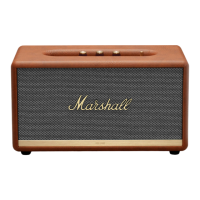
The Stanmore II Voice with Google Assistant Built-in.

Included Documentation

Quick Start Guide and Important Safety Instructions.

Power Cable

The mains lead for connecting to power.

General Description

Front Panel Controls and Features

Overview of knobs, buttons, indicators, and microphones on the front.

Rear Panel Ports and Connections

Details of RCA inputs, AUX input, USB port, and mains connection.

Plugging In the Speaker

Connecting the Mains Lead

Steps to connect the power cable to the speaker and wall socket.

Setting Up with Google Home App

Download and Configure Wi-Fi

Instructions for setting up the speaker via the Google Home app.

Using the Google Assistant

Voice Commands and Interaction

How to use voice commands for music, information, and tasks.

Selecting Audio Source

Switching Between Wi-Fi, Bluetooth, AUX, RCA

Using the source button to choose input methods.

Using Chromecast Built-in

Streaming Music via Chromecast

Connecting your device and selecting the speaker in music apps.

Connecting via Bluetooth

Initiating and Performing Pairing

Steps to make the speaker discoverable and pair your device.

Managing Paired Bluetooth Devices

Information on storing and connecting up to eight devices.

Connecting via AUX Input

Using the 3.5 mm Stereo Jack

How to connect audio sources with a 3.5mm cable.

Connecting via RCA Input

Using RCA Jacks for Audio Input

Connecting audio sources via RCA cables.

Turntable Preamplifier Requirement

Note on RIAA preamplification for turntables.

Adjusting Volume, Bass, and Treble

Using Control Knobs for Audio Tuning

Guide to adjusting sound levels and EQ with knobs.

Playback Control

Play, Pause, Skip Functions

How to control music playback with the button.

Microphone Mute Function

Muting and Unmuting Microphones

How to turn microphones on/off and check indicators.

Google Assistant Availability During Mute

Note on Google Assistant functionality when microphones are muted.

Technical Specifications

Acoustic and Electrical Details

Speaker performance, power, and connectivity specifications.

Physical Dimensions and System Features

Information on size, weight, and voice control system.

Troubleshooting: Power and Discovery

Speaker Not Turning On

Solutions for power connection and initialization issues.

Google Home App Discovery Problems

Troubleshooting Wi-Fi network and setup mode issues.

Google Assistant Unresponsive

Fixes for microphone muting or connectivity problems.

Audio Volume Issues

Solutions for no audio or low volume.

Troubleshooting: Bluetooth

Bluetooth Connection and Pairing Failures

Resolving issues with connecting or pairing Bluetooth devices.

Speaker Unresponsiveness

Troubleshooting software problems and factory resets.

Bluetooth Connection Instability

Addressing dropped connections due to distance or obstacles.

Troubleshooting: Audio Quality

Crackling Sound Issues

Solutions for amplifier clipping or output power limitations.

Distorted Audio Problems

Fixes for high volume, poor audio streams, or incorrect tone settings.

Erratic Performance and Interference

Resolving issues caused by external electronic interference.

Marschall STANMORE II Specifications

General IconGeneral
BrandMarshall
ModelStanmore II
Power Output80 W
Adjustable Bass and Treble ControlsYes
Stereo/MonoStereo
Color OptionsBlack, White, Brown
Frequency Range50Hz - 20kHz
Connectivity3.5 mm input, RCA input
Dimensions350 x 195 x 185 mm
Battery LifeN/A (Mains powered)
Power AmplifiersClass D
Wireless ConnectivityBluetooth 5.0
Mains Input Voltage100-240V
Mains Frequency50/60Hz
Drivers2 x 15W tweeters, 1 x 50W woofer