will be visible at the panel screen once the correct pin is entered. If wrong pin is entered the
warning “Wrong pin” will be seen at the panel screen with sound alert & the door will not
open.
The 4 digit pin should be entered in 15 sec. For your own safety it is suggested to change the
default pin with the specific building pin defined.(Refer to 1.5.2 )
1.4 OPENING DOOR WITH SPECIFIC PIN
In standby mode push the button. “Enter the Apartment number to open the door with
specific pin” will be visible at the panel screen. Enter the Apartment number then push
button. “Enter the pin” will be visible at the panel screen. Enter the Apartment specific 4 digit
pin. The door will open and “Door open” will be visible at the panel screen once the correct
pin is entered. If wrong pin is entered the warning “Wrong pin” will be seen at the panel
screen with sound alert & the door will not open.
To set or change specific Apartment pin please refer to (1.5.4).
1.5 USER SETTINGS MENU
This menu is used to set up the user specific applications at the panel.
To enter the menu push any button (1 to 9) while the panel is on standby mode than push &
hold (C) button for 5 seconds. “Enter setting pin” will be visible at the panel screen. Enter the
4 digit pin in 15 sec and push button.The below menu will be visible once the correct pin
is entered. Use and to scroll up and down to go to the menu item and press
button. In case of no entry to the panel in 15 sec the panel will switch to standby mode.
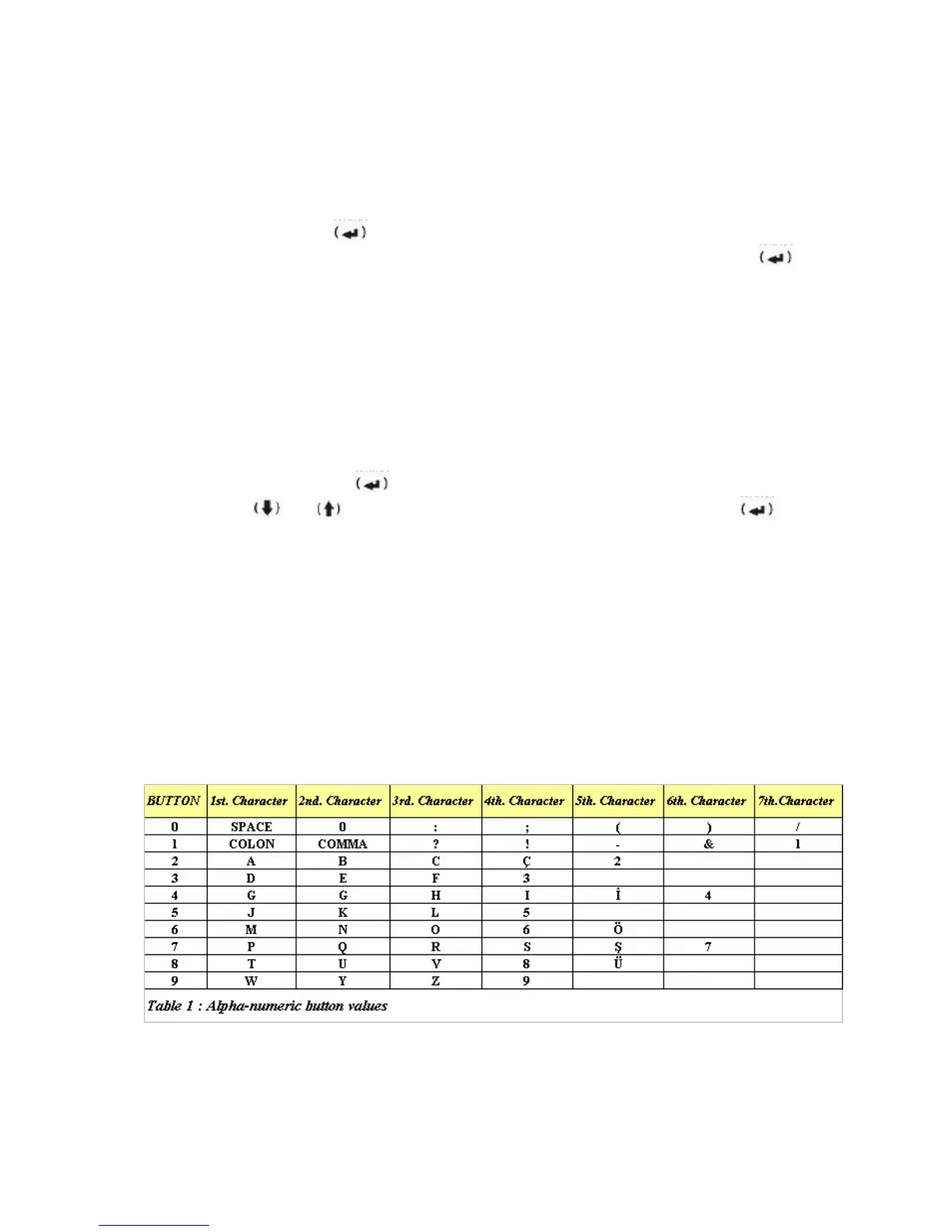
Table 1:.
(1) Change Welcome Screen Text
(2) Change Door Pin
(3) Change Settings Menu Pin
(4) Change Apartment Specific Pin
(5) Change Name List . Add new name.
(6) See Last entries list
(7) Change Door Opening Time
(8) Identify cards (Optional)
(9) Delete cards (Optional)
1.5.1 Change Welcome Screen Text


 To Next Page
 Loading...