M A S T E R C R A F T P R O S T A R
2014 MasterCraft Owners Manual • ProStar Supplement Page 9-15
Touch the arrows to select a course that
is not mapped. Touch [Map Course].
NOTE: Additional Details on Course
List: e blue lettering above the course
list displays the mapped information for
the course selected. Always highlight a
course on the list page before mapping a
new course. When mapping a course, the
program assigns the mapping to whatever
name is highlights on the course list. For
example, if Course1 was previously mapped
and is highlighted when a new course is
mapped, the new mapping will overwrite
the original.
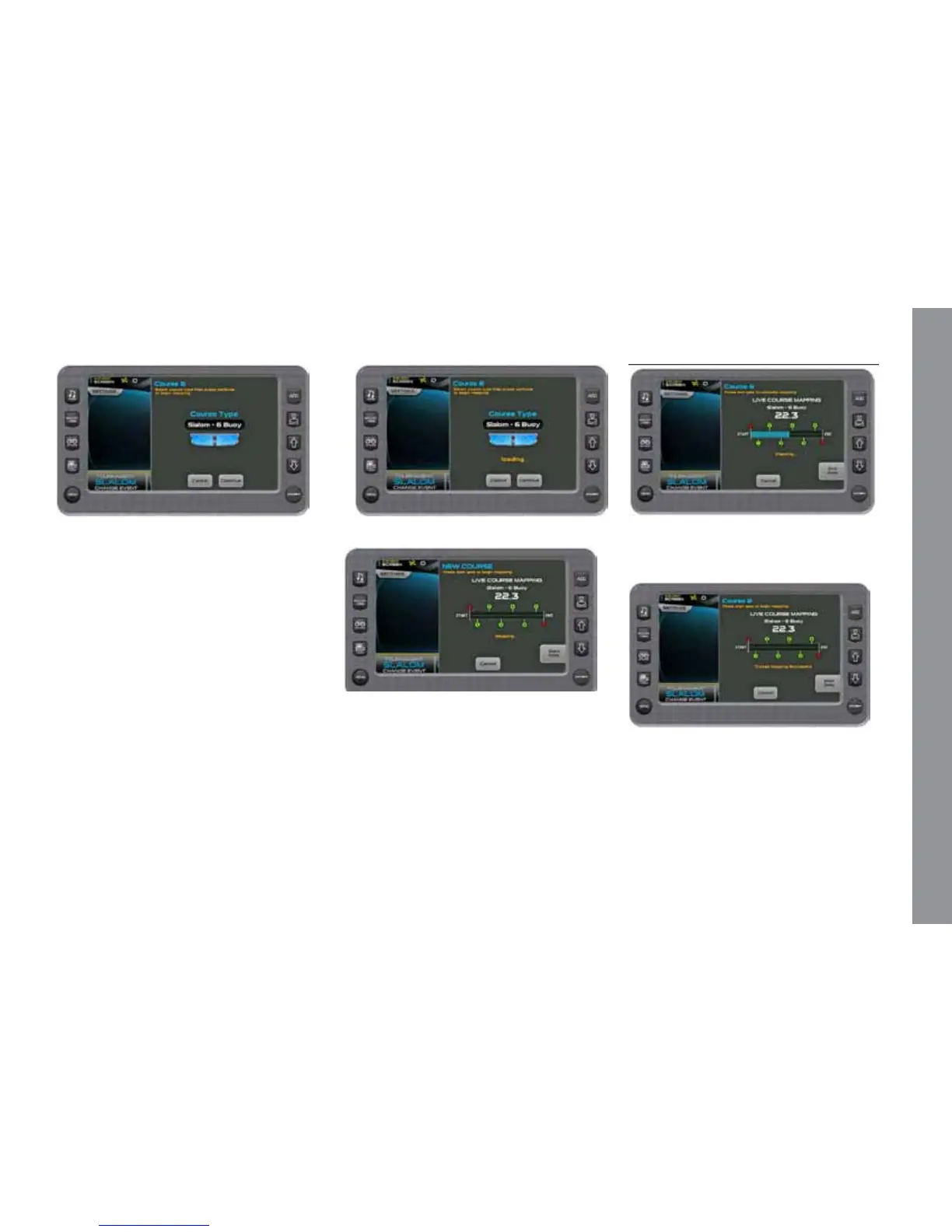
Touch the arrows to select a course type:
Jump, Slalom 4-Buoy or Slalom 8-Buoy.
Touch [Continue.]
Allow the program time to load.
Press the [Start Gate] to begin Mapping.
NOTE: For Slalom, press the [Start Gate]
button when the GPS puck crosses the start
gate.
For Jump, press the [Start Gate] button
when the ski pylon crosses the start gate.
If necessary, touch [Cancel] to cancel the
current mapping and return to the course list.
Press the [End Gate] to complete Map-
ping.
Course Mapping Successful will appear
on the screen.


 To Next Page