M A S T E R C R A F T P R O S T A R
Page 9-4 2014 MasterCraft Owners Manual • ProStar Supplement
ProStar
Video Screen
Operations
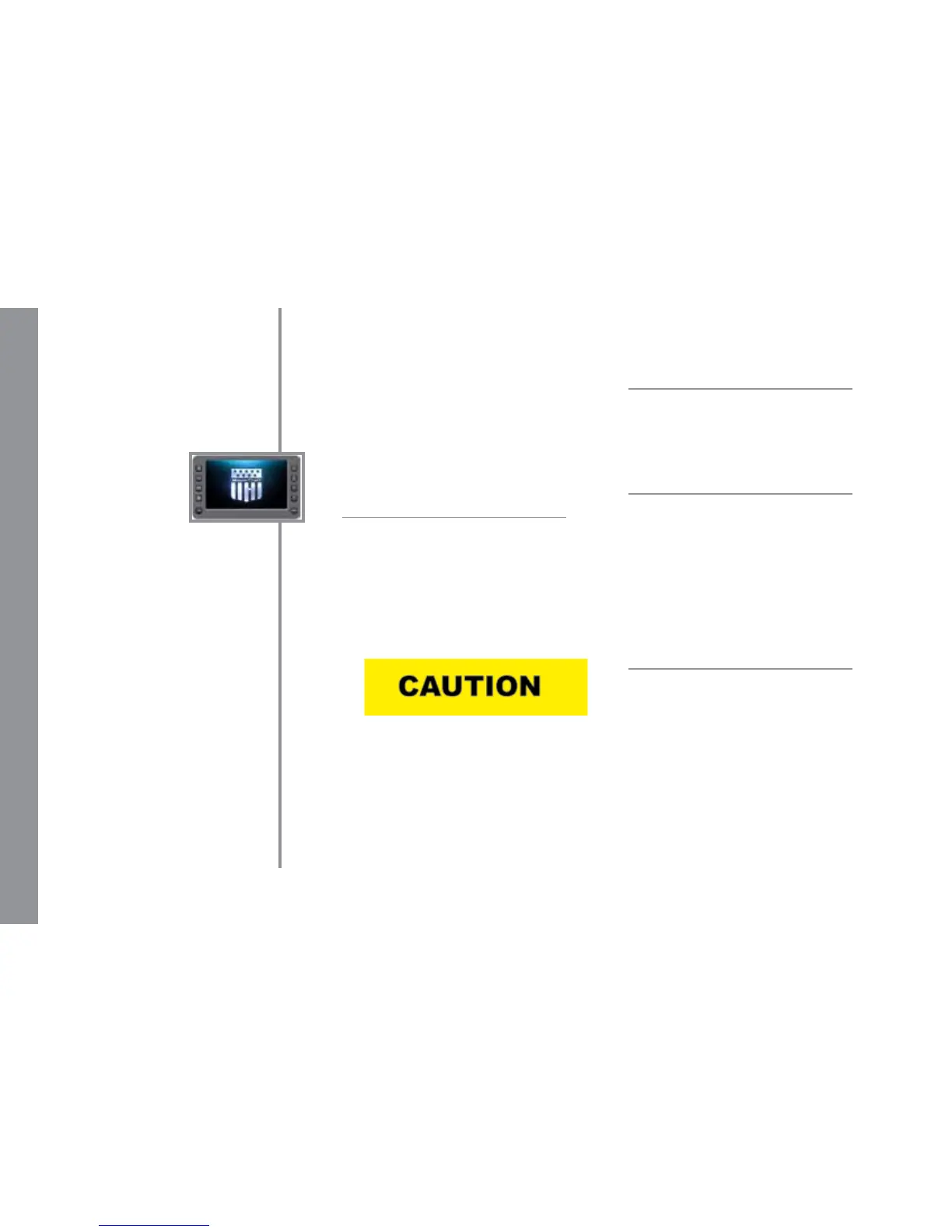
7” Screen
The ProStar 7” video touch screen is a
multi-functional tool that provides GPS
tracking, multi-media display, cruise con-
trol, rider proles, and enables equipment
operators to view a wide range of engine,
ballast, transmission parameters and ser-
vice codes.
Care and Maintenance
Only basic cleaning should be required
to maintain the 7” video touch screen at its
best. A soft cloth can be used for cleaning
the units. Typical window cleaner or rub-
bing alcohol can also be used to clean the
glass portion of the video screen display.
Do not use harsh or abrasive cleaners on
the unit.
Avoid contact between sharp or hard ob-
jects and the video touch screen because
this can result in scratches or other perma-
nent marks on the screen. Clean only with a
sof cloth, using window cleaner or rubbing
alcohol only. Never use harsh or abrasive
cleaners on the unit, as this may result in
damage to the unit that is not covered un-
der warranty.
Basic Navigation Features
All features are easily accessible through
the quick access keys, touch point com-
mands and menus.
Quick Access Keys
The following controls are accessed via
the Quick Access Keys: Audio, Ballast/
Trim, Gauges, Video, Settings Menu, GPS,
User Proles, Cruise ON/OFF, Increase
Value and Decrease Value. They are called
Quick Access Keys because a new screen
can be called up quite fast by pressing the
key.
Touch Point Commands
After the desired screen is accessed, nav-
igation within the screen is controlled with
Touch Point Commands. These are execut-
ed by touching the screen in areas that are
outlined with a highlighted bezel.
In addition, there are areas where sliding
a nger up or down can adjust settings. For
example, on the Ballast and Tabs screen,
sliding the nger on the screen on the in-
side of the tank area adjusts the ballast set-
ting.


 To Next Page