Matrox GXM – User Guide (Mac version) 9
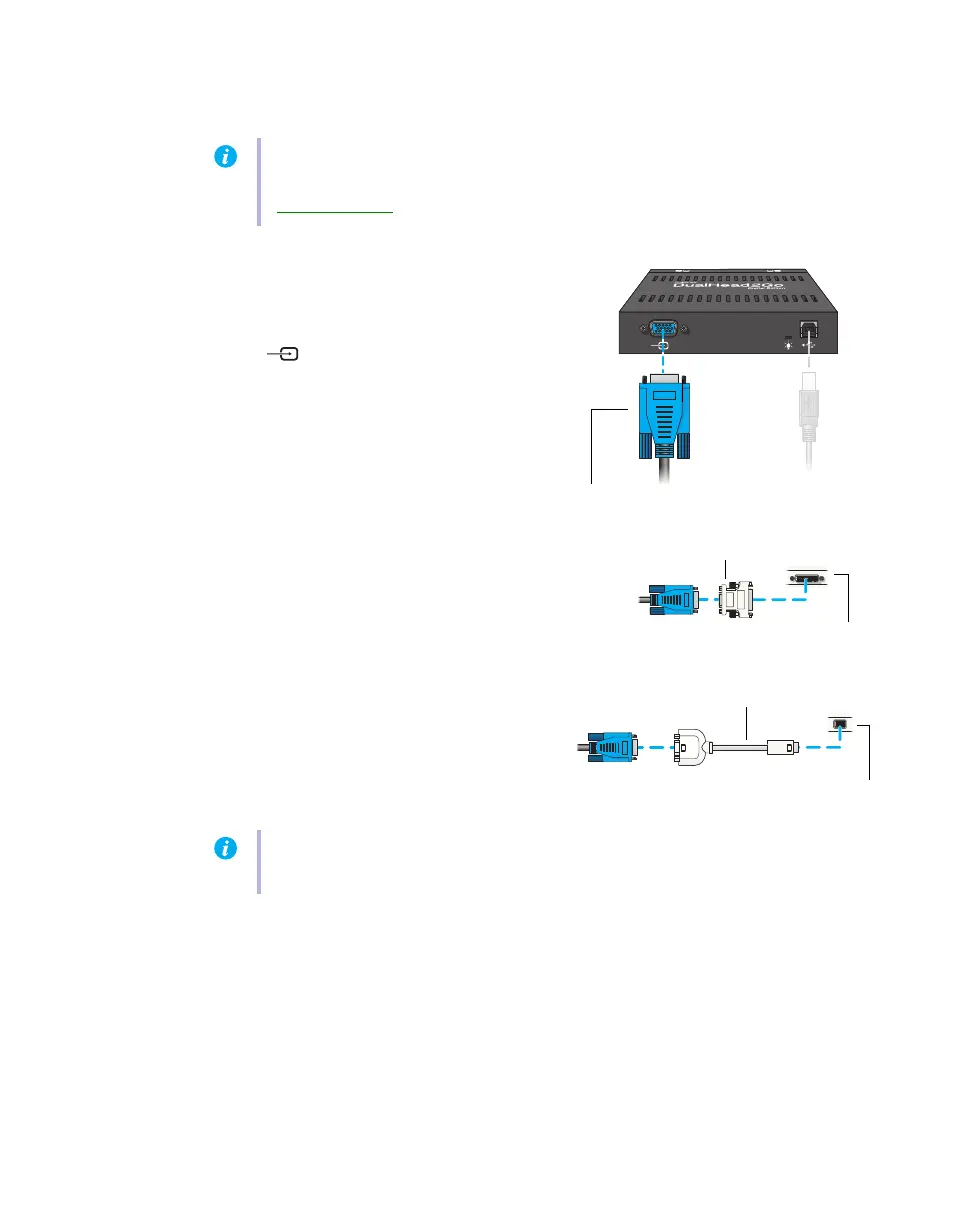
Plug the other end of the USB cable into a powered USB port on your computer. For more
information on powered USB ports, see your system manual.
3
Attach the Matrox input cable
Attach one end of the cable provided with
your Matrox product to the input connector
( ) on your Matrox product.
If the graphics hardware on your computer
has a DVI connector, use a DVI to HD-15
adapter (sold separately) to attach the other
end of your Matrox input cable to your
computer.
If the graphics hardware on your computer
has a mini-DVI connector, use a mini-DVI
to VGA adapter (sold separately). Attach the
other end of your Matrox input cable to your
mini-DVI to VGA adapter, then connect
your adapter to your computer.
Note:
If your computer doesn’t have a powered USB port, you’ll need a separate adapter.
To purchase a Matrox power adapter for your product, see the Matrox online store
(shopmatrox.com
).
Matrox input cable
(HD-15 to HD-15)
DVI to HD-15 adapter
DVI connector
Mini-DVI to VGA adapter
Mini-DVI connector
Note:
If your computer has a micro-DVI connector, use a micro-DVI to VGA adapter (sold
separately) instead.


 To Next Page