Matrox Graphics Card – User Guide 27
4
Cause
Your computer’s other BIOS settings may be incorrect.
1
Solution
Reset your computer BIOS settings to the factory defaults using your computer’s built-in
CMOS setup utility. The factory defaults are usually the “safest” settings. Check your system
manual for more information.
Problem Game for Windows 95/98 doesn’t start or runs slower than normal
(program uses Microsoft DirectX interface)
1
Cause
An older version of DirectX may be installed. The Matrox CD-ROM setup program installs
DirectX, but some programs install an older version of DirectX (overwriting your version).
To see what version of DirectX is installed:
1
Access the Matrox PowerDesk
Information
property sheet (see “Accessing PowerDesk
property sheets”, page 6).
2
Look at the
Microsoft DirectX
label.
1
Solution
If DirectX 7.0 or later isn’t installed, install it. Run the setup program from the
DirectX
folder
of the Matrox installation CD-ROM.
Problem After restarting computer, Windows 95/98 warns that
the graphics card isn’t configured correctly
1
Cause
You may have a conflict because of previously installed display drivers.
1
Solution
Delete all existing display drivers and reinstall Matrox display drivers.
1
If Windows prompts you to start the
Add New Hardware Wizard
, click
Cancel
.
(If you start the Wizard, it will
not
detect your graphics card.)
2
Right-click the
My Computer
icon on the Windows desktop
background.
3
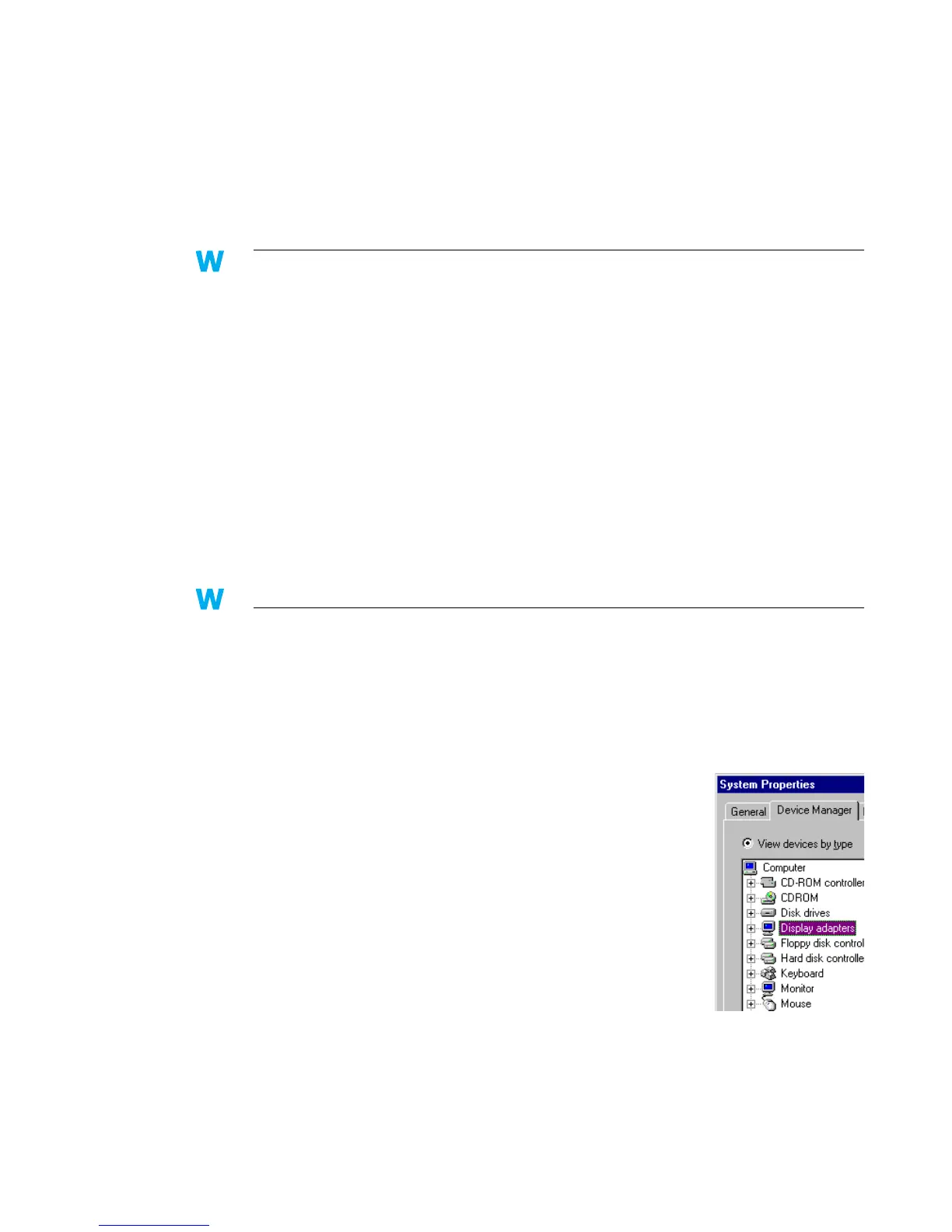
Click
Properties
Æ
Device Manager
.
4
Click the plus sign next to
Other devices
(if it appears) and
Display adapters
.
5
Delete
all
listed display adapters (click each, then click
Remove
), then click
OK
.
6
Restart your computer and reinstall the Matrox display drivers
(see page 5).
9x9x
9x9x



 To Next Page