TROUBLESHOOTING
TO ADJUST THE VOLUME – before placing your
smartphone in the viewer, you can use either the
physical volume buttons on the phone or go to
SETTINGS in the app.
IF THE AR ICONS DON’T APPEAR WHEN YOU
LOOK AT THE REEL – move the viewer closer to the
reel (less than 10 inches).
NOTE: AR icons work best when looking straight
down at the reel, and in a well-lit room.
IF THE TINTED WINDOW POPS FROM THE VIEWER –
orient the window so the View-Master® icon is
positioned at the top then push the window into the
back of the viewer until it snaps into place.
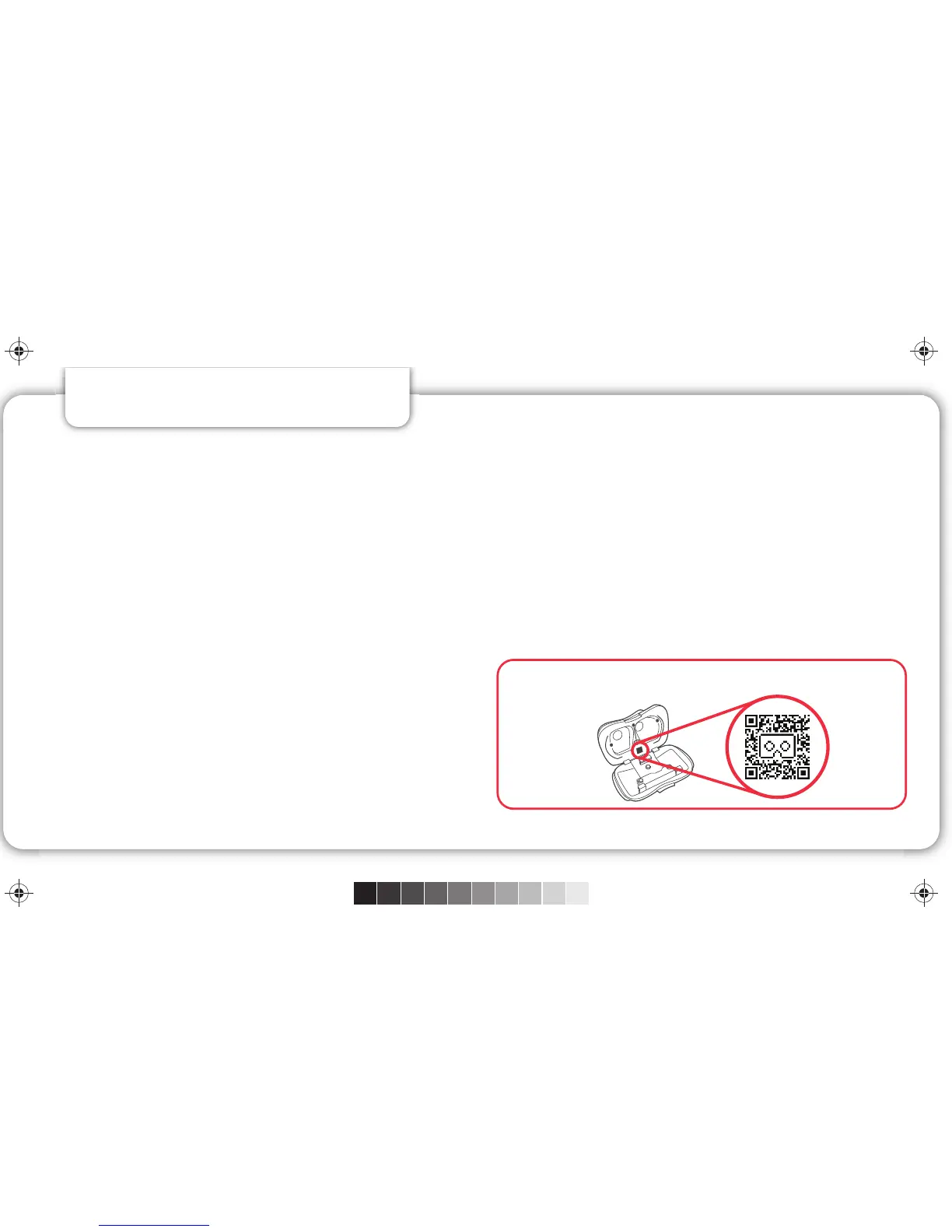
IF THE LEVER ISN’T WORKING – Launch a VR
experience then remove your smartphone and tap
the gear icon at the bottom of the screen. Follow
the prompts to configure your viewer
(you may be
required to download the Google Cardboard app).
Follow the
prompts to scan the QR code inside your viewer or
use the QR code below.
IF THE 3D EFFECT IS BLURRY – open the
View-Master® VR viewer and re-center your device.
If your view is still blurry or is showing double images,
remove your smartphone and tap the gear icon at the
bottom of the screen. Follow the prompts to configure
your viewer
(you may be required to download the Google
Cardboard app). Follow the prompts to scan the QR code
inside your viewer or use the QR code below.
LOCATING THE QR CODE INSIDE YOUR VIEWER
9 10
For additional help visit www.view-master.com/troubleshooting
C
M
Y
CM
MY
CY
CMY
K
DLL68--ViewMaster--Viewer-Instructions-01C-CS5 6.ai 6 15-7-9 4:58DLL68--ViewMaster--Viewer-Instructions-01C-CS5 6.ai 6 15-7-9 4:58



 To Next Page