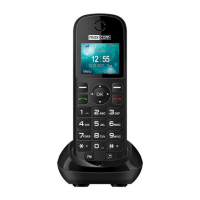
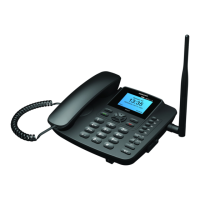
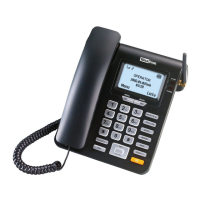
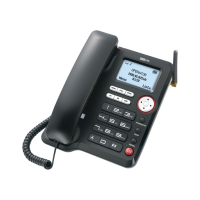
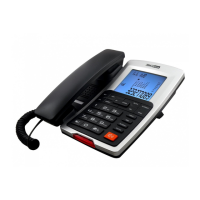
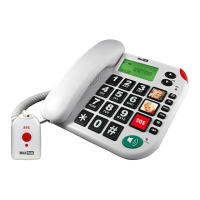
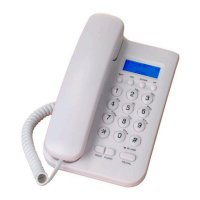
The MaxCom MM 28 D is a fixed wireless phone designed for ease of use and reliable communication. It supports SIM card read and write functionality and is compatible with an external antenna for improved signal reception. The device features an LCD display that shows information in two rows, with 15 levels of LCD contrast for selection. The backlight function for the LCD enhances visibility in various lighting conditions.
Function Description
The MM 28 D offers a comprehensive set of communication features:
- Call Management: It provides a call log for 50 groups of received calls, dialed calls, and missed calls. The phone supports call waiting and call transfer.
- Ringing and Tones: There are 16 kinds of incoming ringing/alarm tones and 6 kinds of power on/off tones for selection. Users can also choose from 2 kinds of keypad tones and 7 kinds of message tones. The ringing volume can be adjusted with 7 levels.
- Phonebook: The device has a memory for 300 phonebook entries.
- Messaging: It supports SMS functions with 200 memories for incoming and outgoing messages.
- Additional Features: The phone includes a 3 groups alarm clock, a calculator, and a unit converter function. It also features BMI index calculation, handsfree dialing, speed dialing, pre-dial, and redial functions. An in-use and power LED indicator provides visual status updates.
Important Technical Specifications
- Environment Temperature: -10°C to +45°C
- Relative Humidity: 10% to 95%
- Atmospheric Pressure: 86 to 106kPa
- Working Frequency: E-GSM 900/1800 or 850/1900 (optional)
- Working Power: AC220V, 50Hz, DC 5V 1000mA
- Backup Battery: Rechargeable battery Ni-MH AAA 3.6V600mAh
- Standby Time: Around 5 days
- Talk Time: About 2 hours
Usage Features
Handset Connection:
To connect the handset, simply plug it into the base of the phone using the provided coil cord.
Turning On/Off the Phone:
- Turn On: Move the power switch to the "ON" position. The screen will light up, and the phone will begin to search for the network and provide services after entering the idle state.
- Turn Off: Move the power switch to the "OFF" position. The screen will go out, indicating the phone is turned off.
- Long Press ON/OFF/EXIT Key: You can also turn off the telephone by long pressing the ON/OFF/EXIT key, then long press it again to turn the phone on.
Key-Press Introduction:
- Power Light Indicator: When the phone is connected to an external power adapter, the power light indicator will always be bright.
- MENU/OK Key: In the idle state, press this key to enter the menu. In menu operation state, press this key to confirm a selection.
- BOOK/DEL Key: In the idle state, press this key to get into the phonebook directly. In the editing state, press this key to delete one character in front of the cursor. Press this key to return to the superior menu.
- ON/OFF/EXIT Key: Press and hold this key to turn on/off the telephone. Press this key to exit and return to the idle state directly.
- CALL LOG Key: In the idle state, press this key to get into the call records menu directly.
- MUSIC Key: In the idle state, press this key to get into incoming ringing tones setting interface.
- REDIAL Key: In the idle state, press this key to dial the last dialed phone number.
- SEND Key: Press this key to send the number at once after inputting the number. In the idle state, press this key to get into dialed calls interface.
- RIGHT→ Key: During editing the number or name, press this key to move the cursor to the right. In the calculator state, it represents ÷. When adjusting the volume, press this key to increase the volume. It can also be used for LCD contrast adjustment.
- ←LEFT Key: During editing the number or name, press this key to move the cursor to the left. In the calculator state, it represents ×. When adjusting the volume, press this key to decrease the volume. It can also be used for LCD contrast adjustment.
- SMS Key: In the idle state, press this key to get into the message menu directly.
- UP ↑ Key: Press this key to select the submenu and move the cursor upward. In the calculator state, it represents +. When adjusting the volume, press this key can increase the volume. It can also be used for LCD contrast adjustment.
- DOWN ↓ Key: Press this key to select the submenu and move the cursor downward. In the calculator state, it represents -. When adjusting the volume, press this key can decrease the volume. It can also be used for LCD contrast adjustment.
- Key: Press this key to enter or exit the handsfree mode.
Basic Operation - Receiving a Call:
When a call comes in, the telephone rings, and the LCD displays the incoming number.
- From Handset: Pick up the handset and talk to the other party. When finished, return the handset to the base.
- Switching to Speakerphone: When using the handset, press the key and return the handset to the base. When finished, press the key again.
- From Speakerphone: When the telephone rings, press the key and talk to the caller. For the other party to hear your voice clearly, speak into the speaker from a distance of 32cm or less. When finished, press the key again.
- Note: Generally, telecom transmits the incoming message between the first ring and the second ring. So please answer the phone after the second ring.
Making a Call:
- From Handset: Pick up the handset. When you hear the dial tone, dial the desired number. It will be sent out automatically after 5 seconds or press SEND key. When finished, return the handset to the base.
- From Speakerphone: Press the key. When you hear the dial tone, dial the desired number. It will be sent out automatically after 5 seconds or press SEND key. When finished, press the key again.
- Pre-dial: When the handset is on the base, dial the desired number. If there are mistakes, use the BOOK/DEL key to edit. Press the key or SEND key or pick up the handset. The number will be dialed out immediately.
- Redial: Pick up the handset or press the key. Press REDIAL key, the last dialed number will be dialed again.
- Quick Search: In on-hook state, press MENU/OK key + 1 key to enter the Phonebook interface. The cursor stops at Quick search. Press MENU/OK key to confirm and input the first letter of the name you want to find. The LCD will display the first suitable phone record. Press MENU/OK key to confirm and enter the submenu of View, Edit, Delete, Copy, Move, Send Message. You can then press UP ↑ or DOWN ↓ key to select and perform operations.
- Search Entry: In on-hook state, press MENU/OK key + 1 key to enter the Phonebook interface. The cursor stops at Quick search. Press UP ↑ or DOWN ↓ key to move the cursor to Search entry. Press MENU/OK key to confirm. Input the name you want to search using the digit key. Press MENU/OK key. The LCD will display one of the entries you want to search. Press UP ↑ or DOWN ↓ key to view other entries that accord with the name you have input.
- Add New Contact: In on-hook state, press MENU/OK key + 1 key to enter the Phonebook interface. The cursor stops at Quick search. Press UP ↑ or DOWN ↓ key to move the cursor to Add new contact. Press MENU/OK key to confirm and enter the submenu with To SIM, To phone. Press UP ↑ or DOWN ↓ key to select to save the desired entry to SIM card or to phone. Press MENU/OK key and then input the name and number using the digit key.
- Delete All Numbers in the Phonebook: In on-hook state, press MENU/OK key + 1 key to enter the Phonebook interface. The cursor stops at Quick search. Press UP ↑ or DOWN ↓ key to move the cursor to Delete all. Press MENU/OK key to confirm and enter the submenu with From SIM, From phone. Press UP ↑ or DOWN ↓ key to select to move all phone numbers from SIM card or from the phone. Press MENU/OK key to confirm.
- Memory Status: In on-hook state, press MENU/OK key + 1 key to enter the Phonebook interface. The cursor stops at Quick search. Press UP ↑ or DOWN ↓ key to move the cursor to Memory status. Press MENU/OK key. The LCD displays the memory status of the SIM and the Phone.
Messages:
- Write Message: In on-hook state, press MENU/OK key + 2 key to enter the Messages interface. The cursor stops at Write message. Press MENU/OK key to confirm and edit the message using the numerical key. Press MENU/OK key to enter Options and select Done by pressing MENU/OK key again. Enter the submenu of Send only, Save and Send, Save, Send to many. You can then press UP ↑ or DOWN ↓ key to select and perform operations.
- Review Message from Inbox: In on-hook state, press MENU/OK key + 2 key to enter the Messages interface. The cursor stops at Write message. Press UP ↑ or DOWN ↓ key to move the cursor to Inbox. Press MENU/OK key to confirm and enter the submenu with a list of messages saved in the inbox. Press UP ↑ or DOWN ↓ key to select the message you want to check the content. Press MENU/OK key to confirm and the content of the message is displayed on the LCD. After finishing reading the message content, press MENU/OK key to confirm and enter the submenu of Forward, Reply, Delete, Edit, Copy to phone, Move to phone, Delete all, Move all, Use number.
- Drafts: In on-hook state, press MENU/OK key + 2 key to enter the Messages interface. The cursor stops at Write message. Press UP ↑ or DOWN ↓ key to move the cursor to Drafts. Press MENU/OK key to confirm and enter the submenu with a list of messages failed sent but saved in the draft. Press UP ↑ or DOWN ↓ key to select the message you want to check the content. Press MENU/OK key to confirm and the content of the message is displayed on the LCD. After finishing reading the message content, press MENU/OK key to confirm and then you can do the rest operations the same with outbox.
- Use Templates: In on-hook state, press MENU/OK key + 2 key to enter the Messages interface. The cursor stops at Write message. Press UP ↑ or DOWN ↓ key to move the cursor to Use templates. Press MENU/OK key to confirm and enter the submenu with a list of template messages. Press UP ↑ or DOWN ↓ key to select your desired template. Press MENU/OK key to confirm and enter the submenu of Edit, Erase, Write message. Press UP ↑ or DOWN ↓ key to select and perform relevant operations.
- Message Settings: In on-hook state, press MENU/OK key + 2 key to enter the Messages interface. The cursor stops at Write message. Press UP ↑ or DOWN ↓ key to move the cursor to Message settings. Press MENU/OK key to confirm and enter the submenu of Profile settings, Common settings, Memory status. Press UP ↑ or DOWN ↓ key to select your desired one and perform relevant operations.
Call History:
- Missed Calls: In on-hook state, press MENU/OK key + 3 key to enter the Call history interface. The cursor stops at Missed calls. Press MENU/OK key to confirm and enter the submenu with a list of the missed calls. Press UP ↑ or DOWN ↓ key to select one of the missed calls and then press MENU/OK key to check the details of the call. Press MENU/OK key to enter the submenu of Delete, Save, Dial, Edit. Press UP ↑ or DOWN ↓ key to select and perform some operations.
- Delete Call Logs: If you erase the call by this way, the number is not be deleted one by one but kind by kind. For example, if you select Missed calls, all the number belong to missed calls will be deleted. In on-hook state, press MENU/OK key + 3 key to enter the Call history interface. The cursor stops at Missed calls. Press UP ↑ or DOWN ↓ key to move the cursor to Delete call logs. Press MENU/OK key to confirm and enter the submenu of Missed calls, Dialed calls, Received calls, Delete all. Press UP ↑ or DOWN ↓ key to select the kind of calls you want to delete and press MENU/OK key to confirm.
- Note: You also can press CALL LOG key to enter the Call history interface directly in idle mode.
Settings - Phone Setup:
- Setting Date & Time: In on-hook state, press MENU/OK key + 4 key to enter the Settings interface. The cursor stops at Phone setup. Press MENU/OK key to confirm and enter the submenu of Time and date, Language, Input method, Contrast, Greeting text, LCD backlight. Press UP ↑ or DOWN ↓ key to select Time and date. Press MENU/OK key to enter the submenu with Set time/date, Set format. Press UP ↑ or DOWN ↓ key to select Set time and date. Press MENU/OK key to confirm and enter the submenu with time, date. Press UP ↑ or DOWN ↓ key to select one of them, then press MENU/OK key and edit it using the digit key.
- Setting Language: In on-hook state, press MENU/OK key + 4 key to enter the Settings interface. The cursor stops at Phone setup. Press MENU/OK key to confirm and enter the submenu of Time and date, Language, Input method, Contrast, Greeting text, LCD backlight. Press UP ↑ or DOWN ↓ key to select Language. Press MENU/OK key to enter the submenu of Polish / Croatian / French/ English/ Spanish. Press UP ↑ or DOWN ↓ key to select your desired language. Press MENU/OK key to confirm.
- Setting the Input Method: In on-hook state, press MENU/OK key + 4 key to enter the Settings interface. The cursor stops at Phone setup. Press MENU/OK key to confirm and enter the submenu of Time and Date, Language, Input method, Contrast, Greeting text, LCD backlight. Press UP ↑ or DOWN ↓ key to select Input method. Press MENU/OK key to enter the submenu with Multitap ABC, Multitap abc, Numeric, Multitap ES, Multitap es, Multitap PO, Multitap po, Multitap CR, Multitap cr, Multitap FR, Multitap fr, Smart ABC, Smart abc. Press UP ↑ or DOWN ↓ key to select your desired input method. Press MENU/OK key to confirm.
- Note: During inputting, you also can change the input method by pressing # key directly.
- Setting LCD Contrast: In on-hook state, press MENU/OK key + 4 key to enter the Settings interface. The cursor stops at Phone setup. Press MENU/OK key to confirm and enter the submenu of Time and date, Language, Input method, Contrast, Greeting text, LCD backlight. Press UP ↑ or DOWN ↓ key to select Contrast. Press MENU/OK key to confirm and the LCD displays the current LCD contrast level. Press UP ↑ or DOWN ↓ (or ←LEFT or RIGHT→) key to select a comfortable LCD contrast, total 15 levels for selection. Press MENU/OK key to confirm.
- Setting Greeting Text: In on-hook state, press MENU/OK key + 4 key to enter the Settings interface. The cursor stops at Phone setup. Press MENU/OK key to confirm and enter the submenu of Time and date, Language, Input method, Contrast, Greeting text, LCD backlight. Press UP ↑ or DOWN ↓ key to select Greeting text. Press MENU/OK key to enter the submenu with On (or Off) and Welcome. Use UP ↑ or DOWN ↓ key to select the status to On (or Off) and edit the greeting text by pressing the digit key. Press MENU/OK key to confirm.
- Setting Duration of LCD Backlight: In on-hook state, press MENU/OK key + 4 key to enter the Settings interface. The cursor stops at Phone setup. Press MENU/OK key to confirm and enter the submenu of Time and date, Language, Input method, Contrast, Greeting text, LCD backlight. Press UP ↑ or DOWN ↓ key to select LCD backlight. Press MENU/OK key to enter the submenu with 5 sec, 15 sec, 30 sec, 45 sec. Press UP ↑ or DOWN ↓ key to select your desired duration of LCD backlight. Press MENU/OK key to confirm. After the LCD backlight duration has been set, the backlight will turn off after being turned on (by pressing any key or picking up the handset) up to the setting duration.
- Call Waiting: This function should be supported by the network operator. In on-hook state, press MENU/OK key + 4 key to enter the Settings interface. The cursor stops at Phone setup. Press UP ↑ or DOWN ↓ key to move the cursor to Call setup. Press MENU/OK key to confirm and enter the submenu of Call waiting, Call divert, Speed dial, Auto call. Press UP ↑ or DOWN ↓ key to select Call waiting. Press MENU/OK key to confirm and enter the submenu with Activate, Deactivate or Query status. Press UP ↑ or DOWN ↓ key to select Activate or deactivate the call waiting function. Press MENU/OK key to confirm.
- Call Transfer: This function should be supported by the network operator. In on-hook state, press MENU/OK key + 4 key to enter the Settings interface. The cursor stops at Phone setup. Press UP ↑ or DOWN ↓ key to move the cursor to Call setup. Press MENU/OK key to confirm and enter the submenu of Call waiting, Call divert, Speed dial, Auto call. Press UP ↑ or DOWN ↓ key to select Call divert. Press MENU/OK key to confirm and enter the submenu of All Voice Calls, If unreachable, If no answer, If busy, All data calls, Cancel all diverts. Press UP or DOWN key to select and perform operations.
- Speed Dial: This function should be supported by the network operator and not supported by some SIM card. In on-hook state, press MENU/OK key + 4 key to enter the Settings interface. The cursor stops at Phone setup. Press UP ↑ or DOWN ↓ key to move the cursor to Call setup. Press MENU/OK key to confirm and enter the submenu of Call waiting, Call divert, Speed dial, Auto call. Press UP ↑ or DOWN ↓ key to select Speed dial. Press MENU/OK key to confirm and enter the submenu with Enable speed dial, Set number. Press UP ↑ or DOWN ↓ key to select and perform operations.
- Auto Call: In on-hook state, press MENU/OK key + 4 key to enter the Settings interface. The cursor stops at Phone setup. Press UP ↑ or DOWN ↓ key to move the cursor to Call setup. Press MENU/OK key to confirm and enter the submenu of Call waiting, Call divert, Speed dial, Auto call. Press UP ↑ or DOWN ↓ key to select Auto call. Press MENU/OK key to confirm and enter the submenu of 3 Sec, 4 Sec, 5 Sec, Off. Press UP ↑ or DOWN ↓ key to select your desired delay time or Off. Press MENU/OK key to confirm.
- Security Setup: In on-hook state, press MENU/OK key + 4 key to enter the Settings interface. The cursor stops at Phone setup. Press UP ↑ or DOWN ↓ key to move the cursor to Security setup. Press MENU/OK key to confirm and enter the submenu with SIM lock, Change password. Press UP ↑ or DOWN ↓ key to select SIM lock and then select it On or Off. Press UP ↑ or DOWN ↓ key to select Change password. Press MENU/OK key to enter, and choose PIN or PIN2. Press MENU/OK key to enter, then input the old security password using the digit key. Press MENU/OK key to confirm, input the new security password using the digit key, then press MENU/OK key to confirm.
- Restore Factory Setting: In on-hook state, press MENU/OK key + 4 key to enter the Settings interface. The cursor stops at Phone setup. Press UP ↑ or DOWN ↓ key to move the cursor to Restore factory setting. Press MENU/OK key to confirm and input the correct password “1122” using the digit key. Press MENU/OK key to confirm. After the password has been correctly input, all settings will restore to the original factory setting.
Ringing Tone Setting:
- Select the Ringing: In on-hook state, press MENU/OK key + 5 key to enter the User profiles interface. The cursor stops at Tone setup. Press MENU/OK key to confirm and enter the submenu of Incoming call, Alarm, Power on(boot-strap), Power off, Message tone, Keypad tone. Press UP ↑ or DOWN ↓ key to select one of the above options. Press MENU/OK key to confirm and enter the submenu with a list of tones such as MIDI 1. Press UP ↑ or DOWN ↓ key to select your desired tone and press MENU/OK key to confirm.
- Adjust the Ringing Volume: In on-hook state, press MENU/OK key + 5 key to enter the User profiles interface. The cursor stops at Tone setup. Press UP ↑ or DOWN ↓ key to move the cursor to Volume. Press MENU/OK key to confirm and enter the submenu of Ring tone, key tone. Press UP ↑ or DOWN ↓ key to select one of them. Press MENU/OK key to confirm and the LCD displays the relevant volume level. Press UP ↑ or DOWN ↓ (or ←LEFT or RIGHT→) key to adjust the volume (totally 7 levels for selection). Press MENU/OK key to confirm.
- Alert Type: In on-hook state, press MENU/OK key + 5 key to enter the User profiles interface. The cursor stops at Tone setup. Press UP ↑ or DOWN ↓ key to move the cursor to Alert type. Press MENU/OK key to confirm and enter the submenu of Ring, Light only. Press UP ↑ or DOWN ↓ key to select and press MENU/OK key to confirm.
- Ring Type: In on-hook state, press MENU/OK key + 5 key to enter the User profiles interface. The cursor stops at Tone setup. Press UP ↑ or DOWN ↓ key to move the cursor to Ring type. Press MENU/OK key to confirm and enter the submenu of Single, Repeat and Ascending. Press UP ↑ or DOWN ↓ key to select and press MENU/OK key to confirm.
- Extra Tone: In on-hook state, press MENU/OK key + 5 key to enter the User profiles interface. The cursor stops at Tone setup. Press UP ↑ or DOWN ↓ key to move the cursor to Extra tone. Press MENU/OK key to confirm and enter the submenu of Warning, Error, Campon and connect. Press UP ↑ or DOWN ↓ key to select and press MENU/OK key to confirm.
Organizer:
- To Do List Adding: In on-hook state, press MENU/OK key + 6 key to enter the Organizer interface. The cursor stops at To do list. Press MENU/OK key to confirm and enter the submenu with time of task list. Press UP ↑ or DOWN ↓ key to select one. Press MENU/OK key to confirm and enter the submenu of Add, Edit, Delete, Delete all. Press UP ↑ or DOWN ↓ key to select and perform operations.
- Alarm Clock Setting: In on-hook state, press MENU/OK key + 6 key to enter the Organizer interface. The cursor stops at To do list. Press UP ↑ or DOWN ↓ key to move the cursor to Alarm. Press MENU/OK key to confirm and the LCD displays 3 groups of alarm time. Press UP ↑ or DOWN ↓ key to select one group. Press MENU/OK key to enter the submenu with alarm status (default as Off) and the alarm time. Press SET key to enter the submenu operation. Use UP ↑ or DOWN ↓ key to select the alarm status from Off, Once, Everyday and use digit keys to edit the alarm time. Press MENU/OK key to save. Repeat the above steps for the additional alarm clock setting.
- Calculator Function: In on-hook state, press MENU/OK key + 6 key to enter the Organizer interface and then press UP ↑ or DOWN ↓ key to select Calculator. Press MENU/OK key to confirm and enter the calculator mode. The unit is available for operation of "+,-,×,÷". In the calculator state, MENU/OK key is used as "=", and the * key is used as ";", ←LEFT and RIGHT→ key are used as × and ÷ respectively. UP ↑ or DOWN ↓ key is used as sign of positive/negative.
- Unit Converter: In on-hook state, press MENU/OK key + 6 key to enter the Organizer interface and then press DOWN ↓ key to select Unit converter. Press MENU/OK key to confirm and then press DOWN ↓ key to select Weight (including the converter Kg→Pound, Kg→Ounce, Pound→Kg, Ounce→Kg) or Length (including the converter Km→Mile, Mile→Km, M→Yard, Yard→M, M→Foot, Foot→M, Cm→Inch, Inch→Cm). Press MENU/OK key to confirm and then you can start to do the unit converter.
Advanced Function:
- During two-way conversation: You can hold mode, mute mode, DTMF function. You can have messaging, call history and phonebook operation during conversation. Press MENU key to enter the submenu and select what you want. The detail of the operation as follows:
- Volume: During conversation, if you use the handset, press ←LEFT and RIGHT→ to adjust the handset volume. If you use the hands-free press ←LEFT and RIGHT→ to adjust the hands-free volume. There are 7 levels totally.
- Enter Hold Mode: During conversation, press MENU key. The LCD displays Hold. Press MENU key. The LCD displays H on the LCD. The phone enters hold mode. The other part just can receive busy tone, and you can not receive any tone.
- Exit Hold Mode: During conversation, press MENU key. The LCD displays Retrieve. Press MENU key to confirm. The LCD display Retrieved. The phone enters normal state.
- End: During conversation, press MENU key. The LCD displays Hold. Press DOWN↓ key once to move the cursor to End. Press MENU key to confirm and end this call.
- New Call: It is able to make another call during conversation. Press MENU or OK key. The LCD displays Hold. Press DOWN↓ key to move the cursor to New call. Press MENU key to enter, then you can dial another call, when the second call enters conversation state, press MENU key to enter submenus.
- Swap: Press MENU or OK key. The LCD displays Swap. Press MENU or OK key to swap between two calls, then another caller will enter hold mode and can receive busy tone only, and you can talk with one line only. The current conversation number will be displayed on the LCD, another caller number will be hidden and there is H on the LCD.
- Conference: Press MENU key. The LCD displays Swap. Press UP↑ or DOWN↓ to select Conference. Press MENU or OK key to enter three-way talk mode.
- Note: This function needs network service support.
- Transfer: Press MENU key. The LCD displays Swap. Press DOWN↓ key until to move the cursor to Transfer. Press MENU key to transfer current call function, but this function should be apply for your local telecom company.
- End Single Call: Press MENU or OK key. The LCD displays Hold. Press DOWN↓ key until to move the cursor to End single call. Press MENU key to end current conversation, another line still in the hold mode, then press MENU or OK key. The LCD displays Retrieve single call. Press MENU key to confirm. The LCD display Retrieved. The phone enters normal conversation state.
- End All: Press MENU or OK key. The LCD displays Swap. Press DOWN↓ key until to move the cursor to End all. Press MENU key to end two calls together.
- Phonebook: Press MENU or OK key. The LCD displays Swap. Press DOWN↓ key until to move the cursor to Phonebook. Press MENU key to enter phonebook menu operation.
- Messages: Press MENU or OK key. The LCD displays Swap. Press DOWN↓ key until to move the cursor to Messages. Press MENU or OK key to enter messaging menu operation.
- Mute: When making a phone call, if you need a temporal talk with someone else and you don't want the phone receiver hear your sound, and you want hear receive caller speaking, you can enter mute mode. Press MENU or OK key. The LCD displays Swap. Press DOWN↓ key until to move the cursor to Mute. Press MENU or OK key to enter with submenu On or Off. Press ↑ or ↓ to select. Press MENU or OK key to confirm. Select On to enter mute mode during conversation. Select Off to exit mute mode during conversation.
- DTMF: During conversation, press MENU key. The LCD displays Hold. Press DOWN↓ key to move the cursor to DTMF. Press MENU key to enter with submenu On or Off. Press UP↑ or DOWN↓ to select. Press MENU key to confirm. Select On, the other part can hear your dial number tone during conversation. Select Off, the other part can not hear your dial number tone during conversation.
Maintenance Features
Safety Instruction:
- Always charge the spare battery for at least 16 hours before first use.
- Do not use the phone when driving.
- Move the antenna to an indoor area when a lightning storm is coming to avoid damage.
- Turn off the phone when close to dangerous substances like fuel, chemical material, or close to a gas station, or on the plane and at a hospital.
- Turn off the phone in forbidden places. The fixed wireless phone may disturb heart pacemakers, hearing aids, and other medical equipment.
- The capability of the phone may be disturbed when used near to the TV, radiogram, and PC or other machine equipment.
- Turn off the phone to clear it. Using a cloth with a little humidity or defending the static and please do not use lotion or other chemical products to clean it.
- This product can produce a magnetic field, so do not place it next to magnetism storage equipment like the PC's magnetic disk and so on.
- Do not place it under sunlight to avoid being heated.
- Do not let any liquid get into the phone to avoid any damages.
- Pay attention to the law system of local fixed wireless phone before sending or answering calls.
- Use the authorized power adapter and spare battery or it may cause danger using other power supply equipment.
- This product adapts the encrypt SIM card, so do not move the card to other phone or insert other SIM card into this phone, both of which may cause the SIM card-locked or damaged.
- As the software of the phone is continuing upgrading, please make sure you understand the operation when there is any discrepancy found on the user manual.
Battery Installation:
The unit requires a rechargeable battery. Open the battery compartment cover and insert the batteries in the right polarity, then close the cover. You can also connect to the DC adaptor to supply power.
SIM Card Installation:
- Open the card cover.
- Insert the SIM card.
- Close the card cover.
- Push the cover to further fasten the SIM card.
- Note: Make sure to turn off the phone before inserting or taking out the SIM card. Completely forbid to insert or take out the SIM card when the phone is connected to the external power supply or the SIM card may be damaged.
- Do not touch the metal plate area of the SIM card to avoid losing or damaging the messages in the card and put the card far away from the electromagnetism. If the card is damaged, the phone can not enter into the GSM network.

 Need help?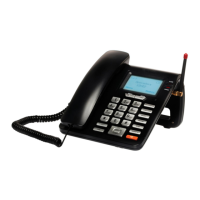

 To Next Page
 General