MENU 2 Active Alarms
The Menu “Active Alarm” allows you to quickly check which circuits
(zones)that are in alarm.
To enter the menu, press the “Ent / Esc” key and use the cursor “Left” and “Right” to check the status
of the alarm circuits.
In normal mode, the LCD will display the message “No Alarm active”
MENU 3 Active faults
The Menu “Active faults” allows you to quickly check which circuits (zones)
that are in fault.
To enter the menu, press the “Ent / Esc” key and use the cursor keys “Left” and “Right” to check the
status of the alarm circuits.
In normal mode, the LCD will display the message “No Active Fault”
MENU 4 Disable Zones
he Menu “Disable Zones” allows you to suspend the monitoring of a zone,
in case of permanent damage that requires technical intervention.
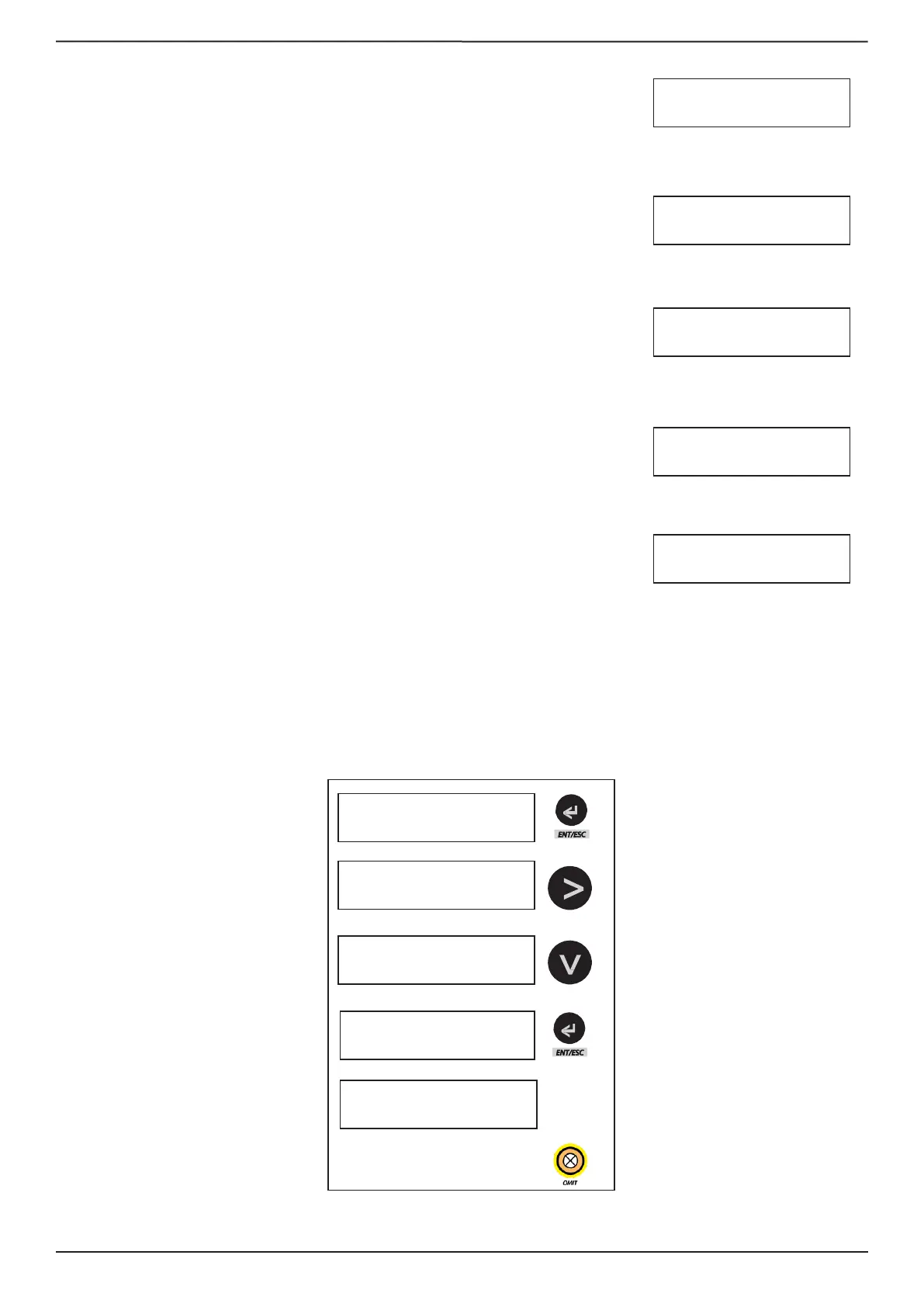
To enter in the menu, press the “Ent / Esc” key and use the cursor keys
“Left” and “Right” to check the co the status of the zones, and use the cursor keys “Up” and “Down” to
switch the between “active” and “Inactive”.
Example: Disable zone 2



 To Next Page
 Loading...