
 Need help?
Do you have a question about the MAYFLASH Arcade Stick F500 Elite and is the answer not in the manual?
Guide on connecting headset and using the mic mute function on the arcade stick.
Steps to download and install firmware updates for the arcade stick.
Instructions for connecting the arcade stick to PC, macOS, Raspberry Pi, and Steam.
Guide to connect the Arcade Stick F500 Elite to a PS4 console.
Steps for connecting the arcade stick to a PS3 console.
Guide to connect the arcade stick to Xbox One and Xbox Series X/S.
Instructions for connecting the arcade stick to an Xbox 360 console.
Guide to connect the arcade stick to Android devices.
Steps for connecting the arcade stick to a Switch system.
Guide to connect the arcade stick to a NEOGEO mini system.
Instructions for connecting the arcade stick to SEGA consoles.
Explanation of the different operating modes for the arcade stick.
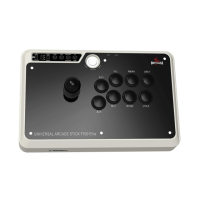
The Mayflash Arcade Stick F500 Elite is a versatile fighting stick designed for an enhanced gaming experience across a wide range of platforms. It offers extensive compatibility, customizable features, and a robust build quality, making it suitable for both casual and competitive gamers.
The Arcade Stick F500 Elite functions as a primary input device for various gaming consoles and PC systems. It features a joystick and eight function buttons (A/X, B/O, X/Π, Y/Δ, RB/R1, RT/R2, LB/L1, LT/L2) that mimic the layout of traditional arcade cabinets. The device supports multiple input modes, including XINPUT, DINPUT, and specific console modes, ensuring broad compatibility.
One of its key functions is the "TURBO" feature, which allows users to set rapid-fire functionality for any of the eight function buttons. This can be configured at two different speeds: 15 times per second (TURBO-1) or 25 times per second (TURBO-2). The TURBO LED flashes to indicate that the setting is active. Users can set Turbo for individual buttons, remove individual Turbo settings, or clear all Turbo settings quickly.
The stick also offers flexible joystick control, allowing users to switch between "Left Joystick" (LS), "POV" (DPAD), and "Right Joystick" (RS) modes, catering to different game requirements and player preferences. This is controlled via a dedicated switch on the device.
For PC users, the device supports both XINPUT and DINPUT, adapting to various game titles and emulators. It also includes LED indicators that change color to signify the current system mode: Green for Xinput/Steam/Xbox 360, Blue for macOS/Raspberry Pi/PS3, Red for Switch, Purple for Android, White for Xbox Series X/S/Xbox One, and Yellow for NeoGeo mini. For PS4, Blue indicates Player 1 and Red indicates Player 2.
A notable feature is its support for headsets, allowing users to output background music and engage in online chat on PS4, Xbox Series X/S, Xbox One, and Xbox 360. A dedicated Mic Mute button and LED are integrated for convenient control over the microphone.
The device also supports vibration functionality, which can be experienced through a customized wrist strap (sold separately). This adds an immersive dimension to gameplay.
The Arcade Stick F500 Elite is designed for ease of use across its supported platforms.
For PS4, users switch the device to "GAME CONSOLE" mode and connect their original PS4 controller to the stick's USB slot, then connect the stick to the PS4 console.
For PS3, users switch to "DIN/PS3/SNK" mode and plug the stick directly into the PS3 console.
For Xbox One/Xbox Series X/S, the device is set to "GAME CONSOLE" mode, and the original Xbox Series X/S or Xbox One controller is connected to the stick's USB slot, then the stick is connected to the console.
For Xbox 360, the device is set to "GAME CONSOLE" mode, and a wired Xbox 360 controller (an official one is recommended) is connected to the stick's USB slot, then the stick is connected to the Xbox 360 console.
For PC/macOS/Raspberry Pi/Steam, users switch to "XINPUT" or "DIN/PS3/SNK" mode. For macOS, pressing and holding "Select" + "A/X" for 3-5 seconds activates macOS mode. Similarly, "Select" + "B/O" activates Xinput mode, and "START" + "Y/Δ" activates DINPUT mode.
For Android devices, the stick is set to "GAME CONSOLE" mode and connected to the Android device (an OTG cable may be required, sold separately).
For Switch, the device is set to "GAME CONSOLE" mode and connected directly to the Switch system.
For NEOGEO mini, users switch to "DIN/PS3/SNK" mode, ensure the X/Y and DPAD switch is set to "DPAD" mode, and connect the stick to the NEOGEO mini system via a Type C cable.
For SEGA MEGA DRIVE mini & SEGA GENESIS mini, the device is set to "GAME CONSOLE" mode and connected to the respective console.
The device features considerable heft and rubber feet, which help keep it stable on hard, flat surfaces during intense gameplay. Its construction includes two metal panels (cover and base) for a solid, secure feel, and a strong acrylic top panel for easy customization. The lever and buttons are arranged in a classic arcade layout.
The Arcade Stick F500 Elite is designed with maintainability in mind, particularly regarding software updates and hardware customization.
Software Updates: Mayflash periodically releases firmware updates to introduce new features, modifications, or improvements. Users can download these updates from the official Mayflash website (www.mayflash.com). The update process involves:
Hardware Customization: The Arcade Stick F500 Elite is compatible with Sanwa Denshi buttons and joysticks (sold separately). This allows users to personalize the feel and responsiveness of their fighting stick, catering to individual preferences for competitive play or aesthetic customization. The beautiful acrylic top panel also facilitates easy visual customization.
 General
| Brand | MAYFLASH |
|---|---|
| Model | F500 Elite |
| Type | Arcade Stick |
| Connectivity | Wired (USB) |
| Joystick | Sanwa Denshi joystick |
| Cable Length | 3 meters |
| Artwork | Customizable |
| Touchpad | No |
| Turbo Function | Yes |
| Lock Function | Yes |
| Compatibility | PC, PS4, PS3, Xbox One, Nintendo Switch |

 To Next Page