41
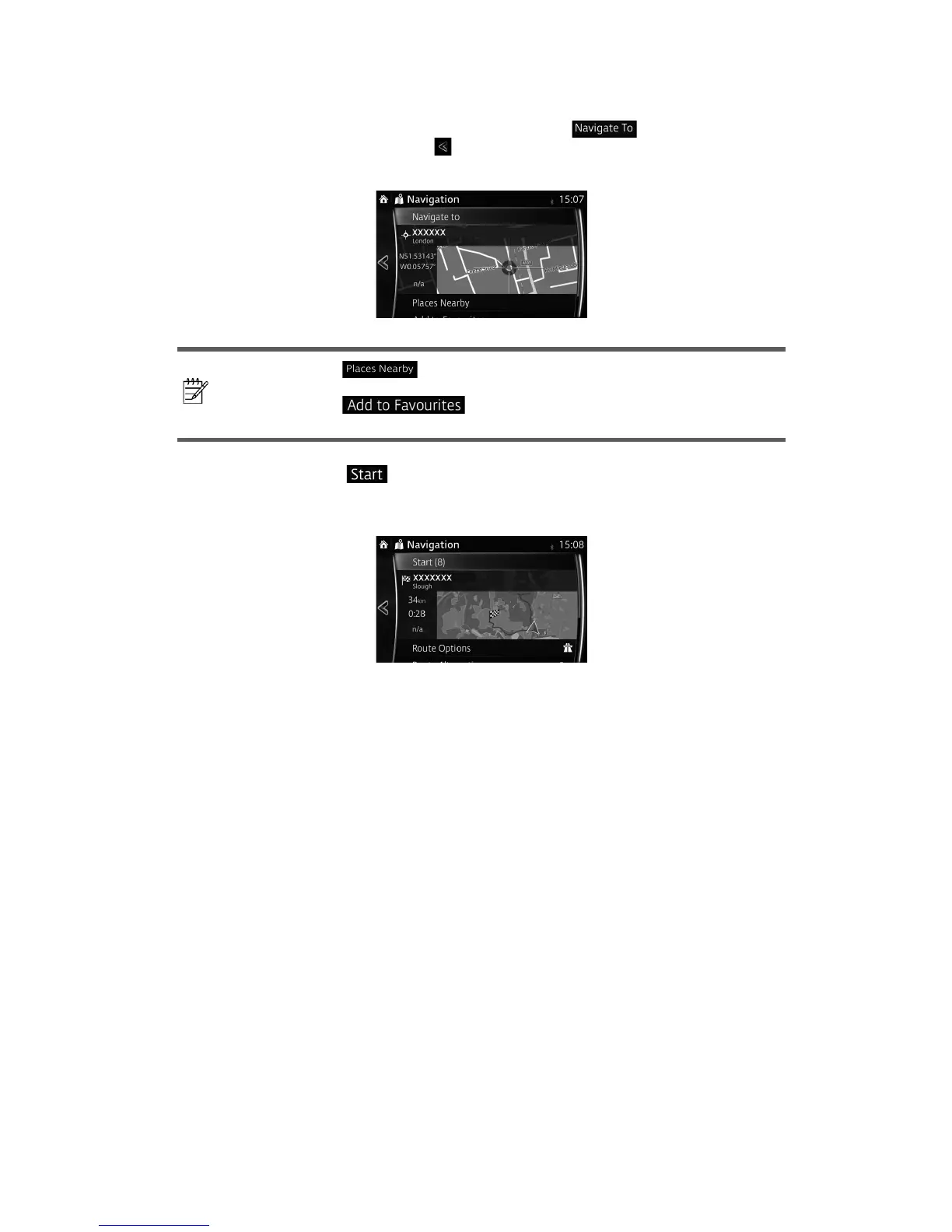
4. The selected location is shown on the map.
The system transitions to the next screen by selecting
, or it returns to he
previous screen by selecting the
button. By touching the location displayed on the
screen, you can change the destination to anywhere on the map.
Note!
•
: You can search for POI (point of interest) around the
selected location.
•
: The selected location can be registered to
Favourites.
5. Navigation starts if
is selected, or after 10 seconds of no user interaction.
By touching the location displayed on the screen, you can verify the route. Additionally,
the route can be revised by selecting other op ions.



 To Next Page