Black plate (262,1)
NOTE
l
Some Bluetooth
®
audio devices need a
certain amount of time before the “
”
symbol is displayed.
l
If a hands-free type mobile phone has been
the most recently programmed device, the
Bluetooth
®
unit links this device. If you
would like to use a Bluetooth
®
audio type
device which has been previously
programmed to the Bluetooth
®
unit, the link
must be changed to this device.
l
If an error occurs while trying to link a
device, “Err” flashes in the display for
three seconds, and the display returns to
“LINK CHANGE”. If this occurs, check the
programming status of the Bluetooth
®
audio device and the location of the device
in the vehicle (not in the trunk or a metal-
type box), and then try the link operation
again.
l
Device selection can also be done using
voice recognition (page 6-85).
How to confirm the device currently
linked
Switch to the link-change mode. (Refer to
“Changing the link to a Bluetooth
®
audio
device”)
The device name displayed first is the
device which is currently linked.
Deleting the link to a Bluetooth
®
audio
device
1. Using the audio control dial, select the
pairing delete mode “PAIR DELETE”
in the “BT SETUP” mode. (Refer to
“Bluetooth
®
audio device set-up” for
details.)
2. Press the audio control dial to
determine the mode.
3. The name of the first device among the
programmed devices is displayed.
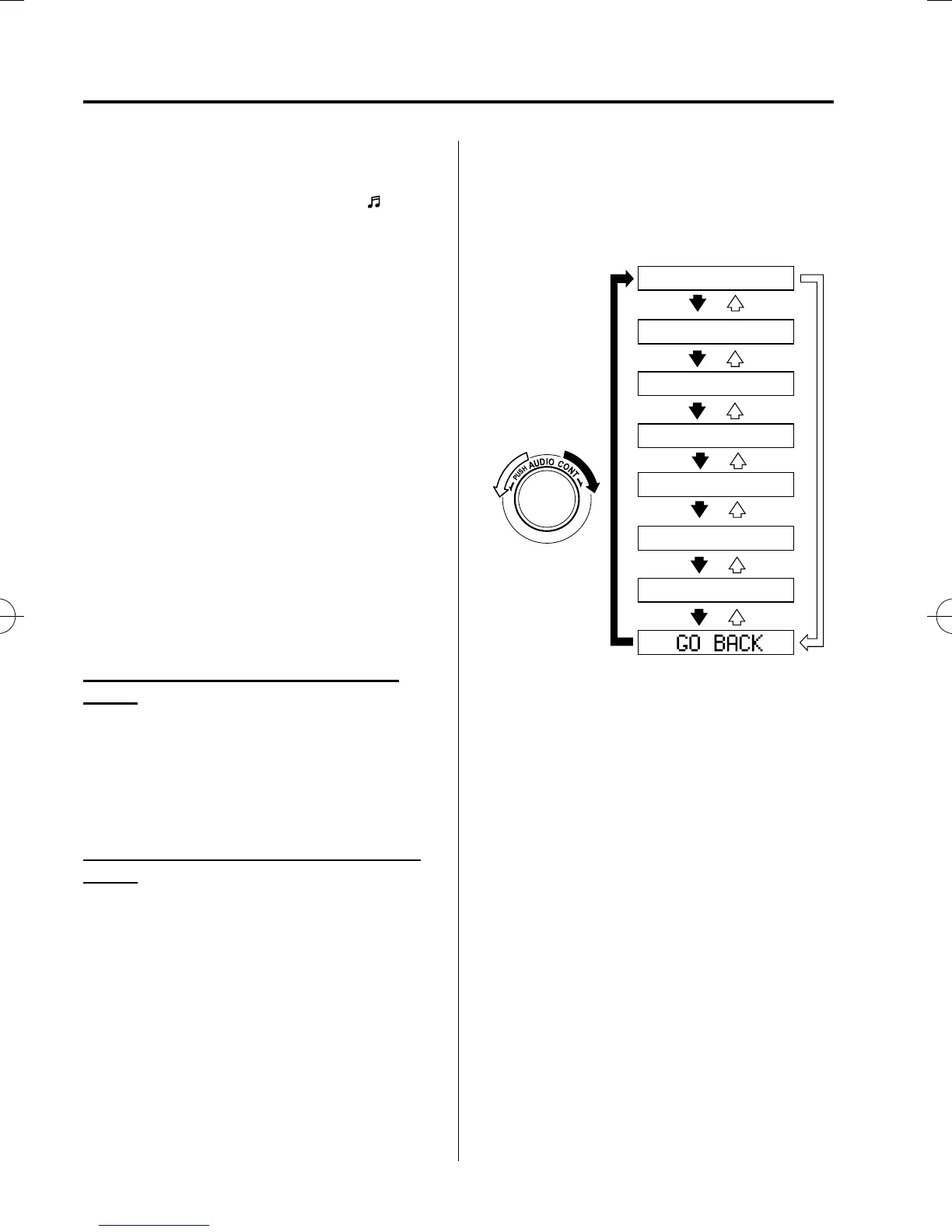
4. Rotate the audio control dial and select
the name of the programmed device
you would like to delete.
Device name 1
Device name 2
Device name 3
Device name 4
Device name 5
Device name 6
Device name 7
NOTE
Only the names of programmed devices can be
displayed. If only one device is programmed,
only the name for this device is displayed.
5. If a selection other than “GO BACK”
is made and the audio control dial is
pressed, “ SURE ? NO” is displayed.
6. Rotate the audio control dial clockwise
and switch the display to “ SURE ?
YES”.
NOTE
The display changes as follows depending on
whether the audio control dial is rotated
clockwise or counterclockwise.
-Clockwise: “SURE ? YES” displayed
-Counterclockwise: “SURE ? NO” displayed
6-66
Interior Comfort
Bluetooth® Audio
Mazda5_8FA7-EA-15G_Edition3 Page262
Friday, December 4 2015 8:27 AM
Form No.8FA7-EA-15G







 To Next Page