Need help?
Do you have a question about the Mazda CX-7 Navigation System and is the answer not in the manual?
This document describes the Mazda Navigation System, a sophisticated in-car navigation device designed to provide drivers with comprehensive guidance and information for their travels. The system integrates advanced technology to enhance safety and convenience, ensuring users always know their location and destination.
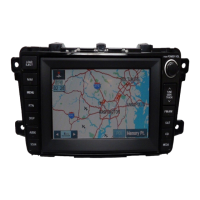
The core function of the Mazda Navigation System is to provide precise, real-time navigation. It utilizes a DVD map database covering the entire continental United States and parts of Canada, combined with GPS satellite technology, to display the vehicle's exact location at any given moment. This eliminates the need for traditional paper maps, offering a more efficient and user-friendly experience. The system offers both audible and visual guidance, ensuring drivers receive clear directions to their destination.
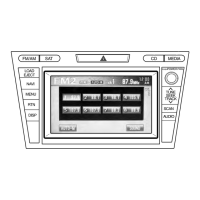
A key usage feature is the 7-inch high-definition touch screen, which allows for intuitive control of most aspects of the navigation system with a simple touch. Complementing the touch screen is a Voice Recognition function, a significant safety and convenience feature. By pressing the VOICE button on the steering wheel, users can control many system functions using voice commands, minimizing driver distraction. Examples of voice commands include "Repeat" for the last command, "Zoom In/Out" for map magnification, "Voice Guidance Off/On," "Detour," and commands to find specific points of interest like "Rest Area," "Gas Station," "Hotel," "Hospital," "Police Station," "ATM," "Airport," and "Shopping Mall." Users can also say "I'm Hungry" to find restaurants, "Enter Destination," "Go to Preset Destination," "Go Home," "Display Day/Night," and "Turn List."
The system includes "Automatic Rerouting," which automatically recalculates the route if a turn is missed or the original guidance is departed from. This ensures continuous navigation without manual intervention. The "Turn List Mode" provides detailed turn-by-turn information on one half of the screen while displaying the map on the other, offering a clear overview of upcoming maneuvers. The "Zoom" function allows users to choose from 13 scales/levels of magnification, with a zoom level of less than one mile required to show icons on the map.
For destination entry, the system offers multiple methods. Users can enter an address, select from a list of "Points of Interest" (POIs), use "SOS Emergency" to find nearby police stations or hospitals, or choose from "Memory Points," "Home," or "Preset Destinations." The POI database is extensive, covering millions of points in over 40 different categories, making it easy to find restaurants, golf courses, local attractions, and essential services. Users can search for POIs by name, city, category, nearest location, or even by phone number. The system also supports entering destinations via intersection, freeway on/off ramps, specific coordinates, or by selecting a point directly from the map using crosshairs.
The "Navigation Menu" provides access to various settings and options. Users can manage their "Address Book," storing up to 106 addresses (100 Memory Points, 5 Preset Destinations, and 1 Home location). The "Cancel Guidance" option allows users to stop the calculated route guidance. "Route Options" enable customization of route calculation preferences, such as avoiding tolls, major roads, restricted roads, or ferries. Users can also add or delete waypoints, preview the route on the map screen, or initiate a detour for 1, 3, 5 miles, or the entire route. The system's voice guidance volume can be adjusted, and the vehicle and navigation clock can be set. The "Navigation Set Up" menu allows for further customization of the system to the user's liking, including language selection (English, Spanish, or French).
Regarding maintenance features, the document emphasizes the importance of keeping the map database updated. The map database is continually updated by NAVTEQ to account for changes in the road network and points of interest. Purchasing map updates when available is recommended to ensure the system operates with the most current information. Users can find map and software version numbers through the Navigation Set Up menu, under "Calibration and Map Version." For more information on map data and updates, users can contact the Mazda Customer Assistance Center.
The system also addresses common user questions. If a destination address cannot be found, users are advised to check the selected search area and region, as changes in the road network or new subdivisions might mean the address is not yet in the map database. If the system routes differently than expected, users should delete old route points, check for saved avoid areas, and review their Route Option settings. For issues with viewing the navigation display with sunglasses, it's noted that the display uses polarization technology, which may conflict with some polarized sunglasses, suggesting the use of non-polarized sunglasses. To synchronize the information clock with the navigation clock, the vehicle must be in an open area to receive a GPS signal, which is indicated by a blue "GPS" icon on the screen. Once a GPS signal is established, the clocks should match.
The Mazda Navigation System is designed for ease of use and safety, providing a comprehensive and intuitive navigation experience for drivers.
 General
| Touchscreen | Yes |
|---|---|
| Voice Control | Yes |
| Display Type | LCD |
| Voice Guidance | Yes |
| Bluetooth Connectivity | Yes |
| USB Port | Yes |
| Auxiliary Input | Yes |
| Steering Wheel Controls | Yes |
| Voice Command | Yes |
| Display Size | 7 inches |
| Map Updates | Available |
| Traffic Information | Yes |


 To Next Page